
While clearing some of the boxes in the basement, I found a stack of old MacUser and MacWorld magazines. A couple of issues had articles on early versions of Excel (it started on the Mac) , so that was a good excuse to stop working, and flip through the magazines. I wasn’t resting, I was researching! Here are some pro tips from Excel 1.0, and a review of the exciting new features in Excel 2.2, and new feature lists from Excel 2007 and beyond.
Getting a Macintosh
We got our Macintosh computer in April 1984, when they were first sold in Canada. At first, there wasn’t much software available. We had MacPaint and MacWrite, and did all kinds of wonderful things with those simple programs, on that little black and white monitor.
And yes, that original 128K Mac is still in the basement too. We did get it upgraded to 512K, and we had an external floppy drive, but no hard drive.
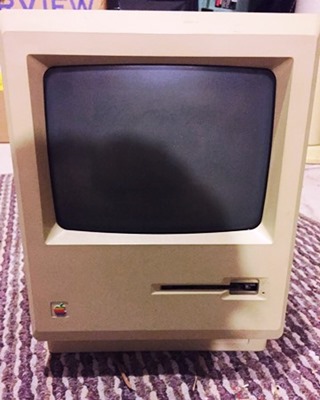
And a very boxy-looking mouse. Do you remember cleaning the roller balls from those things?

Excel Tips Version 1.0
So far, the earliest Mac magazines that I’ve found were from 1987. Maybe I couldn’t afford to buy any before that, after spending so much on the Mac computer and dot-matrix printer. They were expensive, compared to PCs!
In the June 1987 issue of MacUser, there is a “Secrets of Excel” article, by Louis Benjamin. It’s described as a “collection of pro techniques and undocumented features. So, I took a look at the article, to see how relevant the tips are in Excel 2016. I assume the author was using Excel 1.0, based on the Excel version history for the Apple Macintosh.
Custom Number Formatting
The first tip was about custom number formatting. Instead of choosing from a list of built-in formats, create custom number formats. That tip still useful, but the formatting dialog box looks different now.
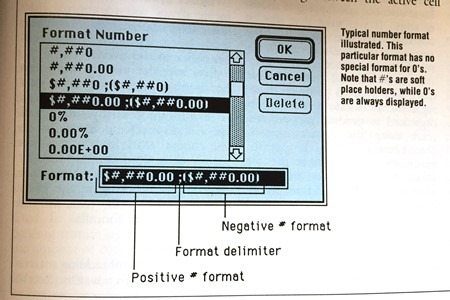
To see how it’s done in newer versions of Excel, take a look at Microsoft’s article on custom number formats. You can even add colours and text to the numbers.
Make Overlay Charts
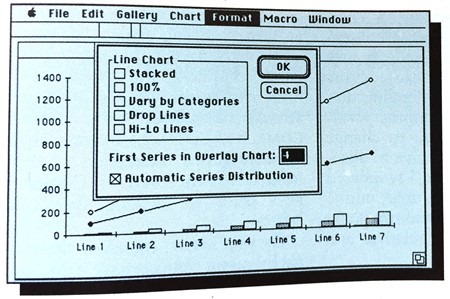
The Secrets of Excel article also has some good tips on building charts, and studying how the SERIES function works. Apparently, what we now call Combination Charts were originally called Overlay Charts.
More Pro Tips
The article had several more Excel tips that are just as useful in Excel 2016 as they were in Excel 1.0 . For example, create named ranges – you can refer to them in formulas and macros, and quickly to to those ranges with Go To Special.
It wasn’t all business though – did you know that there was an Easter Egg hidden in this old version of Excel?
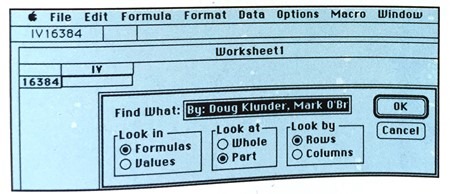
To activate the Easter Egg, you had to go to cell IV16384, and press Shift+Command+J. This Find windows appeared, and you could drag inside the text box, to scroll across a list of the Excel developer names. Ah, the good old days!
- Tip: See more Excel Easter Egg examples on my Contextures site.
Excel Version 2.2 Review
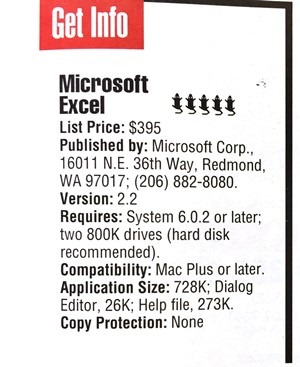
In the September 1989 issue of MacUser, there was a short review of Microsoft Excel 2.2. It got the highest possible rating – 5 mice!
Excel was certainly expensive ($395 US), but look at the size of the files – 728K for the application!
Exciting New Features
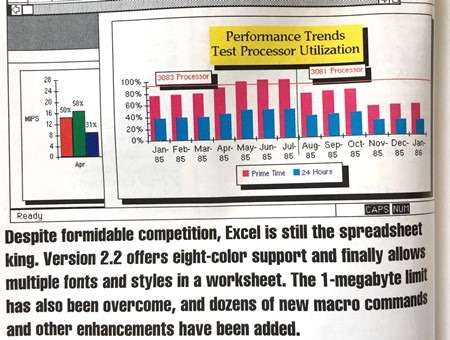
There were several exciting new features in Excel 2.2 – 8 colours! Multiple fonts on a sheet! No more 1 MB limit! Woohoo!
And look at those beautiful charts, with all those text boxes and shadow effects. I’m glad nobody does stuff like that anymore. Do they?
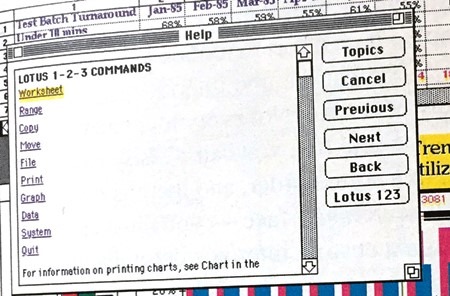
There was special help for Lotus 123 converts, and Excel still has Lotus compatibility features, 30 years later.
Excel 2007 and Beyond
Starting with Excel 2007, the Ribbon was added to the Microsoft Office products, to replace the old toolbars and menus.
In the months leading up to the new version’s release, Microsoft’s Excel team told us about the exciting new features, in a series of blog posts.
This was an exciting development, because we’d never seen this kind of communication before, about upcoming Microsoft Office features. I kept track of the blog post topics, and you can see the lists on my Contextures site.
Unfortunately, most of the original articles have been removed from the Microsoft site, but it’s still interesting to look back at the article lists.
Excel 2007 Article List
These articles were published in 2005-2006, when Microsoft was preparing to release Microsoft Office 2007.
Unfortunately, most of the original articles have been removed from the Microsoft site, but it’s still interesting to look back at the list of Excel 2007 new feature articles.
For example, calculation got faster, the formula bar was improved, and we could create lots more conditional formatting rules!
Excel 2010 Article List
These articles were published in 2009-2010, when Microsoft was preparing to release Microsoft Office 2010.
Go to my Contextures site to look back at the list of Excel 2010 new feature articles.
For example, sparklines were introduced, there were more conditional formatting improvements, and functions were improved too!
Excel 2013 Article List
These articles were published in 2012-2012, when Microsoft was preparing to release Microsoft Office 2013.
Go to my Contextures site to look back back at the list of Excel 2013 new feature articles.
For example, the Data Model, PowerPivot and Flash Fill were added!
Old or New?
So, do you miss the old days of a smaller, simpler Excel application, or are you happy with the current version, and all its features?
___________