
Let’s file today’s blog’s post under “Obscure Excel Problems”. I heard from Y.B., who was using my Data Validation Combo Box, and numbers were being entered as text. The code is supposed to fix them, so why was it failing?
See How the Combo Box Works
This video shows how the combo box works, when you double-click a data validation cell. The written details are below.
Drop Down Lists
On my website, you can learn how to make drop down lists on a worksheet, using Data Validation. That’s a nice enhance to a data entry sheet, and helps reduce random errors.

Source for the List
The items in the drop down come from a list in the workbook. You can refer to that list by its address, such as $A$1:$A$12, or name the range, and refer to that name when setting up the drop down list.

Drop Down List Limitations
As wonderful as the in-cell drop down lists are, they do have a few limitations:
- list font can’t be changed
- number of visible rows can’t be changed (maximum of 8)
- no AutoComplete feature to find matching items in the list as you start to type

Those limitations can be a problem if you reduce the zoom, or if you have a long list of items.
Data Validation Combo Box
To work around those limitations, I created the Data Validation Combo Box sample file for my website, and instructions on how to use it. The data entry sheet has one hidden combo box (ActiveX control), and it appears if you double-click on a cell with a drop down list.

Problem With Combo Box Numbers
The ActiveX combo box works well with text values, but not so well with numbers, dates and times. Even if the worksheet cell is formatted for those values, the combo box adds the value as text, and ignores your formatting.

Code Fixes Text Numbers
To deal with that problem, there is an extra section of code on my instruction page. That code runs when you press the Tab or Enter key in the Combo Box.
On Error Resume Next
'change text value to number, if possible
varVal = --ActiveCell.Value
If IsEmpty(varVal) Then
  varVal = ActiveCell.Value
End If
Source List Has Formulas
In Y.B.’s workbook, there was no problem if he use typed numbers in his source list. However, with a formula in the source list, the numbers stayed as text.
Here is Y.B.’s formula, entered in cells A2:A7:
=YEAR(TODAY())+ROWS($A$2:A2)-1
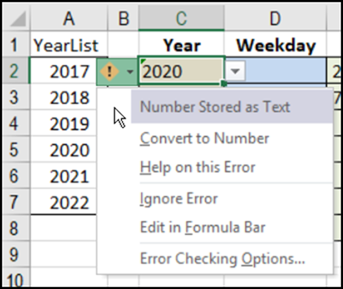
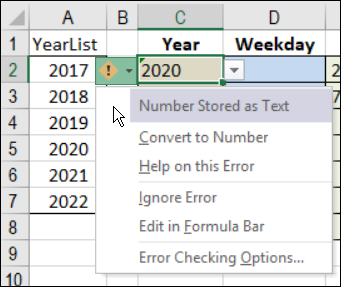
I tested it, and confirmed problem — after selecting a number from the combo box, it was aligned at the left of the cell. An error alert warned that the cell had a Number Stored as Text.
Testing Other Formulas
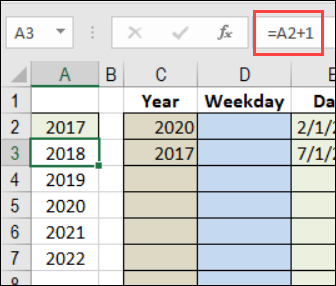
A formula in the source list shouldn’t cause a problem, so I tried a different formula. I typed a number in cell A2, and this formula in A3:A7.
=A2+1
That formula was fine – the combo box code changed them to numbers.
Problem Functions
So, if a simple formula works, the problem must be with one of the functions in Y.B.’s formula.
=YEAR(TODAY())+ROWS($A$2:A2)-1
After a few tests, I narrowed the problem down to the TODAY function. It’s volatile, so maybe that’s the issue.
To test that, I added a different volatile function:
=A2+1+(RAND()*0)
That caused the same result in the combo box – the numbers stayed as text.
Don’t Use Volatile Functions
The simple solution to this problem is to avoid using volatile functions in the source list for a combo box.
They seem to lock the active cell, and its value can’t be changed from text to a real number. I don’t know why that happens. Do you have any ideas?
Add Code to Fix the Problem
If you absolutely must use a volatile function, then only solution I could find is to add code to move off the cell, then go back to it, fix the value, and then move off again. Of course, those extra steps could cause a short delay when the code runs.
Here’s the original code for the Tab key:
  Case 9  'tab
    ActiveCell.Value = varVal
    ActiveCell.Offset(0, 1).Activate
And here is the revised code:
  Case 9  'tab
    ActiveCell.Offset(0, 1).Activate
    ActiveCell.Offset(0, -1).Activate
    ActiveCell.Value = varVal
    ActiveCell.Offset(0, 1).Activate
You could make a similar change to the Enter key code, if you run into this problem in your workbook.
______________
Hello, many thanks for this, it indeed works for “enter” and “tab”. But is there a way that numbers also work when the user just “clicks” with the mouse button? When the list with the values are strings, this works (for all three the mouse buttons), and the cell stays active (= intuitive behavior: when the user goes to another cell with the mouse, everything is OK).
But with numbers, just “clicking” a value in the dropdown list of numerical values, and then going with the mouse to another cell, leaves the selected value as a string, not a number.
I’m having this same issue. Is there a solution to this “mouse click” issue?