
This week, while working on a client’s Excel project, I ran into some trouble with Excel tables, while adding new data. Instead of expanding to include the rows, the table just ignored them.
Fortunately, the problem is easy to fix, if you know how, and if you have the patience to do lots of clicking.
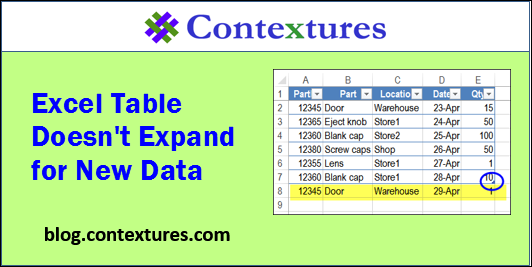
New Data Ignored
Tables are a great feature in newer versions of Excel. They make it easy to add, sort, and filter your data. Usually, tables behave quite nicely, unless, of course, you try to add a Custom View to the workbook, or do something with a group of sheets that contain tables.
The file contains a UserForm for data entry, similar to the one shown below, that you can download from my Contextures site. When you click the “Add this part” button, the new record is added at the end of the existing rows.
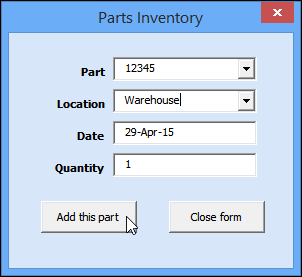
Excel Table Problem
Everything worked well on my computer, so I sent the file to my client, for testing. Unfortunately, things didn’t go well on his computer.
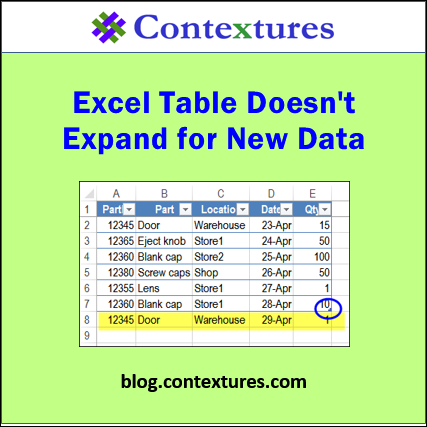
The data overflowed the table, instead of it expanding automatically. As a result, the new data didn’t sort with the other items, and wasn’t included in the drop down list, based on one of columns.
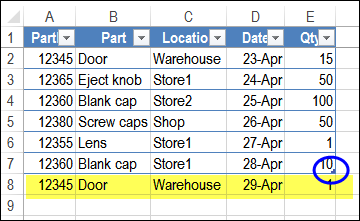
After hearing about the problem, I tried the code on a couple of other computers, and in different versions of Excel.
I couldn’t reproduce the problem, so there had to be a setting on my client’s computer that was causing the problem.
Fix the Problem
After exploring a few possibilities, I finally figured out that the problem was caused by an AutoCorrect setting. Who even remembers that Excel has AutoCorrect settings?
I added code to the UserForm, to change those settings, but you can make the same changes manually. However, the settings are buried 5 clicks deep, so pack a lunch for the journey!
- NOTE: There is lots of room on the Ribbon’s Table Tools Design tab – maybe these settings could be added there, in a future version of Excel. In the meantime, you could add the AutoCorrect Options command to one of the tabs, so it’s easier to access.
For example, put it on the Review tab, with the other Proofing tools.
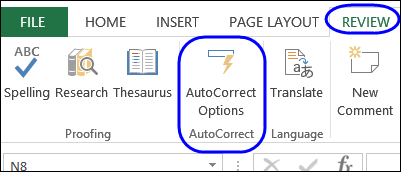
Change the AutoCorrect Settings
NOTE: Changing these settings will affect all workbooks that you open in Excel, on your computer.
To fix the tables, so they automatically expand to include new rows or columns, follow these steps:
- At the left end of the Ribbon, click the File tab
- Then click Options
- In the Excel Options window, at the left, click Proofing
- In the AutoCorrect options section, click AutoCorrect Options
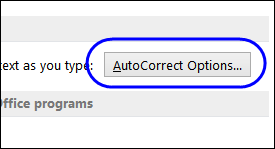
- Click the AutoFormat As You Type tab – you’ve finally reached the settings!
- Add check marks to “Include new rows and columns in table” and “Fill formulas in tables to create calculated columns”
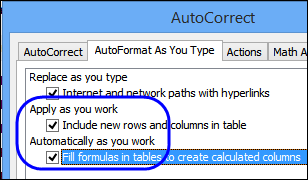
- Click OK, twice, to return to Excel
Video: Excel Table Doesn’t Expand Automatically
To see the steps for setting up an Excel table, and checking the AutoCorrect options so it expands automatically, please watch this short video.
Download the Sample File
To experiment with Excel tables, and to get the code to change the AutoCorrect settings programmatically, please go to the Excel Table page on my Contextures website.
_____________
I have both the options ticked yet It doesn’t fix. The table expands when for a new column but doesn’t expand when I add data in a new row. Please help!
I have data on other sheet and i need summary on my table which is on other sheet,
I need the summary to be filled auto once i enter some data on DATA sheet. Appreciate if you will help me.
When I tried the advice in the blog post, I found I had the tick boxes checked.
I manually added a row at the end of my table by using
on first column, last row of table
Table Row Below>
I then pasted text (consisting of many rows) into the first column, last row of table and the table auto-expanded.
I have followed your directions and those options (include new rows and fill formulas…) were already selected. The problem that I am having is that when reaching the end of the table and hitting TAB to insert a new row, the row height is much skinnier than the previous rows and none of the drop down boxes are there. I have to manually go in and adjust these things which is #1 a pain for me and #2 not really workable for the people who also use this workbook alongside me. What am I missing? Isn’t there some way to make the table enlarge while retaining the settings of the previous rows?
Thanks for the solution. It works.
However, the solution is very machine dependent, I believe. My guess is, we will have a problem, if the same spreadsheet is to be shared by many users on different computers, where they may not have enabled this in their excel proofing options. Please correct if my understanding is incorrect.
In order to overcome such a difficulty, can somebody help me with a VBA code/ macro which can be triggered/ executed by the user (say, by clicking on an “Update Table” command button) to ensure that the table’s range is expanded to accommodate new data entries, irrespective of whether the table proofing options are enabled or not?
Thanks in advance.
Regards.