
You can use data validation to create a drop down list on an Excel worksheet. For example, show a list of countries, if you click a cell in column B.
After you’ve set up that first list, you can make another list, in column C, to show the cities for the selected country.
Here is the list of cities, showing only the options for Canada.
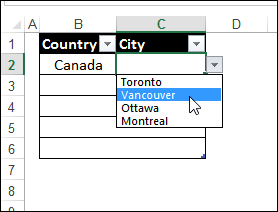
We’ll see how to set this up, and prevent problems, by clearing out the city cell, when necessary

Set up Dependent Drop Down Lists
When one drop down list is based on a selection in another cell, I call that a dependent drop down. I’ve seen other names for the technique, such as “conditional drop down list”. Whatever you call it, it’s fairly easy to set up, as you can see in the video below.
For written instructions, visit one of these pages on my website:
- Create Dependent Drop Down Lists
- Dependent Dropdowns from a Sorted List
Problems with Mismatched Selections
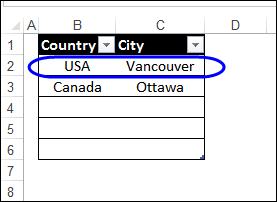
This technique works nicely, until some troublemaker decides to go back to column B, and select a different country, after selecting a city.
If they don’t re-select from the city column too, you’ll end up with mismatched countries and cities.
Prevent Mismatches With Data Validation
To prevent mismatches, you can change the data validation formula in the Country column. Instead of just showing the Country list, the data validation can check column C for an entry first. Then, if there is something in the City column, Excel doesn’t show the Region list.
For example, use this formula:
=IF(C2=””,CountryList,INDIRECT(“Nothing”))
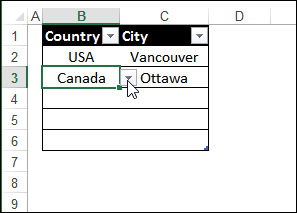
If a City is selected in a row, the Country drop down doesn’t work. You’ll have to clear the City cell, then select a different Country.
Use a Macro to Clear the City Cell
If you frequently make changes in the first drop down, you might get tired of manually clearing the dependent cell. Life is too short, to be aggravated by little things like that!
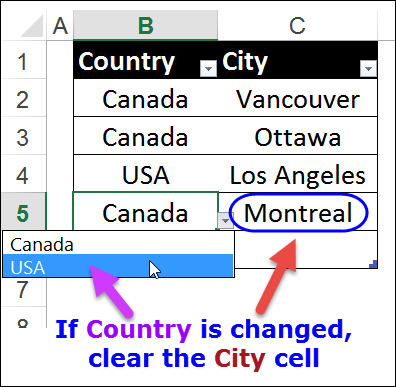
So, if you’re able to use macros in your workbook, you can set up a few lines of code that runs automatically, to clear the city cell, when someone selects a country. When cell B5 is changed in the screen shot below, cell C5 will be cleared.
Code to Clear the Cell
In the sample code below, the first drop down is in column B, and the code will clear any data in column C, in the same row.
- The code checks the column number of the cell that was changed, to see if it is in column B (2).
- If there is a data validation drop down list in that cell, the Validation.Type property is equal to 3
- In that case, the cell that is 1 column to the right has its contents cleared.
This code would be pasted onto the sheet’s code module. There are instructions here.
Private Sub Worksheet_Change(ByVal Target As Range)
On Error Resume Next
If Target.Column = 2 Then
  If Target.Validation.Type = 3 Then
   Application.EnableEvents = False
   Target.Offset(0, 1).ClearContents
  End If
End If

exitHandler:
  Application.EnableEvents = True
  Exit Sub

End Sub
Download the Sample File
To download the sample file, go to the Dependent Data Validation page, and go to the Download section.
In the Download section, look for the file named Clear Dependent Cell After Selecting.
______________
Would this also work on the following setup:
– the first drop down is in column B and in row 3
– the dependent drop down is also in column B but in row 5
The sample code clears a cell that is zero rows down, and 1 column to the right
Target.Offset(0, 1).ClearContents
Change the Offset settings, to go down 2 rows, and move 0 columns
Target.Offset(2, 0).ClearContents
Hi,
How to modify the code to make it work in case I have two dependent drop down lists, rather than one as shown in the example above?
Could you help with the following I’m having when using this code
The first dropdown is in C8
The dependant drop down is in C9
Setting the offset to (1,0) C8 clears C9 but when selecting C9 it clears C10 which has data I want to keep, is there a way to stop C9 from clearing C10
Hi,
I found this helpful but have another layer I want to add.
In column A I have options of a, b or c. I only want to clear the contents of column B, C, D and E if A=a. If b or c are selected, I do not want anything to happen to the other columns.
Can this be done? If so, could you help me with the code?
Thanks,
Erin
Thanks Debra for this explanation, I now understand how to reposition my drop boxes, which is why I was reading the comments.
You’re welcome, David, and thanks for letting me know that the explanation helped!
Brilliant! I have zero knowledge about VBA and I was looking for ready VBA code to use it in work template. I’ve tried few different ones with a bit similar code and they either worked only for one cell or crushed. Your code worked just fine and it’s running smoothly since. Thanks a million!
You’re welcome, Magda, and thanks for letting me know that my code worked for you!