
Happy Thursday! I’ve got two news items today, and you can read the details below.
- a new sample file on my Contextures website
- a Microsoft Consumer Camp event in the Toronto area
Pivot Table Report Filters
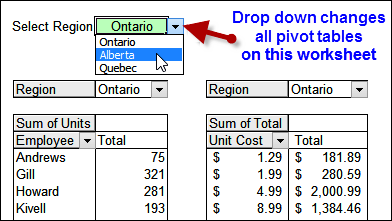
There are several sample files on my website that let you change all pivot tables, based on a change to one pivot table. Kevin asked about one sample, which lets you select from a data validation drop down list. In the original file, changing that drop down updated all the pivot tables in the workbook.
Kevin only wanted the pivot tables on one sheet to change, so I created a new sample that does that.
Get the Sample File
In the new version, you can select an item from a data validation drop down, and all pivot tables on that worksheet show that selection in the page field. Pivot tables on the other sheets aren’t affected.
You can download the sample file from my Excel Files page. In the Pivot Table section, look for PT0038 – Change Report Filters With Cell Dropdown Same Sheet
Microsoft Consumer Camp in Mississauga
If you’re in the Toronto/Mississauga area, you can put this event in your calendar — Microsoft is hosting the first Canadian MVP Consumer Camp , and you’re invited. Register here.
- Date: Thursday, May 29, 2014
- Time: 4pm to 9pm
- Location: Microsoft Store at Square One Shopping Centre in Mississauga
Many Canadian MVPs will be there, answering tech questions, showing off demos and the unique features of Microsoft devices. There will be prize draws, Q&A sessions, snacks and refreshments.
Register here!
_______________________
I ran your code in PT0038, and I see that all the pivot tables changed except for PT1. Why is that?
I am trying the same code, but my filters did not change, it says multiple items, but when you click the drop down, it’s still sitting on the original selection.
This just does not work with Excel 2013 apparently. Throws errors “Invalid procedure call or argument” in a number of places.
What is the source data for your pivot table? A normal Excel table, or something else?
How could you manipulate this VBA code to show two filters.
Ie the first one “Region” and say another one “Type”.
The region one works perfectly but im pretty new to this VBA and cant get the second to work. I thought copying and pasting the first code just replacing the “SelRegion” and “Region” but it comes up with errors?
Thanks
This vba can be useful in a pivot from Power Query?