
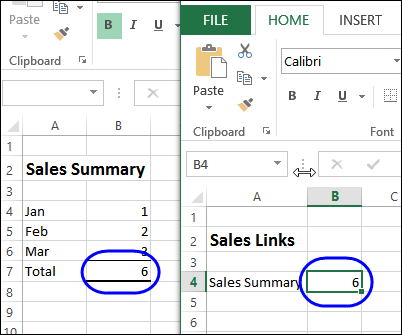
In the screen shot below, there are two files. Cell B4 in the worksheet at the right is linked to cell B7 in the sheet at the left. If you have a problem breaking links in Excel, this article might help fix that.
Files with Linked Cell
Here is the workbook with a cell that is linked to a different workbook.
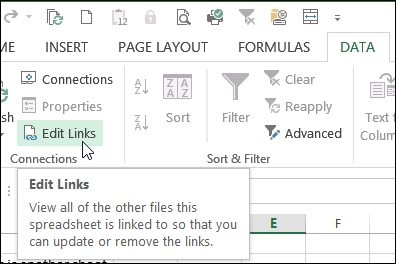
In the file with the link, I can go to the Ribbon’s Data tab, and click the Edit Links command,
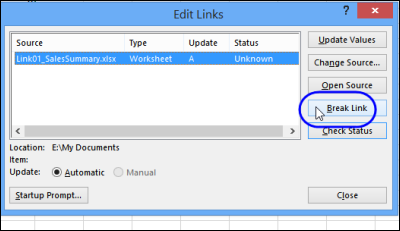
Edit Links Dialog Box
That opens the Edit Links dialog box, and shows a list of the links in the workbook.
To break the link to the other file, click the Break Links button.
When the confirmation message appears, read the dire warnings, and make a backup, if you haven’t already done that.
Then come back to the Edit Links command, and click OK.
Break Link Button Dimmed Out
I use this technique in Excel programming sometimes, when creating copies of workbooks. By breaking the links, the formula results change to values, and the file can be sent to someone who doesn’t have the original source file.
Recently, I ran into a problem – the Break Link command wasn’t working in the macro, even though it had worked nicely for several months.
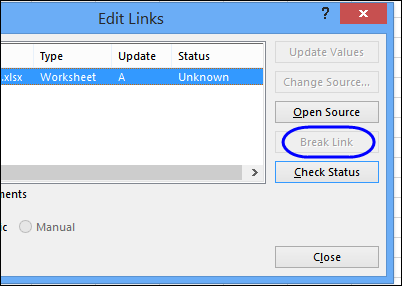
So, to troubleshoot the problem, I tried to break the link manually. When the Edit Links window opened, the Break Link button was dimmed out.
The link was still showing in the list, but I couldn’t change it or break it.
Found the Problem
After several head scratching moments (or hours, I can’t remember), I finally noticed that someone (probably me) had protected the sheet that was currently active.
The sheet with the link wasn’t protected, but that didn’t matter. If the active sheet is protected, you can’t break a link in the file.
Unprotect the Sheet
So, if you’re having a problem breaking a link, check the active sheet for protection. You can do this manually, or in your VBA code.
For example, if you’re doing this in a macro, activate a specific sheet, unprotect it, then break the link, and protect the sheet again. The code below breaks the first link in the file.
Dim astrLinks As Variant
astrLinks = wbNew.LinkSources(Type:=xlLinkTypeExcelLinks)
' Break the first link in the active workbook.
On Error Resume Next
With wbNew.Sheets(1)
   .Select
   .Unprotect
   .BreakLink Name:=astrLinks(1), _
    Type:=xlLinkTypeExcelLinks
On Error GoTo 0
   .Protect
End With
________________________
More Solutions to Break Links
If that didn’t solve your problem, here are a few more suggestions. Thanks to everyone who posted helpful comments, with more ways to break links in Excel. Take a look at these comment, to see if they help you.
NOTE: For an automated way of checking for links, you can download Bill Manville’s free FINDLINK.XLA program, from his website.
— Excel DJ had a leftover connection reference
— IronGumby had hidden worksheets
— TheRealScottR had links in conditional formatting
— Hey Romey opened the xml file
— Tudor copied sheet to different file, saved both files, moved sheet back
— Andrew Pearce found links in data validation
Can I add a twist to the problem? I have a protected workbook to which I don’t know the password, however I have several tabs’ worth of links I would like to break before I send the file to someone else. I couldn’t get the macro above to work as it didn’t recognize the “xlLinkTypeExcelLinks”. I’ve dabbled in VBA, but don’t know enough about how to fix it.
To manually break links in Microsoft Excel 2013:
1. Go to Data >> Connections: Edit Links.
2. Take a screenshot of the links you want to break. Close the Edit Links dialog box.
3. Save a copy of your Excel file and close all Excel windows.
4. Rename the extension to .zip (“Excel Workbook.xlsx” will become “Excel Workbook.zip”).
5. Open the zip file to explore the contents.
6. Go to xl >> worksheets. You should see an xml file for each of the sheets in your workbook.
7. Copy all the worksheets to a temporary folder on your hard drive.
8. Open the folder with windows explorer.
9. Press Ctrl + E and search for the file name you took a screenshot of in the Edit Links dialog box. You could also just search for “.xlsx”
10. Open the files that the string is found in. I’m using Notepad ++.
11. Search for the string from within the file editor.
12. Modify the filepath by adding a random letter in the middle of it.
13. Save and close the .xml file.
14. Copy and replace the file into the .zip folder.
15. Close the .zip application you’re using to view the files.
16. Rename the “.zip” file to “.xlsx”.
17. Open the file.
18. Excel will tell you about a problem it found and ask you if you want to recover it. Click Yes.
19. Excel will tell you about the repairs it made. Click Close.
20. Check your Data >> Connections: Edit Links.
This one is great – I have tried 20 other options but this one is brilliant!
Another related issue I thought I would share.
I had a file that where I had copied a sheet over to a fresh workbook. None of the formulas had links back to the old workbook, but somehow the workbooks were linked with a data connection. The Break link button was not greyed out, but it didn’t actually do anything.
I found that I had links that were embedded in conditional formatting. I had to open up conditional formatting and delete all of the existing rules. Then I was able to break the link.
Thanks for this message!! You saved me. Spent 2 hours trying to find a link that didn’t seem to exist anywhere and finally found it under conditional formatting.
Awesome! This worked for me
Another sneaky reason is because of hidden TABS. People tend to forget this option is even there (as there’s no indication any are hidden until you right-click one and select Unhide… and it gives you a list). The above recommendations gave me that idea to continue to look elsewhere and I was able to delete to tabs to break the links (in fact, it removed them! Breaking links wouldn’t do anything :/).
Romey,
Your solution solved my problem, but my issue was not with a Link on a specific tab in my file. My issue stemmed from the Connections feature in the program not fully removing a connection reference to another users desktop do to a pivot table link. I had a coworker do an update for a specific tab in one of my files and she added a pivot table to the file at one point. Little did I know, she linked this pivot table to another file and I broke that link when I transferred her update to my template file. Mind you, the pivot table is no longer in the file. I then got a pop-up asking me to Enable Content for all external data. Again, all external data links were removed and this should not have been happening, not to mention annoying when this pops up every time you open the file and it does nothing anyway.
So using your method of zipping the file I was able to find that Excel did not remove all references to this pivot table that was now long past. The folders were named: “pivotCache” and “pivotTables”. Found the link in the “_rels” folder in the “pivotCache” folder. I went ahead and just deleted the Cache and Tables folders from the zip file and that worked like a charm!
@Excel DJ, thanks for the details on how you found the problem in your file! That might help someone else.