
Have you ever imported data into Excel, from your credit card statement, or somewhere else, and found that Excel dates won’t change format? And, if you try to sort that column of dates, things end up in the wrong order.
That happened to me this week, and here’s how I fixed the problem, using a built-in Excel tool.
Fix Dates That Won’t Change Format
This video shows how to fix the dates that won’t change format, and there are written steps below.
Dates As Text
In the screen shot below, you can see the column of imported dates, which show the date and time. I didn’t want the times showing, but when I tried to format the column as Short Date, nothing happened – the dates stayed the same.
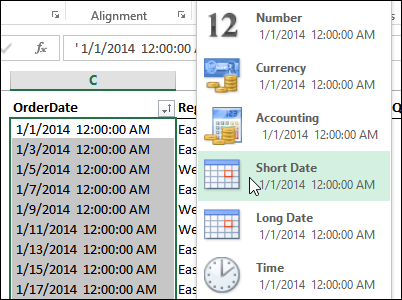
Why won’t the dates change format? Even though they look like dates, Excel sees them as text, and Excel can’t apply number formatting to text.
There are a few signs that the cell contents are being treated as text:
- The dates are left-aligned
- There is an apostrophe at the start of the date (visible in the formula bar)
- If two or more dates are selected, the Quick Calc in the Status Bar only shows Count, not Numerical Count or Sum.
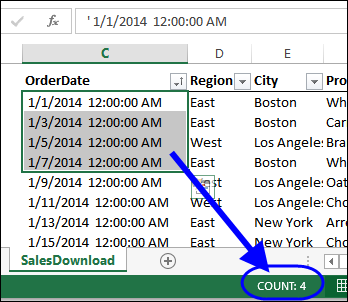
Fix the Dates
If you want to sort the dates, or change their format, you’ll have to convert them to numbers – that’s how Excel stores valid dates.
Sometimes, you can fix the dates by copying a blank cell, then selecting the date cells, and using Paste Special > Add to change them to real dates. There’s a video at the end of this article, that shows how to do that.
Unfortunately, that technique didn’t work on this data, probably because of the extra spaces. You could go to each cell, and remove the apostrophe, but that could take quite a while, if you have more than a few dates to fix.
A much quicker way is to use the Text to Columns feature, and let Excel do the work for you:
- Select the cells that contain the dates
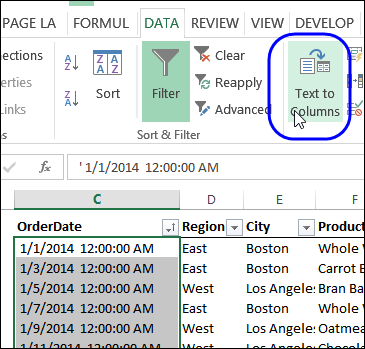
- On the Excel Ribbon, click the Data tab
- Click Text to Columns
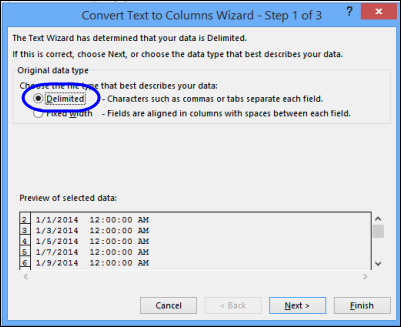
In Step 1, select Delimited, and click Next
- In Step 2, select Space as the delimiter, and the preview pane should show the dates divided into columns.
- Click Next
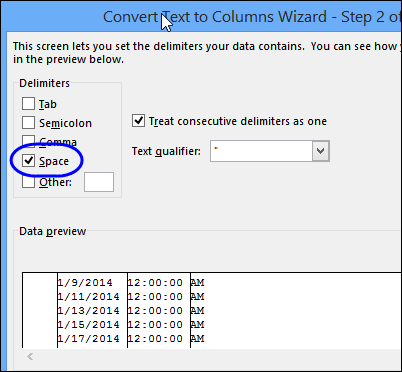
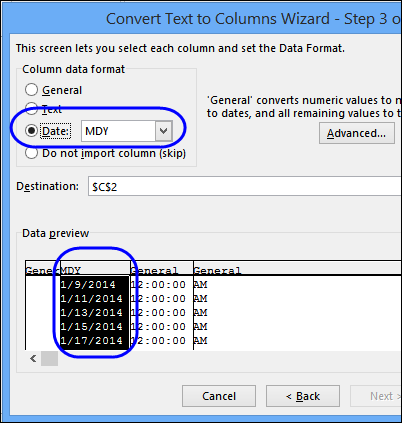
In Step 3, you can set the data type for each column:
- In the preview pane, click on the date column, and select Date
- In the Date drop down, choose the date format that your dates are currently displayed in. In this example, the dates show month/day/year, so I’ve selected MDY.
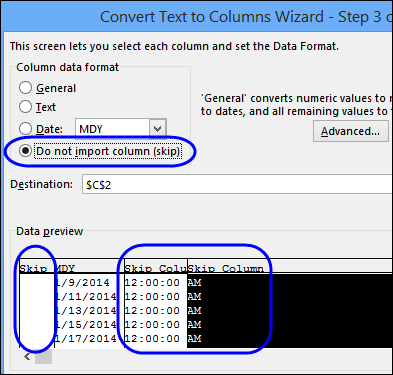
- Select each of the remaining columns, and set it as “Do not import column (skip)”
- Click Finish, to convert the text dates to real dates.
Format the Dates
Now that the dates have been converted to real dates (stored as numbers), you can format them with the Number Format commands.
There are a few signs that the cell contents are now being recognized as real dates (numbers):
- The dates are right-aligned
- There is no apostrophe at the start of the date (visible in the formula bar)
- If two or more dates are selected, the Quick Calc in the Status Bar shows Count, Numerical Count and Sum.
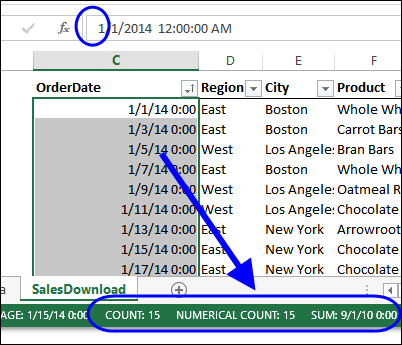
To format the dates, select them, and use the quick Number formats on the Excel Ribbon, or click the dialog launcher, to see more formats.
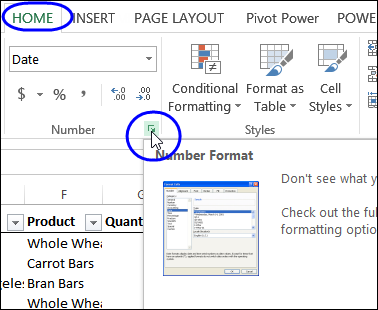
Everything should work correctly, after you have converted the text dates to real dates.
Download the Sample File
To follow along with this tutorial, get the Date Format Fix Sample file from my Contextures website, on the Excel Dates Fix Format page.
More Excel Date Info
Prevent Grouped Dates in Excel
Count Items in a Date Range in Excel
How to Fix Numbers That Won’t Add Up
If you’re having a problem with Excel numbers that won’t add up, this video shows a few fixes that you can try. There are details on the Fix Numbers that Don’t Add Up page on my Contextures site.
______________________________
How to Fix Excel Dates That Won’t Change Format
___________________________
I have to sort several rows on first column i.e date by formatting it in a particular date format. HOwever, all except one row is getting foratted and sorted. This exceptional row is left at the bottom and cannot be formatted or sorted.Hence remains in the bottom instead being somewhere in the middle. What could be the reason?
Thanks in advance,
@mahima, are you using the SUBTOTAL function in that table? That can cause Excel to treat the last row like a Total row, as described here:
http://blog.contextures.com/archives/2010/03/19/number-the-visible-rows-in-excel-autofilter/
Thanks so much! this was so helpful. I have been struggling with this for long time, and my project file is enormous and I have to sort and send information in excel monthly. This was a huge time saver for me.
thanks a lot!!!!!
I have been using Excel for years and always enter dates this way: 1/18, which then comes out as Jan 18 and defaults to current year. And if I am working on prior year data, I just be sure to enter 1/18/14. Then I click format to select how I want it to look-often just dependent on room on the page. ie whether there is room for the full year yyyy or just yy or whether I want the month to print out mmm or just mm……
Now if I enter 1/18, it comes out as some form of the correct month, but the year is 2018 and I have not found a way to correct that other than putting an apostrophe in front of it, but that is a huge pain and also no longer allows date formatting. There must be a way! This is Excel! Should not have to reformat every single entry!
I want every date in my spreadsheet to be a 2014 date, but Excel makes every date a 2015 date unless I hand-type every cell. Is there a way to set the year for the entire date column? Computers are supposed to do trivial, repetitive tasks like that in less than a second.
OH my thanks so much! I tried EVERYTHING. Excel worked totally fine for me last year and I NEVER EVER had this problem with dates. This year… the dates just messed up in a crazy crazy way – didn’t make any sense at all. I tried several different solutions ‘out there’ on several blogs. THIS is the only one that worked. I am greatly relieved. THANK YOU! I don’t understand how Microsoft can’t fix this … clearly it is a new problem as I have talked to several people who have encountered it recently. I have used excel for years and NEVER had this problem until this year.
Debra, this is fantastic. I never leave comments but I felt like I really had to for this one. It has been plaguing me for ages. Your method worked perfectly even without the time stamp. It’s fast and clean.
And I love your step by step screenshots that are very clear.
Kudos to you.
@Maz, thanks! I’m glad it helped, and thanks for your comment. I appreciate it!