
Have you ever imported data into Excel, from your credit card statement, or somewhere else, and found that Excel dates won’t change format? And, if you try to sort that column of dates, things end up in the wrong order.
That happened to me this week, and here’s how I fixed the problem, using a built-in Excel tool.
Fix Dates That Won’t Change Format
This video shows how to fix the dates that won’t change format, and there are written steps below.
Dates As Text
In the screen shot below, you can see the column of imported dates, which show the date and time. I didn’t want the times showing, but when I tried to format the column as Short Date, nothing happened – the dates stayed the same.
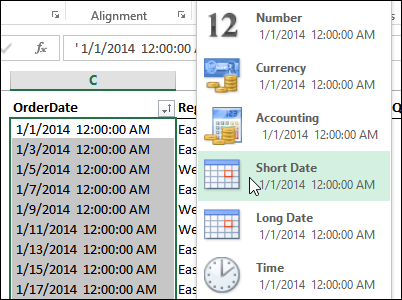
Why won’t the dates change format? Even though they look like dates, Excel sees them as text, and Excel can’t apply number formatting to text.
There are a few signs that the cell contents are being treated as text:
- The dates are left-aligned
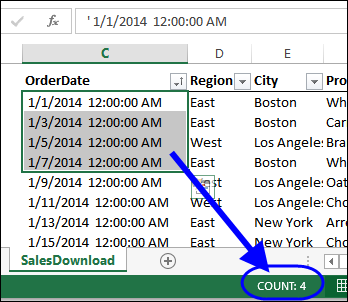
- There is an apostrophe at the start of the date (visible in the formula bar)
- If two or more dates are selected, the Quick Calc in the Status Bar only shows Count, not Numerical Count or Sum.
Fix the Dates
If you want to sort the dates, or change their format, you’ll have to convert them to numbers – that’s how Excel stores valid dates.
Sometimes, you can fix the dates by copying a blank cell, then selecting the date cells, and using Paste Special > Add to change them to real dates. There’s a video at the end of this article, that shows how to do that.
Unfortunately, that technique didn’t work on this data, probably because of the extra spaces. You could go to each cell, and remove the apostrophe, but that could take quite a while, if you have more than a few dates to fix.
A much quicker way is to use the Text to Columns feature, and let Excel do the work for you:
- Select the cells that contain the dates
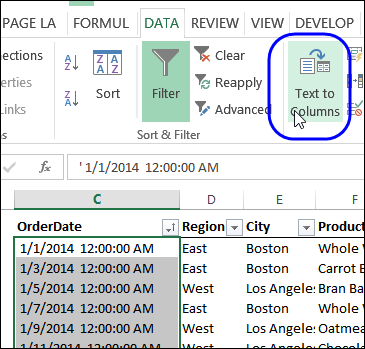
- On the Excel Ribbon, click the Data tab
- Click Text to Columns
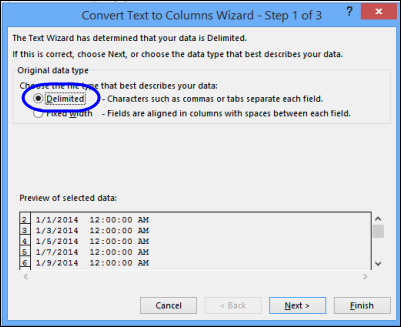
In Step 1, select Delimited, and click Next
- In Step 2, select Space as the delimiter, and the preview pane should show the dates divided into columns.
- Click Next
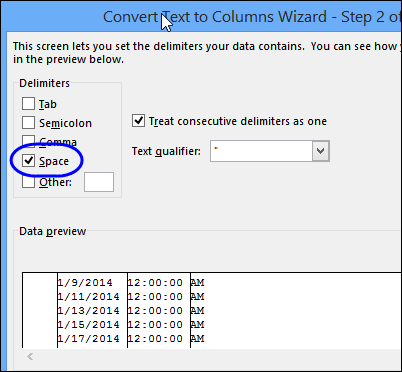
In Step 3, you can set the data type for each column:
- In the preview pane, click on the date column, and select Date
- In the Date drop down, choose the date format that your dates are currently displayed in. In this example, the dates show month/day/year, so I’ve selected MDY.
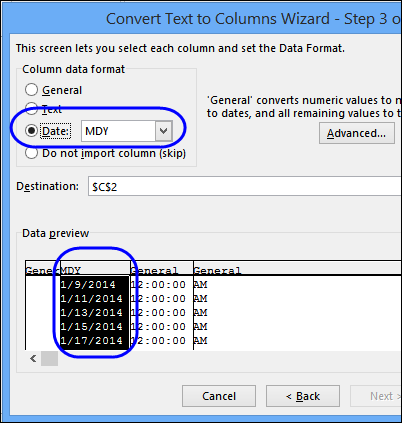
- Select each of the remaining columns, and set it as “Do not import column (skip)”
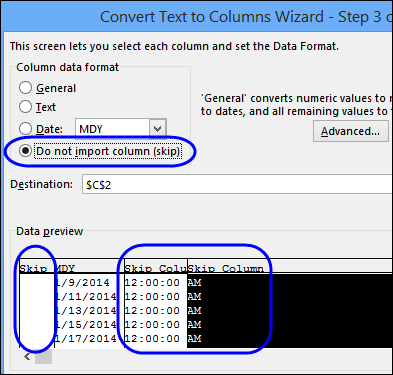
- Click Finish, to convert the text dates to real dates.
Format the Dates
Now that the dates have been converted to real dates (stored as numbers), you can format them with the Number Format commands.
There are a few signs that the cell contents are now being recognized as real dates (numbers):
- The dates are right-aligned
- There is no apostrophe at the start of the date (visible in the formula bar)
- If two or more dates are selected, the Quick Calc in the Status Bar shows Count, Numerical Count and Sum.
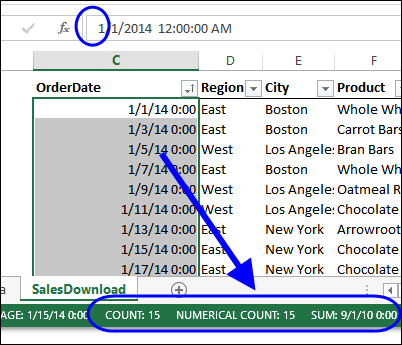
To format the dates, select them, and use the quick Number formats on the Excel Ribbon, or click the dialog launcher, to see more formats.
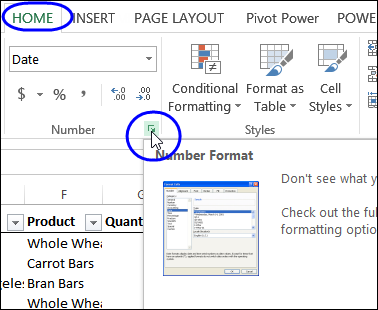
Everything should work correctly, after you have converted the text dates to real dates.
Download the Sample File
To follow along with this tutorial, get the Date Format Fix Sample file from my Contextures website, on the Excel Dates Fix Format page.
More Excel Date Info
Prevent Grouped Dates in Excel
Count Items in a Date Range in Excel
How to Fix Numbers That Won’t Add Up
If you’re having a problem with Excel numbers that won’t add up, this video shows a few fixes that you can try. There are details on the Fix Numbers that Don’t Add Up page on my Contextures site.
______________________________
How to Fix Excel Dates That Won’t Change Format

___________________________
I don’t remember testing this with dates, but could you achieve the same result by using paste special to add 0 or multiply by 1? Or is there an extra space between date and time getting in the way?
@Ben, you’re right, that Paste Special trick usually works, and I forgot to mention that I’d tried it.
Thanks for the reminder, and I’ve added that to the article, with a link to my page on fixing “text” numbers.
Was struggling with this for a long time! Thank you very much!
I don’t know if this solves all problems, but this is the simplest best answer I’ve come across. I feel like I’ve wasted too much time reading other more complicated ways of performing this simple fix.
@Marc, thanks and I’m glad it helped you.
PLease explain this in more detail.
Thanks,
Gary.
Gary, there are instruction here:
http://www.contextures.com/xlDataEntry03.html#PasteSpecial
thank you so much………..It’s working.
Another very easy trick is to simply use the DATEVALUE() formula in a new, adjacent column.
@Bryan, Agree! I had tried so many things to work with data exported from QuickBooks Online. Finally QBO suggested that I use DATEVALUE, copy and paste that column as values, then reformat the values to date format.
Recently switched the OS to Win 7 from 03, and 2010 Office/Excel, etc. Now the dates will not format to the existing data in the old USA date format, 04/25/14. Before I could type 4-25-14 and the program automatically changed it to 04/25/14. Now one of two things happens: it stays as 4-25-14 (left justified like text) or formats to 25/04/2014. I have used the number/date format on the column and the cell to no avail. Since we are in Costa Rica, it seems on some cells the program is reading the ISP address and formatting to the International style, but this does not happen in most cases. When it does, the only solution it seems is to convert it to text by placing an apostrophe in front of the number. This is yet another totally aggravating and frustrating MS problem.
Hi Sue,
Maybe your problem is with the regional configuration on your PC. If you change the regional configuration the dates must be showed as the region or country you select.
If that doesn’t work, or you don’t want to change the configuration in your machine, select the whole column where your data is then right click, select format cells and in “Category” select “Custom” and then in the “Type” field write: m/d/yyyy or the order you need. —> click on “Ok”. From there you can place the dates in any way you want, just check how the formats must be declared from that window.
Hope this help you. 🙂
I found an answer to your problem. To explain, I made the mistake of formatting my field as date (using the 00/00/00 format), but making it left-aligned. When I entered 4-04-2014, it would show up as 4-04-2014 instead of 04-04-14 as it should have. The solution:
1) Change the alignment to General. Sometimes this was all I needed to do. But other times, I would still get 4-04-2014; then I would change one numberof the date — either I could delete the ‘0’ in the “04”, or just delete a digit, then re-enter it (like deleting the “4” in 2014 and then retyping it. When I did this and exited the field, it automatically right-justified the date and showed it in the desired format: 04/04/14.
Awesome…this saved me a lot of hassle…I was saving excel files as text, then reimporting them…
Thanks!
it’s work like a charm. Thanks a lot
Thank you SO much. Great instructions. Worked perfectly – saved me HOURS and HOURS of work.