
You can use check boxes on a worksheet, and link the results to a cell. If the box is checked, the cell shows TRUE, and if it’s not checked, the cell shows FALSE or the cell is empty. This makes it easy for someone to give a quick answer to a question, or select an option. You can even link check boxes to cells with a macro, so something happens automatically when the box is clicked.
Two Part Tutorial
This will be a two part tutorial on how to link check boxes to a macro.
- First, we’ll set up the check boxes, and link them to cells. You’ll see how to do this manually, and with a macro.
- In the next part, we’ll link check boxes to cells with a macro.
Creating a To Do List
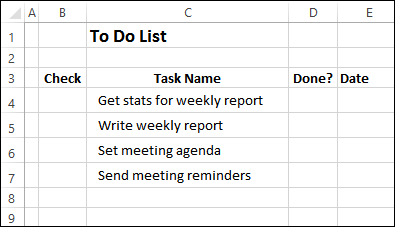
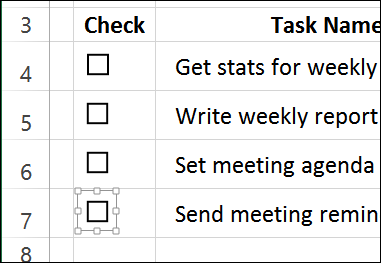
To see how the check boxes can be used, we’ll set up a To Do list, with a check box for each item. Here is the list, ready for the check boxes.
Insert a Check Box
To insert a check box, follow these steps:
- Click the Developer tab on the Ribbon. If you don’t see the Developer tab, follow the instructions here, to show it.
- In the Controls group, click the Insert command
- There are two types of check boxes – Form Control and ActiveX Control.
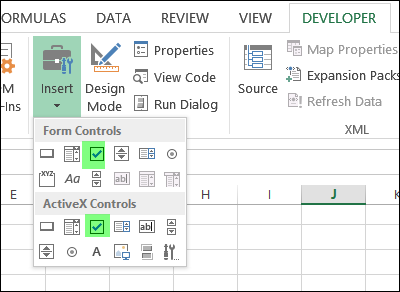
- For this example, we’ll use the check box from the Form Controls, so click that.
- On the worksheet, click near the top left corner of the cell where you want to add the check box — cell B4 in this example.
- The top left border of the check box frame should be inside cell B4. If necessary, move it down or right, so it’s inside the cell.
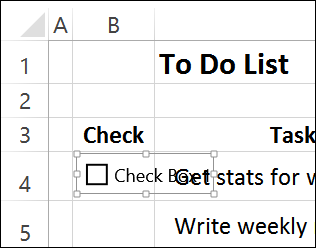
- Click inside the check box frame, then select all the text, and delete it.
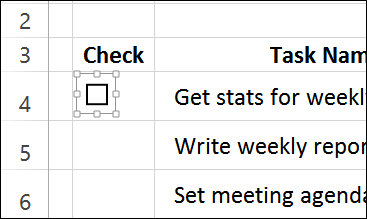
- Make the check box frame narrower, so it just fits the box.
Copy the Check Box
Now that you’ve created and formatted one check box, you can copy it, and paste copies into the other cells.
NOTE: For a quicker way to add check boxes, you can use the macro from the Excel VBA – Check Boxes page on my Contextures site.
- Press Ctrl, and click on the check box, if it is not already selected.
- On the Ribbon’s Home tab, click Copy (or use the Ctrl + C shortcut)
- Select cell B5, and paste the check box, then paste into cells B6 and B7
Link the Check Boxes to Cells
If you add a check box to a worksheet, it isn’t automatically linked to a cell. If you want to capture the check box result, you’ll have to link it to a specific cell.
If there are only a few check boxes, you can link them manually, by following these steps:
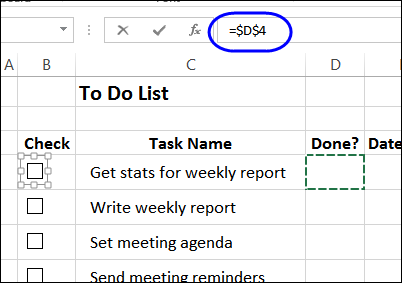
- To select the check box in cell B4, press the Ctrl key, and click on the check box
- Click in the Formula Bar, and type an equal sign =
- Click on the cell that you want to link to, and press Enter
You can see the formula in the screen shot below: =$D$4
NOTE: You can also link to a cell by going into the check box’s properties, but that takes longer.
Use Programming to Create Cell Links
In an ideal world, you would be able to use a relative reference to a cell as the check box link. Then, if you moved or copied the cell to a different location, it would automatically adjust to refer to the cell that in the same row, 20 columns to the right.
Unfortunately, that doesn’t work, and you have to link each check box individually. The good news is that you can link check boxes to cells with a macro, if you have lots of check boxes to link.
Instead of manually linking the remaining check boxes, we’ll use the following macro. To add this code to your own workbook, copy it to a regular code module.
Sub LinkCheckBoxes()
Dim chk As CheckBox
Dim lCol As Long
lCol = 2 'number of columns to the right for link
For Each chk In ActiveSheet.CheckBoxes
   With chk
      .LinkedCell = _
         .TopLeftCell.Offset(0, lCol).Address
   End With
Next chk
End Sub
Run the Macro
Then, with the To Do list worksheet active, run the macro:
- Click the Ribbon’s View tab, and at the far right, click Macros, then click View Macros, if a drop down list appears.
- In the list, click LinkCheckBoxes, and click Run.
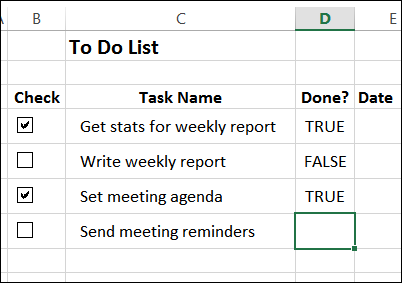
You won’t see anything happen, but each check box will be linked to the cell two columns to its right.
Test the Check Boxes
To test the check boxes, click on each one.
- If you add a check mark, the cell that’s two columns to the right should show TRUE.
- If you clear a check box, the linked cell should show FALSE.
- If you clear the linked cell, the check box will also be cleared.
Next – Adding Macros to Check Boxes
In my next post, on Thursday, we’ll add a macro to each check box.
I’ll also have the completed sample file that you can download, to see how it all works.
____________
This is great, thank you. Im interested in the answer to Jeff’s question as well – linking to another sheet in the workbook. Thanks.
Hi, This worked for me. Though I am using it on a large number of cells and need to see which are both TRUE and FALSE. This solution linked the checkboxes with the corresponding T/F column, but only changed the ticked boxes to TRUE and did nothing for the ones that are unticked. I need any box that is left unticked to read as FALSE without selecting it then unselecting. Could you tell me what to add to the macro to do this?
Thanks 🙂
@Emma, you could add a couple of lines to the LinkCheckBoxes macro, so it sets the linked cell to FALSE:
Sub LinkCheckBoxes() Dim chk As CheckBox Dim lCol As Long Dim c As Range lCol = 2 'number of columns to the right for link For Each chk In ActiveSheet.CheckBoxes With chk Set c = .TopLeftCell.Offset(0, lCol) .LinkedCell = c.Address c.Value = False End With Next chk End SubHey, I want to make an excel for performance review for my company. I want to add checks that go to specific paragraphs with the information. To basically reduce typing and help with grammar for other employees. Example: [check box] Agent did not meet metrics today. When checked it would go into a section labeled “Area of improvement” and have “Agent did not meet metrics listed under that field.
Is this possible?
Thank you!!! This was a great help, but I have a worksheet with multiple columns of checkboxes and some of these require specific text….what I am trying to say is how do I perform this Macro WITHOUT the true/false text appearing in the spreadsheet?
Thank you again!!
Hi Debra,
Your tutorial is what I am looking for the long time. In fact, I am searching it for week. I appreciated your help, indeed. But, there’s some problem with the result. I have 3 columns of checkboxes and I just edit your code to copy the code result to 3 columns to the right instead of 2. But all the result started at 1 row above the checkboxes. Can you help me that? Thanks in advance
What was the resolution to the results populating 1 row above the checkboxes?
Set c = .TopLeftCell.Offset(0, lCol)
Change the 0 to a 1 in that line and that should sort it.
Thanks so much for this. I am writing a workbook to track student attendance, and this code helps a ton. I have a column of 25 check boxes, and I would like to have one separate check box that can control all 25 at once. Is there any way to do this?