
There is a new sample file on my Contextures web site, which lets you pick players for each inning in a baseball game.
You could tweak the file a bit, and use it to assign employees to workstations each day of the week, or anything similar.
After assigning employees, remove used items in Excel drop down list, to prevent them from being assigned twice.
Names Disappear From List
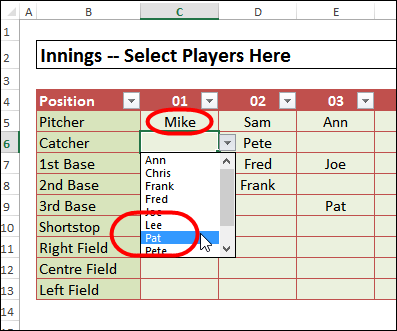
Once you have assigned a player in an inning, that name disappears from the drop down list in that column. In the screen shot below, Mike has been assigned as the pitcher for inning one. When I open the list in the cell below, Mike’s name is missing – it used to be between Lee and Pat.
See the Assignments by Player Name
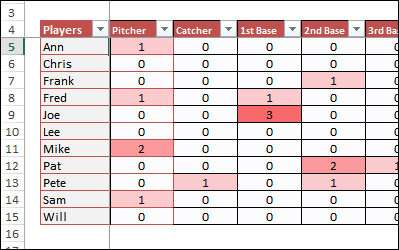
There was an older version of this sample file, and I have updated it to use Excel Tables. I’ve also added a sheet that shows the assignments by player name, and you can see how often each player was assigned to a position.
Download the File
To see the file, and how it works, you can download it from my Contextures website. On the Hide Used Items in Drop Down List page, go to the download section, and get the Baseball Players sample file.
The zipped Excel file is in xlsx format, and does not contain macros.
___________________
Hi, this is exactly what I was looking for to help me sort a little league lineup.
We have 12 player roster and I wanted to add 3 positions called “Bench1”, “Bench2”, “Bench3”. This would help track how many times someone was on the bench during a game. I’m not having the greatest success in modifying to accomplish what I’m trying to do. Any help please?
Thanks!