
There are days when we can hear the voices in our heads, whispering encouraging things like, “Oh go ahead – another cookie won’t hurt!” Or, “Wow, that’s an amazing formula you just built in that worksheet! You should take a break now.”
The voices are right sometimes, and other times I just ignore them. But a few days ago, the voices started to come from Excel – and that was a bit alarming! I finally managed to turn off the voice in Excel, as you’ll see at the end of this article.
The Spreadsheet Speaks
No, I hadn’t been drinking, and it’s almost winter, so heat stroke wasn’t a possibility. I had been working on an Excel file, and was putting line breaks in a long formula.
Just like putting a break in a text entry, I was pressing Alt + Enter, to make each section of the formula start on a new line. It’s easier to read them that way, especially if you make the formula bar tall enough to see a few lines.
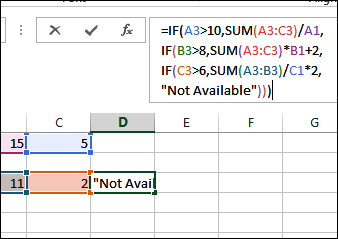
Suddenly, Excel began to speak, and sections of it were outlined with a blue border. Apparently I had angered it in some way!
Trying to Turn Off the Voice in Excel
The Esc key turns off lots of things in Excel, but it does not turn off mysterious voices. The voice just taunts you by saying “Escape.” Just for fun, I typed “I’m sorry Dave. I’m afraid I can’t do that,” and clicked on that cell so the voice could read it, in its best HAL 9000 voice.
I figured that this was a text to speech accessibility feature, and Google might know how to turn it off. I’m using Windows 8.1, and my search brought me to this page on the Microsoft site: Accessibility in Windows 8
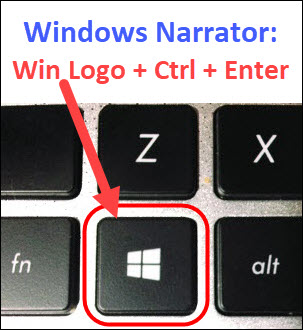
It seemed like a bad sign that an accessibility page had some of the smallest print that I’ve ever seen. But, a few rows down, the article mentioned Windows Narrator, and showed the shortcut for starting it (I had to squint to read it):
- [OLD SHORTCUT] On a keyboard, press the Windows logo key+Enter.
[Update – 2023-04-25] The keyboard shortcut for Narrator has changed to:
- Windows logo key + Ctrl + Enter
So that explained how I turned it on – the Windows logo key is beside the Alt key. Instead of putting in a line break, I had turned on the Narrator.
Turning Off the Voice in Excel
[Update – 2023-04-25] The keyboard shortcut for Narrator has changed to:
- Windows logo key + Ctrl + Enter
The Microsoft article didn’t mention any shortcuts for turning off the voice, so I pressed the Window key and Enter again, to see what would happen. Success! The voice, and all the blue borders disappeared, and things were back to normal, here at Contextures. Well, as normal as ever.
So, if you ever hear voices coming from Excel, press the Window key and the Ctrl key, and tap the Enter key. That might make them go away.
Other Voices in Excel
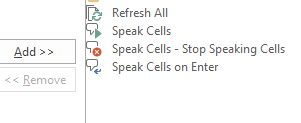
If that solution doesn’t work, you might have turned on the “Speak Cells on Enter” command. It is one of the “Speak Cells” features in Excel — commands that can be added to the Quick Access Toolbar (QAT).
[Update 2023-04-25] The 3 commands have the following names now:
- On Enter [Speak Cells on Enter]
- Speak Cells
- Stop Speaking [Speak Cells – Stop Speaking Cells]
Speak Cells
- If you click the Speak Cells command, it will read the selected cells, and will stop at the end of the selected range.
- While the Speak Cells command is reading, click the Speak Cells – Stop Speaking Cells, to stop the reading immediately.
Speak Cells on Enter
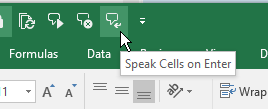
- If you turn on the Speak Cells on Enter command, it will automatically read the cell contents as soon as you press Enter.
- NOTE: The Speak Cells on Enter command is not affected by the Speak Cells – Stop Speaking Cells command.
- The Speak Cells on Enter command is a toggle — if the command is activated, click it again, to turn off the voice in Excel. In the screen shot below, the command is activated — it has a light green background, instead of dark green.
Video: Turn Off Narrator Voice in Excel
To see the steps to turn off the voice in Excel, please watch this short video. It shows the Narrator shortcut that turns it on and off.
[Update – 2023-04-25] The keyboard shortcut for Narrator has changed to:
- Windows logo key + Ctrl + Enter
________________
I have run across this before…in fact, I had a lot of fun with this feature pranking some of my coworkers.
Thanks for the tip Debra.
Quite honestly… That would have freaked me out a bit.
Rick
There’s an excel feature which will do the same thing. Its great when I’m doing pure data entry and I can listen to verify the number was entered correctly instead of looking back and forth and risking losing my spot. I use “speak cells on enter” frequently enough that I added a button to turn it off and on.
This solution is for the Windows Navigator, not specific for the Excel speech option.
I am searching for the short cut to turn off the “Speak Cells on ENTER” as Speech Options are not in the Ribbons.
You can add them to your Quick Access Bar by selecting the More Commands…” option from the drop-down at the right of the Quick Access Bar. The Speech Options commands are listed under the “Commands not in ribbons option from the “Choose Commands from:” drop down.
If anyone knows the short cut for the Speak Cells – Stop Speaking Cells” command, please post a comment below. For some reason I am not able to modify my Quick Access Bar currently. Malware is no fun.
I cannot get this to stop! I saw a post on adding Speak Cells and tried it out. It does not turn off. Posts say that the button added to the ribbon is a toggle. It is not. I added the Stop Speaking command and this does absolutely nothing. I have deleted the commands from the ribbon and it doesn’t work either. This is driving me nuts!
Thank you soooo much for this information!!! I could not figure out what I did wrong. You are awesome to post this.
Thanks Rhonda, and I’m glad it helped you!