
Last week, I opened an Excel file, and was surprised to see a Security Warning. Apparently there were external links in the file, and I didn’t want to keep them. Here’s how you can find external links in an Excel file.
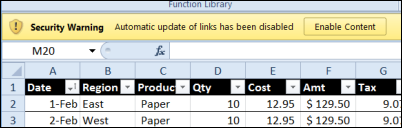
This screen shot shows the warning that I saw, when I opened the file.
To look for the links, you can use a free add-in – there is a link at the end of this article. Or, go through the file yourself, and try to fix the links.
The Manual Fix
For reasons that I can’t remember I decided to to a manual search for the links. First, I made a backup copy of the file – just in case things went wrong. Not that anything ever goes wrong in Excel!
Then, I opened the file again, clicked the Enable Content button, and started my search for those unwanted links.
Look in the Formulas
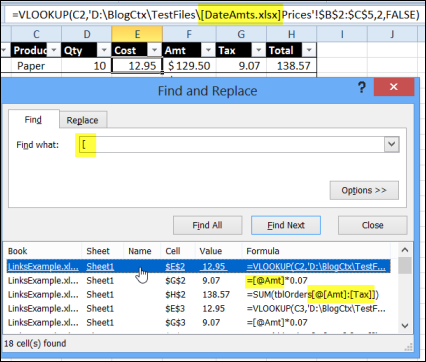
The first place I looked was in the workbook’s formulas. Maybe I had copied a formula from another workbook, and it was still linking back to that file. If that file is referenced in a formula, its name is enclosed in square brackets, so I used the Find command to look for those.
When I clicked the Find All button, Excel showed me a list of 18 cells that had square brackets. I clicked on the first item, and it had a reference to another file, so I’ll be able to fix that.
There were other cells with square brackets that aren’t external links, so I ignored those. Excel table references use square brackets too, like this formula:
=[@Amt]*0.07
It might be easier to search for “.xls” now, if the workbook has formatted tables.
Fix the Formulas
The formula that I want to fix is looking up prices in another workbook’s pricing table.
=VLOOKUP(C2,’D:\BlogCtx\TestFiles\[DateAmts.xlsx]Prices’!$B$2:$C$5,2,FALSE)
I wanted to get rid of the links, and change those cells to values, so I followed these steps, to break those links:
- On the Ribbon, click the Data tab
- In the Connections group, click Edit Links
- Select the link that you want to break, and click Break Link.
- A warning message will appear, so read it carefully – especially the part about making a backup copy. Then, click Break Links if you’re sure that’s what you want to do.
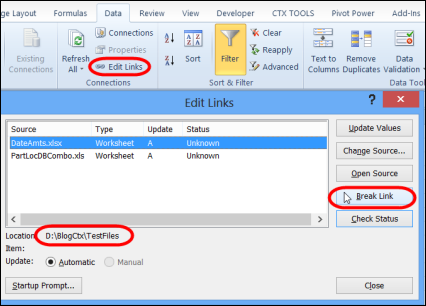
Unfortunately, that didn’t change anything – the links were still in the formula.
Copy and Paste As Values
The cells were all in one column in a table, so I decided to change them to values by copying them, then pasting as values.
That got rid of the link in those cells – now they just contain numbers, not links.
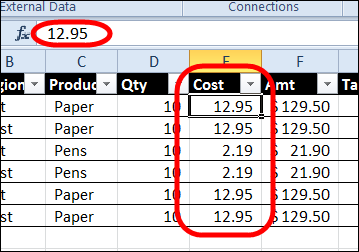
The Edit Links window was still showing a link to that workbook though, so maybe one of the workbook names had been copied too.
Check the Names List
To see then names, click the Formulas tab on the Ribbon, then click Name Manager. In the Refers To column, you might see references to other workbooks. You can delete those names, or change them, so they refer to ranges in the active workbook.
I didn’t need the Product name or LocationList (I hope!), so I deleted them. I’ll check on the LocationList name later.
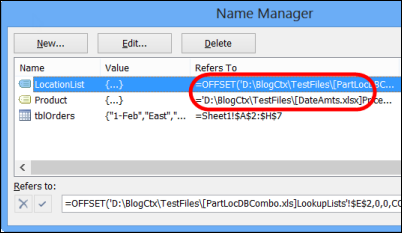
When I checked the Edit Links window again, the link to the DateAmts.xlsx file was gone. Hooray!
However, there was still a link to another workbook – PartLocDBCombo.xls. I had deleted the LocationList, which referred to that workbook, so where could that link be?
Check the Buttons
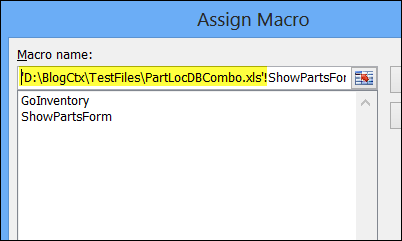
Another place that links can hide is in the macros that are assigned to buttons. This workbook had 2 buttons, so I checked those next.
I right-clicked on the first button, and clicked Assign Macro, to see the macro that the button runs. In this example, it was still trying to run the macro in the PartLocDBCombo.xls workbook.
So, I selected a macro in the current workbook, for each button, to get rid of those links.
Close and Reopen the File
The Edit Links window still showed a link to PartLocDBCombo.xls, but I didn’t know of any other places to look. So, I saved the workbook, then closed and reopened it, and that got rid of the “ghost” link.
It can be a slow and frustrating process to remove external links, so be careful what you copy into a workbook!
Use the Find Link Add-in
For an automated way of checking for links, you can download Bill Manville’s free FINDLINK.XLA program, from his website.
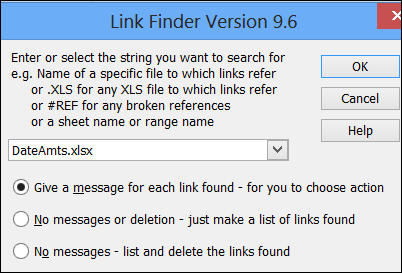
After you install the add-in, it will appear as a menu item on the Ribbon’s Add-Ins tab. Click the Find Links command, to open the Link Finder window.
Select a file name from the drop down list, then select one of the options for working with those links.
Links Hidden in Other Places
Read the comments below, to see some other places that people have found links in their Excel files. For example:
- Conditional Formatting (see comment)
- Graph data (see comment)
- Hidden worksheets (see comment)
- Data Validation rules (see comment)
- Table formulas (see comment)
- Chart axis (see comment)
Also, see Rag’s comment with steps for finding error cells in Excel 2013.
______________________
Bill also offers his FindLink on his own website: http://www.manville.org.uk
Thanks Jan Karel, I’ve added that link to the article.
Hi Jan,
Thanks so much for the link ! It works great! Although I did see my keyboard functions switch off while I carried out the find link multiple times combing through my entire workbook with a lot of sheets. Fortunately, it solved itself after I unchecked the add in in the File>Options>Add Ins box and closed Excel and opened it again.
Also by the way, the Edit Links tab became grayed out only after I restarted excel, otherwise it was still showing me the links and I kept running the add in again and again !
Yeah, I use to use these tricks to find my links. Work really well. Thank you for the reminder. 🙂
Just another hidden place for links: any Conditional Formatting can contain links to other workbooks, too. These will not be broken – or found by the FindLinks addin…
Peter,
Thanks!!! You’re a total lifesaver. I would not have thought about Conditional Formatting. You saved me considerable hair loss!
-Mark Z
The most recent few versions now catch Conditional Formatting.
Very good pointers! I’ve been looking all over the place and finally found the external link in a name reference. Thank you so much 🙂
I managed to find links in the data associated with graphs I had copied and pasted but I cannot find a good way to replace them.
For links in cell formulas, use Ctrl F, find […link address…] and replace with “”
Thanks!!! Found out those links which caused huge delay in opening the excel, just in seconds. It was of great help.