
This week, I was experimenting with sending email from Excel via Outlook. The goal was to send an email to each name in a list, and attach a couple of PDF files. Here’s how I managed to send email with PDF attachment from Excel.
The Sample File
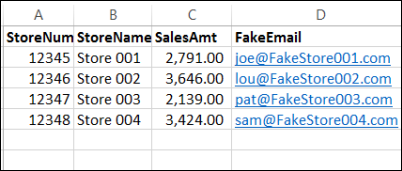
So, before creating my complex email code, I set up a little test file, with a short list of fake customers. I created this file using Outlook and Excel 2013, but it should also work in Excel 2010, and perhaps Excel 2007 (see Ron de Bruin’s article for 2007 requirements).
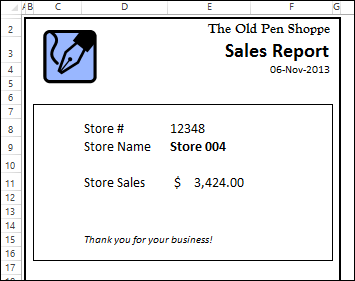
Another sheet in the file has a report, to send to each customer, as a PDF attachment. I like pens, so my imaginary business is a pen shop.
The macro puts the current store number in cell E8, and INDEX/MATCH formulas pull the name and sales amount for that store.
Set Up the Email Settings Sheet
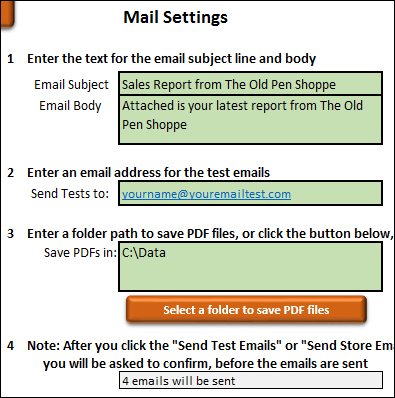
When doing the email tests, I wanted to be able to change some of the settings, without going into the VBA code. So, I added a Settings sheet, where you can:
- enter text for the subject line and email body
- select a folder where a copy of each PDF file will be saved
- enter an email address for receiving test emails
Send the Emails
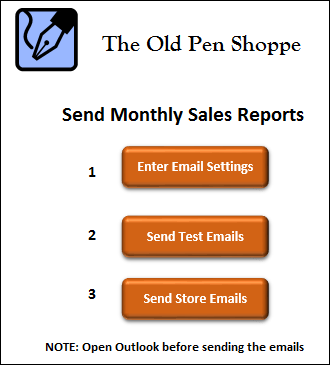
The final sheet is the Menu, with buttons that run the macros.
If you’re sending out an email message to a list, it’s a good idea to test it first, by sending the reports to your own email address, instead of using your customers as guinea pigs!
So, click that “Send Test Emails” button, and see what arrives in your inbox. Check the PDF attachments, to make sure that the information is correct, and that each person is receiving the right attachment.
Then, if everything works well, you’re ready to click the “Send Store Emails” button, to send out the actual email.
More Excel Email Tips
For lots more examples of sending email from Excel, please visit Ron de Bruin’s website. He also shows how to use other mail programs, and different types of attachments.
Download the Sample File
To test the email code, you can download the sample file from my Contextures website. Go to the Send Email with PDF page, and in the download section, you can get the zipped Excel file.
The zipped file is in xlsm format, and contains macros. Be sure to enable macros, if you want to run the macro.
And be sure to test carefully, before you send a big email to your customers and co-workers!
_________________
Hello,
How do i modify the same to send a file which is already in the folder ?
I want this to send the emails i have mentioned,but it should send the pdf which are in the folder ?
Please help .
This code is amazing! I love all the stops put into place with error message explanations. it helps this newbie troubleshoot! I have one major request…Can you make it loop through a data validation list as opposed to a named range on a secondary sheet? My data validation list lives in one cell on my main spreadsheet I want to export as PDF and send. I have named this cell “FacilityName” in name manager.
Set Fac = sh.Range(“FacilityName”)
For Each c In Fac
strMsg = “Could not create PDF for ” & Fac.Value
strPDFName = Fac.Value & “.pdf”
If bTest = False Then
‘False = quarterly emails
strSendTo = rngSendTo
strSendTocc = rngSendTocc
End If
sh.ExportAsFixedFormat _
Type:=xlTypePDF, _
Filename:=strSavePath & strPDFName, _
Quality:=xlQualityStandard, _
IncludeDocProperties:=True, _
IgnorePrintAreas:=False, _
OpenAfterPublish:=False
Set OutMail = OutApp.CreateItem(0)
strMsg = “Could not start mail process for ” & Fac.Value
On Error Resume Next
With OutMail
.to = strSendTo
.cc = strSendTocc
.BCC = “”
.Subject = strSubj
.Body = strbody
.Attachments.Add strSavePath & strPDFName
.Send
End With
On Error GoTo 0
Next c
Thanks, Katy! I’m not clear on how your data validation is set up. What do you mean by “lives in one cell”?
Did you type a list right in the data validation dialog box, such as “One, Two, Three”
i am only able to send 4 mails ,what i have to update macro to send more than 4 mails , i have updated new rows but still its sending 4 mails please help with this
This code is very helpful.
However, i am only able to send 4 emails.
Besides that i would like to send the attachment file name like” Sales report – Store Number – Store Name – Sep17″
Could you please help with these. Thanks in advance
I have tried below code but it is save manually so, i want to change it from manually to auto save please help me
Sub PDFActiveSheet()
‘www.contextures.com
‘for Excel 2010 and later
Dim wsA As Worksheet
Dim wbA As Workbook
Dim strTime As String
Dim strName As String
Dim strPath As String
Dim strFile As String
Dim strPathFile As String
Dim myFile As Variant
On Error GoTo errHandler
Set wbA = ActiveWorkbook
Set wsA = ActiveSheet
strTime = Format(Now(), “yyyymmdd\_hhmm”)
‘get active workbook folder, if saved
strPath = wbA.Path
If strPath = “” Then
strPath = Application.DefaultFilePath
End If
strPath = strPath & “\”
‘replace spaces and periods in sheet name
strName = Replace(wsA.Name, ” “, “”)
strName = Replace(strName, “.”, “_”)
‘create default name for savng file
strFile = strName & “_” & strTime & “.pdf”
strPathFile = strPath & strFile
‘use can enter name and
‘ select folder for file
myFile = Application.GetSaveAsFilename _
(InitialFileName:=strPathFile, _
FileFilter:=”PDF Files (*.pdf), *.pdf”, _
Title:=”Select Folder and FileName to save”)
‘export to PDF if a folder was selected
If myFile “False” Then
wsA.ExportAsFixedFormat _
Type:=xlTypePDF, _
Filename:=myFile, _
Quality:=xlQualityStandard, _
IncludeDocProperties:=True, _
IgnorePrintAreas:=False, _
OpenAfterPublish:=False
‘confirmation message with file info
MsgBox “PDF file has been created: ” _
& vbCrLf _
& myFile
End If
exitHandler:
Exit Sub
errHandler:
MsgBox “Could not create PDF file”
Resume exitHandler
End Sub
I added some fields and now my fake emails won’t send.
I cannot find where the fake emails link in the macro. The fake emails is now in the 5th column, not the 4th.
How do I link the fake emails back into the store emails macro?