
This week, I was experimenting with sending email from Excel via Outlook. The goal was to send an email to each name in a list, and attach a couple of PDF files. Here’s how I managed to send email with PDF attachment from Excel.
The Sample File
So, before creating my complex email code, I set up a little test file, with a short list of fake customers. I created this file using Outlook and Excel 2013, but it should also work in Excel 2010, and perhaps Excel 2007 (see Ron de Bruin’s article for 2007 requirements).
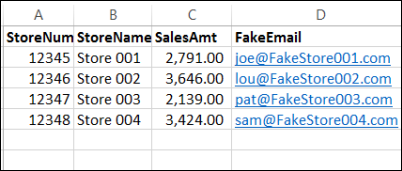
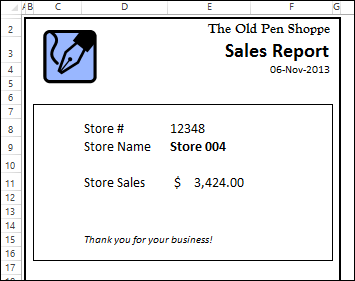
Another sheet in the file has a report, to send to each customer, as a PDF attachment. I like pens, so my imaginary business is a pen shop.
The macro puts the current store number in cell E8, and INDEX/MATCH formulas pull the name and sales amount for that store.
Set Up the Email Settings Sheet
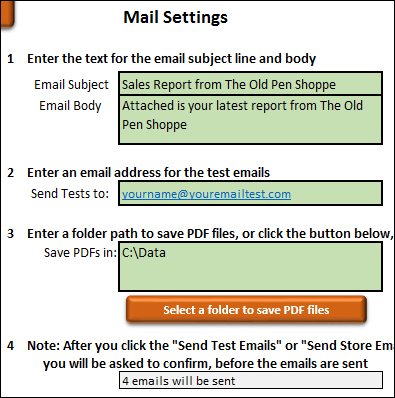
When doing the email tests, I wanted to be able to change some of the settings, without going into the VBA code. So, I added a Settings sheet, where you can:
- enter text for the subject line and email body
- select a folder where a copy of each PDF file will be saved
- enter an email address for receiving test emails
Send the Emails
The final sheet is the Menu, with buttons that run the macros.
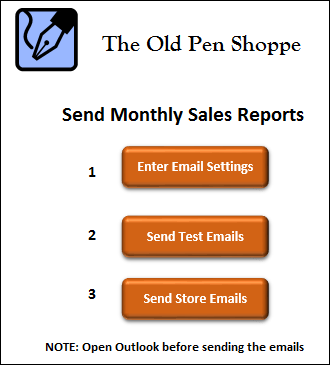
If you’re sending out an email message to a list, it’s a good idea to test it first, by sending the reports to your own email address, instead of using your customers as guinea pigs!
So, click that “Send Test Emails” button, and see what arrives in your inbox. Check the PDF attachments, to make sure that the information is correct, and that each person is receiving the right attachment.
Then, if everything works well, you’re ready to click the “Send Store Emails” button, to send out the actual email.
More Excel Email Tips
For lots more examples of sending email from Excel, please visit Ron de Bruin’s website. He also shows how to use other mail programs, and different types of attachments.
Download the Sample File
To test the email code, you can download the sample file from my Contextures website. Go to the Send Email with PDF page, and in the download section, you can get the zipped Excel file.
The zipped file is in xlsm format, and contains macros. Be sure to enable macros, if you want to run the macro.
And be sure to test carefully, before you send a big email to your customers and co-workers!
_________________
The Olde Pen Shoppe? As long as you’re skewing olde, shouldn’t that be Ye Olde Pen Shoppe? (Ye versus The)
And really should be Ye Olde Quille Shoppe.
Sorry. I’ll stop now.
@Dave, Ye Olde Quille Shoppe probably doesn’t send email.
Dave: funny. You can keep going at Deb’s expense… of course. 🙂
//b
Might be helpful to note the above emailing from excel project is set to work from Outlook, which I stop using years ago.
@billr, thanks, I’ve added that to the article, and linked to Ron’s page which shows how to use the code with different mail programs.
Excellent, Thanks, Debra!
I have deleted three names from the store list (with their fake emails) and inserted my own email address in the remaining one and put my own email address in the test email. However, I am receiving four emails when I send the test but just the one when sending store email. what needs to be done to fix this?
@Simon, the StoreNums range is static, so it didn’t adjust automatically if you just cleared the cells, instead of deleting the rows.
The test email uses your test address for each email, so those would create 4 valid messages.
The store email takes the address from each row, and since only one row has an address, it can only send one email.
Hi Debra, got it! Deleted the rows from the range and as you say – 1 email sent. This is a very clever trick and one I shall use after appropriate modifications. Many thanks.