
See how to create your own Excel icon set, to overcome a limitation with the built-in options. Icon Sets were added to conditional formatting in Excel 2007, and you can use the icons to highlight the results in a group of cells. This workaround uses symbols on the worksheet, instead of the Icon Set symbols.
Icon Set Example
In this Icon Set example, higher sales numbers show a green up arrow.
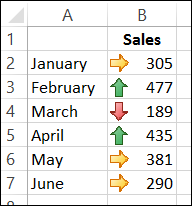
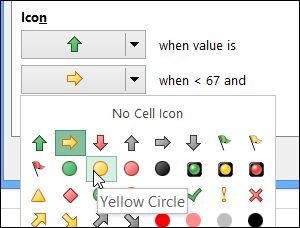
This feature was improved in Excel 2010, and now you can customize these sets, creating your own mix from the existing icons.
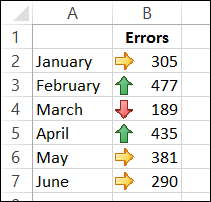
What happens if those numbers represent errors, instead of sales? Now the lower numbers are better, so the higher numbers should show a red up arrow. Unfortunately, you can’t change the color of the icons. If you want a red Up Arrow, instead of green, you’re out of luck!
Create Your Own Icons
If you can’t find the icons that you need, you can create your own set. Set up a lookup table with the values and symbols for your formatting rules. Then, add a formula and formatting in an adjacent cell, to show the applicable icon.
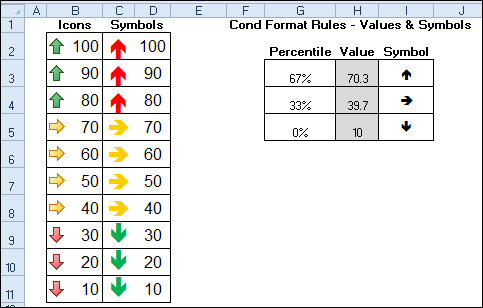
In the screen shot below, column B shows the built-in icons, for numbers 10 to 100. In column C, you can see the symbols that were created – a red up arrow for high numbers and green down arrow for low numbers.
Create the Lookup Table
First, set up the lookup table
- In G3:G5, type the percentages: 67%, 33%, 0%
- In H3, enter the formula: =PERCENTILE($D$2:$D$11,G3)
- Copy the formula down to rows 4 and 5
- Format cells H3:H5 in Wingding3 font
- Use Excel’s Insert Symbols feature to add the up, right, and down arrows in those cells, from the Wingdings 3 font.
- NOTE: You could use different percentages, or just type values into H3:H5
Add the Custom Icons
Next, create the icons in column C:
- In cell C2 enter the formula that creates the icon:
=IF(D2=””,””,IF(D2>=$H$3,$I$3,IF(D2>=$H$4,$I$4,$I$5))) - Copy the formula down to cell C11
- Format cells C2:C11 with Wingding3 font, and yellow font color
- Select cells C2:C11
- On the Ribbon’s Home tab, click Conditional Formatting, then click New Rule
- Click Use a Formula to Determine Which Cells to Format
- For the formula, enter: =$B2<$H$4
- Click the Format button, and select Green as the font colour, then click OK.
- Click New Rule, and click Use a Formula to Determine Which Cells to Format
- For the formula,enter: =$B2>$H$3
- Click the Format button, and select Red as the font colour, then click OK.
- Click OK
- To make the icons appear to be in the same cell as the number, you can create an outside border around the two cells.
Download the Sample File
To download the sample file, please visit the Conditional Formatting Examples page on my Contextures website.
This example is in the 2010/2007 version of the download file.
______________
Hi.
Could you please explain what is written in the formula in the 1st step under – Add the Custom Icons.
–>
1.In cell C2 enter the formula that creates the icon:
=IF(D2=””,””,IF(D2>=$H$3,$I$3,IF(D2>=$H$4,$I$4,$I$5)))
I don’t understand what should be between “”,”” . I would appreciate your reply. Many thanks.
Hi Elina,
the “”,”” represents blank values. You would simply put what you want D2 to equal between the 1st set of quotes and if that equals statement is true, what you want the resulting value to be in the 2nd set of quotes.
An example might be:
=IF(D2=”YES”, “GOOD”, IF(D2>=$H$3,$I$3,IF(D2>=$H$4,$I$4,$I$5)))
Or you could put cell references in place of those if you want (as is the case with the nested if functions in this example). If you use cell references, however, lose the quotes.
Hope that helps!
Amy
Thanks, I was surfing the net for a way to do this. This is very helpful.
This was helpful. Thank you.
Hi,
I was trying to use icons to represent progress for different projects. There are no values to be added. For example “Pre-feasability / Feasability / Conception / Realisation / Completed. I’ve tried inserting symbols using a drop-down list but I don’t have the “symbol” in the drop-down list, I only have it’s character which is confusing for the user. Is there a way to go around this?
Thank-you!
Weena
I would essentially like to do the same thing that Weena has suggested.
Hello,
I have the same question as Mary from August 31 2014.
Is there a way to change the formatted icon color (for the traffic lights, I would like another type of red, green and yellow) ?
Thank you,
Florence
Brilliant. Lateral thinking around what could have been a tricky problem.