
Last week, we had a giveaway for the new Excel Tips Workbook from Vertex42. Thanks to Jon Wittwer for donating the prizes, and here are the winners:
- Tim, with comment 5
- Ute-S, with comment 34
Congratulations, and I will email you later today, to arrange sending your copy of the file.
PivotPower Premium
We’ve been fortunate to have some great prizes for the summer giveaways, and I really appreciate the generosity of my Excel colleagues.
Now it’s my turn to provide the prizes. This week, you’ll have a chance to win a copy of my Excel add-in for working with pivot tables – PivotPower Premium (Ribbon Version). There will be 2 winners, so be sure to enter!
[Update: This product is no longer available]
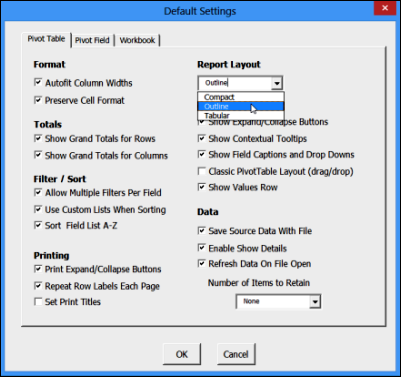
The add-in is easy to install, and is designed for Excel 2007 and later (Windows only). One of its time-saving features is Set Defaults, which lets you store your favourite pivot table settings. Then, select any pivot table, click Apply Defaults, and all those settings are applied.
More Tools for Pivot Table Work
There are many more tools in the PivotPower Premium add-in, including number formats, and a button that changes all the fields to Sum. That’s handy when Excel decides that half of your fields should be “Count of”.
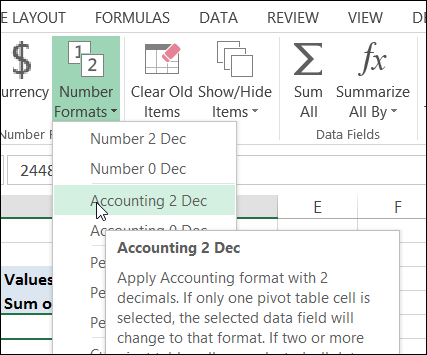
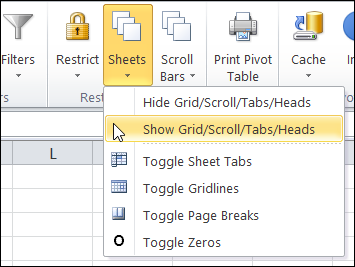
There are even a few tools for changing your workbook and worksheet settings, so your pivot tables can look their best. The screen shot below shows the Ribbon in Excel 2010, and the one above is in Excel 2013.
Enter the Giveaway
I’m picking 2 winners for this giveaway. If you’d like a chance to win a copy, please read the rules, and then make a comment below.
- In your comment, tell me one thing that you love about pivot tables, AND/OR one thing that pivot tables should do better.
- Include your email address, so I can contact you if you win. Your contact information won’t be publicly visible, and it won’t be used for any other mailings.
- The deadline is Wednesday, August 21st, 2013, at 12 noon Eastern Daylight Time.
- One entry per person.
- The 2 winners will be announced on Thursday, August 22nd, 2013.
- Each winner will have 24 hours to claim the prize, and if not claimed, another name will be selected.
__________________________
Pivot Tables They enable me to create new views of worksheet data in seconds. Thousands of pieces of information swing into one place, revealing the meanings behind the data. And now after PowerPivot… it rocks !!!
Definatly the formula =GETPIVOTDATA its simply powerfull..
Most wanted pivot fuction I miss is percentage calc in pivot subtotals =100%
Without having to create help columns with row percentage calculation.
And It should work dynamic as rest of the page/row/columns Dynamics’
Example below:
Region Fruit Sum of Amount Sum of % of Region
Central Apples 10 28.57%
Oranges 25 71.43%
Central Total 35 100.00%
South Bananas 19 36.54%
Oranges 33 63.46%
South Total 52 100.00%
Workaround used today is below dataset (help column = % of region)
Fruit Region Amount % of Region
Apples Central 10 0.285714286
Oranges Central 25 0.714285714
Bananas South 19 0.365384615
Oranges South 33 0.634615385
I LOVE pivot tables. I learn something new about creating pivot tables almost every day. This is a powerful tool. I would love to learn how to use information from multiple tables into one pivot table. I just learned how to use slicers with pivot tables and I’m sure there’s much much more for me to learn. Don’t really know what they could do better as I do not know everything about them.
What I like is ease in which Pivot Table can be filtered or data presented differently. I love when boss shows me print out he has and asks “now how did I get it to look like this?” He is actually very good about asking critical questions that can often be answered by Pivot Table. Now he does not need me.
one thing that I love about pivot tables is that for a complex data, it generates hundreds of sheets with its pivot table based on the page field criteria which the navigation is pivottabel tools > options then “Show Report Filter Pages”
one thing that pivot tables should do better is the filtering option. because for novice users they always find it difficult to put a filter on the pivot table, becuase when you place the cursur in pivot the filter option gets grayed out and then only way to then activate the filter option is to click to the column next to the pivot table area and then filter works.
this looks a simple issue, but lots of users run around until they find this trick.