
A data validation drop down list in Excel only shows one column of items. See how to show multiple columns in Excel drop down list — we’ll use something different from an ordinary in-cell drop down.
Show a Drop Down List
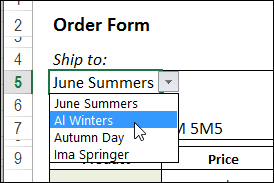
You can make data entry easier by adding drop down lists on a worksheet. You can do this with a data validation list, but it has limitations.
For example, here are a few restrictions on in-cell drop down lists,
- can’t change the font size
- single column only
- no autocomplete
Use a Combo Box Instead
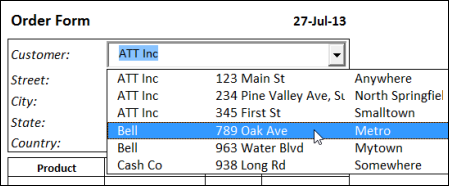
A combo box also lets you select from a drop down list, and you can change the font size, use autocomplete, and show multiple columns.
Add a Single Combo Box
For worksheets where you only need one or two drop downs, just add the combo box on the worksheet, and set its properties.
In the example shown above, the combo box is used to select a customer name, and there can be multiple locations for each customer. The list has 6 columns. The first column, ShipID, is hidden, and it shows the next 5 columns, so you can see the customer’s address information, to make sure that you’re picking the right one.
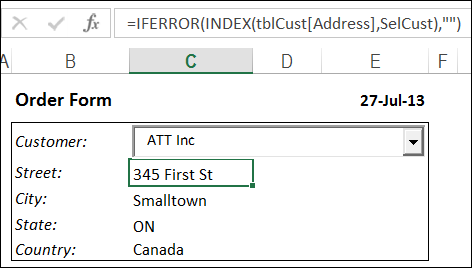
Then, in the cells below, INDEX formulas pull the related details for the selected customer location.
Use Multiple Combo Boxes
Too many combo boxes can cause problems in an Excel file, so it’s best to limit the number that you add.
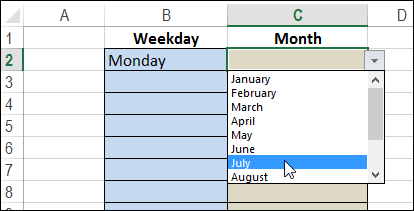
If you need lots of drop downs on the worksheet, you can use my sample that has a hidden combo box. It pops up when you click, or double-click, on a data validation cell. This technique uses programming, but there is only one combo box, so it doesn’t add much to the file size.
Download the Address Combo Box File
To see how the customer location combo box works, download the sample file from my website. On the Sample Files page, go to the Functions section, and download the file FN0004 – ComboBox Selection.
The zipped file is in xlsm format, and contains macros that update the ListFillRange.
___________________________
please make a video tutorial it is much needed. please also show how to do it without the vba combo box as well.
thanks