
You can create drop down lists on a worksheet with Excel’s data validation feature, and they make data entry much easier – usually! Sometimes things go wrong though, like missing drop down arrows in Excel 2013. Have you seen that problem?
Drop-Down List Arrow
In the screen shot below, there is a drop down in cell B3, and you can select Yes or No from the list.
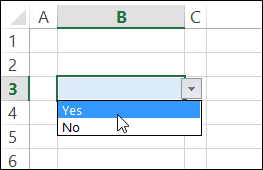
That list is working well, but data validation does have its quirks. In fact, it has so many quirks that I’ve got a whole page on my website explaining what they are, and how to work around them.
And recently, I found another oddity to add to that list – missing arrows in Excel 2013.
“Missing arrows” is a fairly common problem, and usually they can be fixed by using the keyboard shortcut to show objects — Ctrl + 6
Unfortunately, that trick didn’t work this time. There are a few more fixes for missing data validation arrows on my website, and none of those worked either.
Paste a Linked Picture
Here’s how I discovered the new problem, and added a new workaround to that missing arrows page.
Last week, I was updating a file in which you can select a company name from a drop down list. Based on the company name that was selected, a company logo appears on an invoice sheet in the workbook.
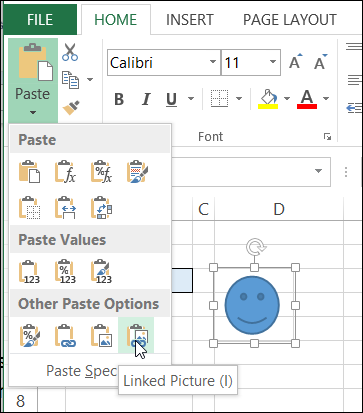
The logo is in a linked picture:
- Copy a cell that contains a logo, or another shape
- Select another cell in the workbook
- On the Ribbon’s Home tab, click Paste, then click Linked Picture
Linked Pictures and Arrows Don’t Mix
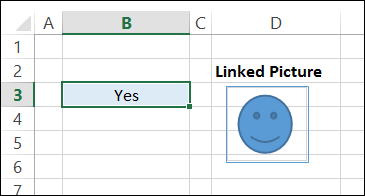
As soon as I pasted that linked picture, the drop down arrow disappeared. I thought the workbook might be corrupted, so I tried the same thing in a different workbook. The drop down arrow disappeared there too.
The arrow appeared briefly if I pressed the mouse button when selecting the cell, but vanished as soon as I let go. The same file worked without problems in Excel 2010.
Vanishing Arrow Workaround
I’m using Excel 2013, on Window 8, so if you’re using a different operating system, it might not be a problem. However, if you run into this issue, here’s a kludgy workaround. If you find a better solution, please let me know.
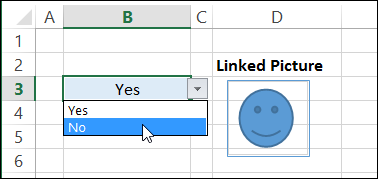
- Select the cell with the data validation list
- Click outside of the Excel window (e.g. click on the Desktop, or click in your browser window)
- Click on the Excel window, and the arrow will appear, and you can select an item from the list.
_____________
I have the same issue. Excel 2013 / Win 10 pro. I too have a linked picture in my file (not on the same sheet). I found the following:
– sheana’s solution didn’t work for me
– the drop down arrow isnt visible but it is still “there”. Click where it would normally be and the list drops down
– using Alt + down arrow is still a useful shortcut to show the list and that still works
– if I delete the linked picture, all arrows reappear properly
I have been searching for a solution for this for a month now and I have found a very strange solution that seems to work. My problem was stemming from a picture linked to a named indirect/index/match function which caused all validation arrows to “flash” throughout the entire .xlsb workbook.
I created a combo box form control and set the cell link to =$1:$1048576 :all cells on one of the sheets affected by the flashing arrows. Not only did this stop the arrows from flashing on the page I made the control box on, all arrows in the whole workbook started working normally.
I don’t know if this was an isolated success for my workbook or not but it’s worth a try to stop this frustrating bug.
I had been looking for a solution to this problem for months!!!. Your solution WORKS!!!! Did you do this randomly? Both the cell link and the range, as you stated, have to be set for it to work. THANK YOU!!!!!!
I found this completely randomly as I was looking everywhere for a solution. I still don’t know why it works but it could probably be used to isolate the true source of the linked image/validation arrow problem by someone who knows more about how form controls work.
Matt,
You are a genius.
I don’t know how or why it works or how you came up with this fix.
But it works!!!!!
It worked for Windows 10 and Windows 7 Pro. Both with excel365 (2016)
Thank you.
Be well.
Matt’s solution works perfectly. I wanted to put the ComboBox in the part of the WorkSheet I have hidden but that is not allowable. So, I hid it under an image.
I also deleted the ComboBox to see if the DropDown arrows stay, but unfortunately they disappeared again.
Worked for me. also for comments, which would’t appear just like the data validation arrows
Genius solution! This bug was driving me crazy on a dynamic report but it’s all good now!
Million thanks!!!
What the crap, this works! Thank you SO MUCH, Matt! You’re awesome. I have wasted so much time trying to figure this one out!
In my case, I was using Excel 2013 on a Windows 10 machine, and I was using a simple text List for my Data Validation, but the stupid drop-down arrow would only be visible if I “clicked and held” on the cell! Once I implemented your Combo Box fix, using “$1:$1048576” for both the “Input Range” and the “Cell Link”, the Data Validation arrow simply blinks very quickly one time when I first click on it, and then stays visible until I click off of the cell!
I wish there was a more elegant fix for this problem, but I don’t think it exists – and I don’t think Microsoft is going to do anything about it.
Thanks again!
Matt, thanks for the amazing workaround. I just wanted to add if the only reason for the having the combobox is the bug workaround, the combobox can be made invisible (and non-clickable, so you click right through to the cells behind it), and the workaround still works. To make it invisible, in VBA:
activesheet.shapes(“Drop Down 37”).visible=false
Your a champion,
I had to set both the input range and the cell link to $1:$1048576 and had to copy the combo box form control to each work sheet with the affected drop down arrows but it works.
If you have tried Matts solution with no success maybe try adding the input range in as well
Thanks Matt for taking the time to post your solution !!!
2020 still this bug, and your solution, don;t know how… but still works!
Thank you, what an elegant solution for a tiny annoying bug that was about to die my dashboard
Cheers,
Aleksandar
To add to the last comment, it seems that the input range also needs to be set to something in the combo box.
Hi
Just to say I had exactly the same problem with Excel 2013.
I haven’t pasted any images. But I had been playing around with Custom View & the Validation Lists and sources. Then all of a sudden the dropdown arrow only appeared when I held the left mouse button down and disappeared when I released it.
Debra’s suggestion of selecting the cell, clicking outside if the area like the desktop), it did make the drop-down arrow appear (which was better than nothing).
However, amazingly Matt’s solution worked! No idea why.
Many Thanks, Bill
Just a further observation I’ve noticed after I had applied Matt’s fix, is that when I select a cell which has Validation, although the dropdown arrow appears, it flashes first before appearing permanently.
I tried an earlier version of the file & the Validation List arrows work fine & don’t flash at all ?
Regards, Bill
I do have a further update to this issue.
As I have a lot of sheets in this workbook, I firth deleted the Combo box and the arrows disappeared again.
Then I started to delete worksheets, one at a time. I found that the issue related to one particular sheet; once deleted, the Validation List arrows worked as before.
But what was particularly odd, is that if I made a copy of the worksheet first, deleted the original sheet, then renamed the copy back to its original name, the issue was still corrected. Thus, it didn’t seem to be a problem with the data on the sheet.
Any ideas ?
Regards, Bill
Bill, thanks for the update on how you fixed the problem. It’s strange that deleting the sheet worked, but a copy of that sheet didn’t cause a problem.
Were there any names associated with the deleted sheet? Worksheet level names would have been created for the copy.