
You can create drop down lists on a worksheet with Excel’s data validation feature, and they make data entry much easier – usually! Sometimes things go wrong though, like missing drop down arrows in Excel 2013. Have you seen that problem?
Drop-Down List Arrow
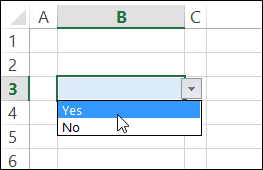
In the screen shot below, there is a drop down in cell B3, and you can select Yes or No from the list.
That list is working well, but data validation does have its quirks. In fact, it has so many quirks that I’ve got a whole page on my website explaining what they are, and how to work around them.
And recently, I found another oddity to add to that list – missing arrows in Excel 2013.
“Missing arrows” is a fairly common problem, and usually they can be fixed by using the keyboard shortcut to show objects — Ctrl + 6
Unfortunately, that trick didn’t work this time. There are a few more fixes for missing data validation arrows on my website, and none of those worked either.
Paste a Linked Picture
Here’s how I discovered the new problem, and added a new workaround to that missing arrows page.
Last week, I was updating a file in which you can select a company name from a drop down list. Based on the company name that was selected, a company logo appears on an invoice sheet in the workbook.
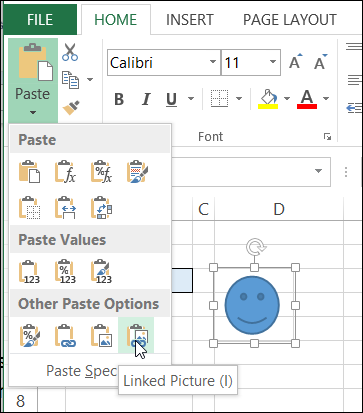
The logo is in a linked picture:
- Copy a cell that contains a logo, or another shape
- Select another cell in the workbook
- On the Ribbon’s Home tab, click Paste, then click Linked Picture
Linked Pictures and Arrows Don’t Mix
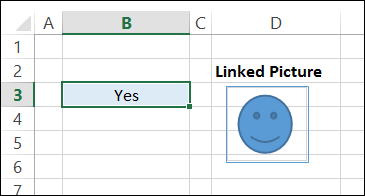
As soon as I pasted that linked picture, the drop down arrow disappeared. I thought the workbook might be corrupted, so I tried the same thing in a different workbook. The drop down arrow disappeared there too.
The arrow appeared briefly if I pressed the mouse button when selecting the cell, but vanished as soon as I let go. The same file worked without problems in Excel 2010.
Vanishing Arrow Workaround
I’m using Excel 2013, on Window 8, so if you’re using a different operating system, it might not be a problem. However, if you run into this issue, here’s a kludgy workaround. If you find a better solution, please let me know.
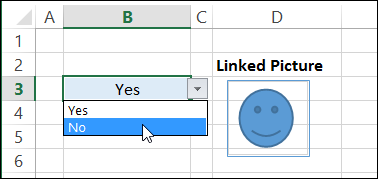
- Select the cell with the data validation list
- Click outside of the Excel window (e.g. click on the Desktop, or click in your browser window)
- Click on the Excel window, and the arrow will appear, and you can select an item from the list.
_____________
Hi Debra, I was tried to recreate this bug, but in my Excel installation everything works normal. Arrow is there when cell with list validation is selected. Maybe it depends on specific Excel subversion. I’m using Win 8 and Office 365 Home premium 32-bit.
Thanks Mladen! Looks like it’s just some versions.
I have the same issue. Excel 2013 and Windows 7 64-bit.
Uh ho! I face exactly the same issue – Missing drop down arrow in a cell that actually has drop down list.
And nothing works – not even the click outside of excel 🙁
Thoughts?
go to options, advanced, tick the show/hide objects box. Voila!
Boom! You rock, that’s it!
Worked. Thank you so much
Thanks Sheana it worked.