
To make it easy for people to enter data on a worksheet, you can insert a check box control, using the Form Control tools on the Developer Tab. Then, use check box result in Excel formula solutions.
Form Controls on Developer Tab
If you don’t see a Developer tab, there are instructions here for showing it.
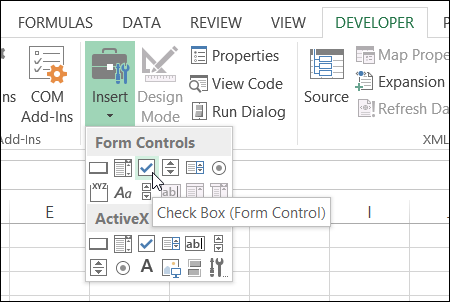
Adding these controls to a worksheet can make it easy for people to enter data – they just click to select the option that they want.
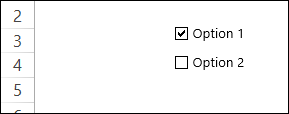
But, after they’ve checked that box, how do you capture that information, and use it in your formulas?
Link the Check Boxes to Cells
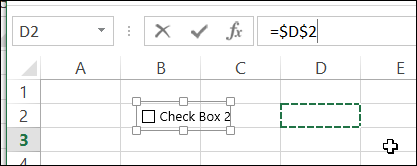
When you add a check box to the worksheet, it isn’t automatically linked to a cell. If you want to use the check box result in a formula, follow these steps to link it to a cell:
- To select a check box, press the Ctrl key, and click on the check box
- Click in the Formula Bar, and type an equal sign =
- Click on the cell that you want to link to, and press Enter
Check Box Result is TRUE or FALSE
If you have multiple check boxes, you can link each one to a separate cell on the worksheet.
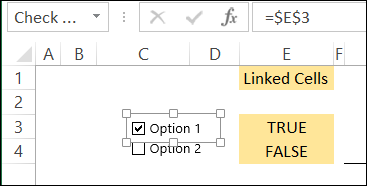
In the screen shot below, Option 1 check box is linked to cell E3, and Option 2 is linked to cell E4. When the box is checked, the linked cell shows TRUE, and if it is not checked, the linked cell shows FALSE.
Use the Check Box Result in a Formula
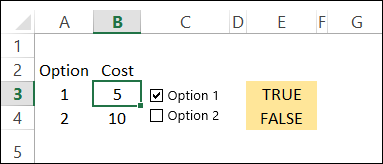
In this example, each option has a price, and I’ve entered the prices in column B.
In a worksheet formula, if you use TRUE or FALSE in a calculation:
- TRUE has a value of 1.
- FALSE has a value of 0.
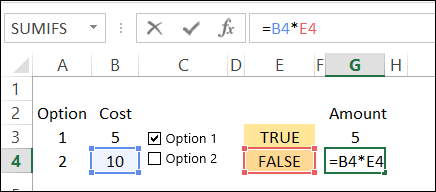
So, we can use the results in the linked cells, to calculate the cost for each option. We’ll multiply the cost in column B, by the check box result in column E.
- The formula in cell G3 is: =B3 * E3 and the result is 5, because 5 multiplied by 1 equals 5.
- In cell G4, the result is 0, because 10 multiplied by 0 equals 0.
Test the Result with IF
If your formula is fancier than a simple multiplication, you can use the IF function to test the result in the linked cell.
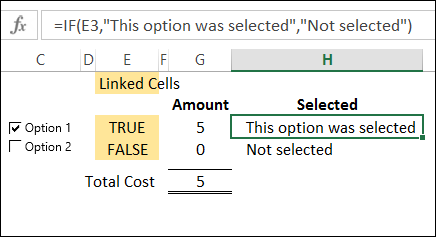
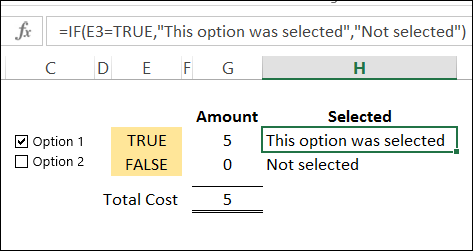
In cell H3, the following formula shows a text string if cell E3 is TRUE, and a different message if it is not TRUE.
=IF(E3,”This option was selected”,”Not selected”)
Another Check Box Formula Example
To see another example of using a check box result in a formula, take a look at Dave Peterson’s loan table formula on my Contextures website. There is a sample file that you can download.
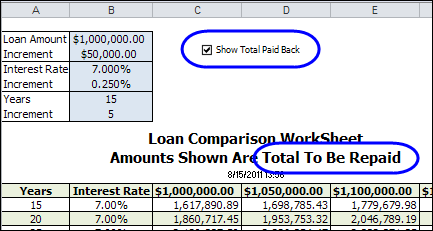
A check box at the top of the worksheet is linked to cell C1. Check that box if you want to see the total amount that will be paid back, instead of the monthly payment required.
If cell C1 is TRUE, then the monthly payment in the table is multiplied by the number of payments. If C1 is FALSE, the monthly payment is multiplied by 1.
This is the formula in cell C12:
=-PMT($B12/12,12*$A12,C$11)*IF($C$1,$A12*12,1)
_____________________
This is such a ridiculous circuitous route toward something that should be one step, as it is in such programs as iWork numbers. Figured it out right away there – but a friend wants to do it in the “industry standard” so I’ve been trying to figure it out for days in excel and even saving the numbers file as excel file tells you “checkboxes not supported… will be replaced with true/false”.
I am working on a estimation program for our website. I am having problems finding the right formulas for multiple check boxes.
If this box is checked then it will be this price per feet and inches. Some of our colors only come in one the check boxes. So I would also need something that would distinguish if a certain was being used it would a different price per feet/inches.
Metal 40 Yr Lifetime Panel Loc Panel Loc + (Panel Loc & Panel Loc = $0 (profile only)
29Ga $2.15 $2.25 – Limited Colors available.
26Ga N/A $2.65 – All Colors are available
I am trying to create a boundary diagram that shows which components of an assembly interact. I have the control form check boxes with formulas created (shown below) where someone can say I am designing parts A,B, and C and they will interact with parts X,Y, and Z. My issue is that I want to create another IF statement into the cell which says that if you click part A on its true and IF part A is on it will interact by bolt or clip etc.
=IF(names!$C$13,names!$B$13,NA())
I created a checklist with checkboxes that I would like to send to my customers to use. I have locked all cells except the ones containing the checkboxes. But when I send it out, the checkboxes do not appear.
how to create a formula in excel when I checked the box it gets a price total, TIA for your reply 🙂
How to limit number of checkboxes selected by using simple excel statement?
i.e. 10 checkboxes, when more than 4 selected, it does not allow