
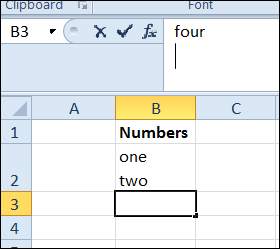
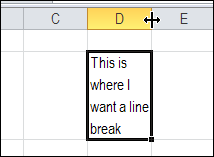
When you want to create a line break (line feed) in a cell, you press Alt + Enter, to start a new line. You can put one or more line breaks in a cell, to make the contents easier to read. But how can you find and replace line breaks in Excel?
Find Line Breaks in Excel
Line breaks are easy to add, but a little trickier to remove.
To find specific text in Excel, you can use Ctrl + F to open the Find and Replace dialog box. However, if you try to type Alt + Enter in the Find What box, you’ll just hear a beep from your computer. Excel won’t let you put that shortcut into the Find What box.
Instead of using Alt + Enter, you can use a special shortcut to enter a line break in the Find What box: Ctrl + J
Why does that work? A line break is character 10 in the ASCII character set, and the Ctrl + J shortcut is the ASCII control code for character 10.
Find and Replace a Line Break
To find a line break, and replace it with a space character, follow these steps. There is a video below, that shows the steps.
- Select the cells that you want to search
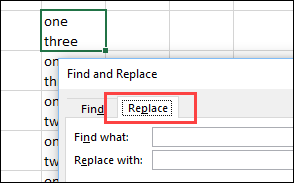
- On the keyboard, press Ctrl + H to open the Find and Replace dialog box, with the Replace tab active
- Click in the Find What box
- On the keyboard, press Ctrl + J to enter the line break character — NOTE: No text will appear in the Find What box — just a small blinking dot
- Press the Tab key on the keyboard, to move to the Replace With box
- Type a space character
- Then, click Find Next or Find All, to find the cells with line breaks.
- OR, click Replace or Replace All, to replace the line breaks with space characters.
NOTE: If these steps don’t work, try the tips and troubleshooting suggestions below.
To get the Excel workbook, with the Add or Remove Line Breaks in a Cell in Excel example, go to the Excel Line Breaks page on my Contextures site.
Tips and Troubleshooting
Update: Here are a few tips and troubleshooting suggestions, to use while you find and replace line breaks in Excel. Thank you to everyone who commented, and added suggestions.
- If Ctrl + J does not work, press the Alt key, and type 0010 on the number keypad (do not use the numbers above the letters)
- If the Excel file has never been saved, try saving the file before doing this find and replace
- Try doing this find and replace when you first open Excel, before using the Find box for any other searches. Or, try the next tip — you might have extra line breaks in the Find box.
- Be sure that you aren’t inserting more than one line break in the Find box — the Find box looks empty after you type Ctrl+J, so it is easy to accidentally type in there again. To avoid this problem:
- Click on the Replace tab — you’ll see a light border around the word.
- Press the Tab key — that will select the Find What box, and anything that is entered there.
- Type Ctrl+J (that will replace anything that you previously typed in Find)
Video: Find and Replace Line Breaks
Watch this short video, to see the steps for adding a line break in a cell. Then see how to find the line breaks in Excel, and replace them with space characters.
Debra, You are the best!
Thank you!
Incredible – the video really helped !!! I have a massive table in word with tonnes of line break that I was struggling to get into excel. I replace all line breaks by a text – my name – and then in excel I replaced my name to crtl+J
Really helped and saved my efforts. Thanks a lot!
Hi,
I tried, Capital J to replace the line break and the formula and all tips and tricks from this conversation.
unfortunately, nothing turned out.
I am trying to replace a line break with a space in a column of my .CSV sheet.
I copied the column and paste into another blank sheet and saved it and tried again with all possible options. But couldn’t get the replacement. I can see that copy paste is the only option now to get my work done. But I don’t want to take a chance of losing the original data in replacing the cells when I filter them out during copy paste.
Any help is greatly appreciated. Thank you!
Before seeing “Ctrl+J” on this webpage, I was at a total loss.
I had an MSWord table containing forced line returns within cells and when copying the info to Excel it was putting the “next line” info, not into the same cell but into a new cell.
This (plus a couple of logical gyrations) will save me a couple of hours today and several hours in the future. . . PLUS it may appear that I know some “magic”. ; – )
thanks, really usefull the control + j