
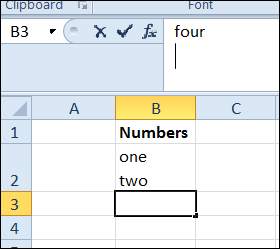
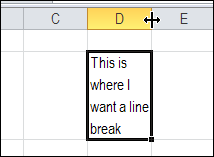
When you want to create a line break (line feed) in a cell, you press Alt + Enter, to start a new line. You can put one or more line breaks in a cell, to make the contents easier to read. But how can you find and replace line breaks in Excel?
Find Line Breaks in Excel
Line breaks are easy to add, but a little trickier to remove.
To find specific text in Excel, you can use Ctrl + F to open the Find and Replace dialog box. However, if you try to type Alt + Enter in the Find What box, you’ll just hear a beep from your computer. Excel won’t let you put that shortcut into the Find What box.
Instead of using Alt + Enter, you can use a special shortcut to enter a line break in the Find What box: Ctrl + J
Why does that work? A line break is character 10 in the ASCII character set, and the Ctrl + J shortcut is the ASCII control code for character 10.
Find and Replace a Line Break
To find a line break, and replace it with a space character, follow these steps. There is a video below, that shows the steps.
- Select the cells that you want to search
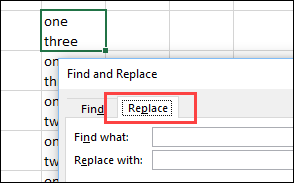
- On the keyboard, press Ctrl + H to open the Find and Replace dialog box, with the Replace tab active
- Click in the Find What box
- On the keyboard, press Ctrl + J to enter the line break character — NOTE: No text will appear in the Find What box — just a small blinking dot
- Press the Tab key on the keyboard, to move to the Replace With box
- Type a space character
- Then, click Find Next or Find All, to find the cells with line breaks.
- OR, click Replace or Replace All, to replace the line breaks with space characters.
NOTE: If these steps don’t work, try the tips and troubleshooting suggestions below.
To get the Excel workbook, with the Add or Remove Line Breaks in a Cell in Excel example, go to the Excel Line Breaks page on my Contextures site.
Tips and Troubleshooting
Update: Here are a few tips and troubleshooting suggestions, to use while you find and replace line breaks in Excel. Thank you to everyone who commented, and added suggestions.
- If Ctrl + J does not work, press the Alt key, and type 0010 on the number keypad (do not use the numbers above the letters)
- If the Excel file has never been saved, try saving the file before doing this find and replace
- Try doing this find and replace when you first open Excel, before using the Find box for any other searches. Or, try the next tip — you might have extra line breaks in the Find box.
- Be sure that you aren’t inserting more than one line break in the Find box — the Find box looks empty after you type Ctrl+J, so it is easy to accidentally type in there again. To avoid this problem:
- Click on the Replace tab — you’ll see a light border around the word.
- Press the Tab key — that will select the Find What box, and anything that is entered there.
- Type Ctrl+J (that will replace anything that you previously typed in Find)
Video: Find and Replace Line Breaks
Watch this short video, to see the steps for adding a line break in a cell. Then see how to find the line breaks in Excel, and replace them with space characters.
Doesn’t seem to work with Macs.
Very helpful post
Thank you!
Hey! I love you!
I had a situation where I had some cells with NLs in text, which I wanted, and a large number of cells with one or two spurious NLs that I wanted rid of. Using a Mac, and latest Excel, I couldn’t get any of the find-and-replace ideas to work. Just a lot of angry pings from Excel. Eventually I realised that a combination of CLEAN and a few other things did the job.
1. Create sheet 2 to receive the manipulated data from sheet 1.
2. In sheet 2, R1C1, enter the formula =IF(LEN(Sheet1!RC)<5,"%",Sheet1!RC) where "%" is any convenient character that does not appear in sheet 1. For me, this meant that all the cells with just one or two invisible NLs now appeared as % in sheet 2. At last I could see the buggers.
3. Select all of sheet 2, copy, and paste special / values. So now sheet 2 only contains text, most of which is cells containing a single %.
4. Keeping all of sheet 2 selected, Find-and-replace % with nothing at all.
This did it for me. I realise that my circumstances are not the same as everyone else's but it may help. You could perhaps use SUBSTITUTE to replace NL with % or something like that.
Ridiculous that Excel requires you to spend ages on simple problems like this.
Great! thank you! Normally of course, if you paste from a doc table with CR or LF, it goes into the next cell down for each CR and I have too many rows per original table row.
But take complicated text in a table in Word, replace all paragraphs and line feeds with text (I use “[para]” ) and I can paste the table into excel, it goes in one row each table row.
Then I find and replace [para] with ctrl-j, and I have my formatted text within one cell, within one row!!!! 🙂 😀
where I have too many lines I also replace ctrl-j ctrl-j with one ctrl-j.