
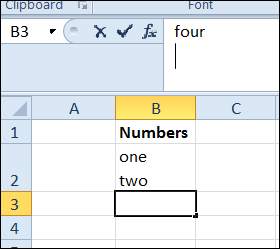
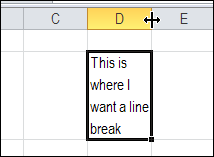
When you want to create a line break (line feed) in a cell, you press Alt + Enter, to start a new line. You can put one or more line breaks in a cell, to make the contents easier to read. But how can you find and replace line breaks in Excel?
Find Line Breaks in Excel
Line breaks are easy to add, but a little trickier to remove.
To find specific text in Excel, you can use Ctrl + F to open the Find and Replace dialog box. However, if you try to type Alt + Enter in the Find What box, you’ll just hear a beep from your computer. Excel won’t let you put that shortcut into the Find What box.
Instead of using Alt + Enter, you can use a special shortcut to enter a line break in the Find What box: Ctrl + J
Why does that work? A line break is character 10 in the ASCII character set, and the Ctrl + J shortcut is the ASCII control code for character 10.
Find and Replace a Line Break
To find a line break, and replace it with a space character, follow these steps. There is a video below, that shows the steps.
- Select the cells that you want to search
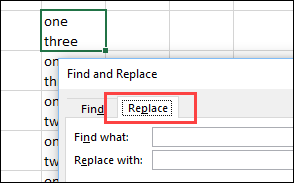
- On the keyboard, press Ctrl + H to open the Find and Replace dialog box, with the Replace tab active
- Click in the Find What box
- On the keyboard, press Ctrl + J to enter the line break character — NOTE: No text will appear in the Find What box — just a small blinking dot
- Press the Tab key on the keyboard, to move to the Replace With box
- Type a space character
- Then, click Find Next or Find All, to find the cells with line breaks.
- OR, click Replace or Replace All, to replace the line breaks with space characters.
NOTE: If these steps don’t work, try the tips and troubleshooting suggestions below.
To get the Excel workbook, with the Add or Remove Line Breaks in a Cell in Excel example, go to the Excel Line Breaks page on my Contextures site.
Tips and Troubleshooting
Update: Here are a few tips and troubleshooting suggestions, to use while you find and replace line breaks in Excel. Thank you to everyone who commented, and added suggestions.
- If Ctrl + J does not work, press the Alt key, and type 0010 on the number keypad (do not use the numbers above the letters)
- If the Excel file has never been saved, try saving the file before doing this find and replace
- Try doing this find and replace when you first open Excel, before using the Find box for any other searches. Or, try the next tip — you might have extra line breaks in the Find box.
- Be sure that you aren’t inserting more than one line break in the Find box — the Find box looks empty after you type Ctrl+J, so it is easy to accidentally type in there again. To avoid this problem:
- Click on the Replace tab — you’ll see a light border around the word.
- Press the Tab key — that will select the Find What box, and anything that is entered there.
- Type Ctrl+J (that will replace anything that you previously typed in Find)
Video: Find and Replace Line Breaks
Watch this short video, to see the steps for adding a line break in a cell. Then see how to find the line breaks in Excel, and replace them with space characters.
Ctrl-J is an easy way to put a line break into a number format. Unfortunately out stored working in chart axis tick label dialogs in Excel 2010 or 2013.
Doh! “out stored” = “it stopped”. Stupid swype. That comment should be:
Ctrl-J is an easy way to put a line break into a number format. Unfortunately it stopped working in chart axis tick label dialogs in Excel 2010 or 2013.
started working again in 2016 version!
Regarding this statement…
4. On the keyboard, press Ctrl + J to enter the line break
character — NOTE: Nothing will appear in the Find What box
Your “NOTE” is not entirely true… if you look carefully at the bottom left corner of the “Find what” field, you should see a small blinking “dot”… it is not a dot, rather, it is the top of the blinking text cursor on the line below (which Ctrl+J created) peeking through. If you press the left arrow, you will see the full text cursor because you have moved it to the other side of the Line Feed character placed by Ctrl+J… press the right arrow and the text cursor nearly disappears again as it move back to the other side of the Line Feed character again.
@Rick, thanks, you’re right about the blinking dot!
you are AWESOME!!!!!!!!!!!!! You solved me a huge curiosity and any page about the subject helped me more than u!
Forgive me, Leonardo, but in order to avoid misinterpretation of your comment, I will take it upon myself to correctly translate a very common mistake by native Spanish speakers. People who speak Spanish very often think that “any” means “no” or “none”.
The comment should read:
You solved me a huge curiosity and NO page on the subject helped me more than u!
By the way, I also want to thank you, Debra, for solving a long desired solution to this Alt+Enter dilemma, and Ctrl+J is good news to me too.
Cheers!!
Alphonse68, thanks, I’m glad you found it useful!
I am working in Excel 2019 (Office 2019). See my work. It is not working. Please suggest.
Entered
One Alt + Enter Two Alt + Enter Three. It works. But after pressing Find and Replace, I am not able to replace Alt + Enter character using Ctrl + J and replacing by Space. It does not work. See the message “We could not find anything to replace” and “FYI: It’s Possible the data you are trying to replace is in a protected sheet. Excel can not replace data in protected sheets.
It is a new sheet, it is not protected. I am not able to replace. PLease suggest
Same issue. Sheet not protected but CTRL+J or CTRL+SHIFT+J not working.
When I encounter unknown or invisible ASCII characters embedded in strings, I try to copy them in the edit line, then paste them into “Find what” field, or even use them in a “SUBSTITUTE” formula.
Not working on Excel 2010
@Abhay the shortcut works in all versions of Excel. Try it when you first open Excel, before using the Find box for any other searches.
This condition is particularly important in my case. Great tip and should be incorporated in the post itself.
Thank you for sharing.
It has saved me lots of time!
Thanks, jimhoops, and I’ve added a Tips and Troubleshooting section.
Hi Debra,
The above mentioned trick is working only in one cell. Thereafter it it is not working for other cells of the same sheet.
Please advise why it so?
Regards
Sonu
Couldn’t make this work in excel 2007 at all. The blinking dot appeared but it said it couldn’t find anything to replace.