
Pivot table filtering was improved in Excel 2010, when Slicers were introduced. Instead of using the drop down lists in the pivot table headings, you can click on a Slicer, to quickly filter the pivot table. You couldn’t use Slicers to filter a table in Excel 2010 though.
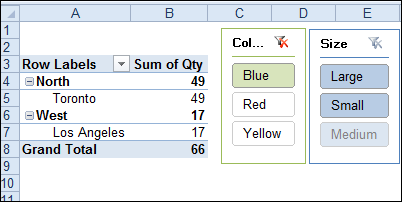
Slicers take up some room on the worksheet, but you can quickly see what filters have been applied. And, unlike Report Filters, Slicers show you what is available in the other fields, after you have applied a filter.
Slicers for Excel Tables
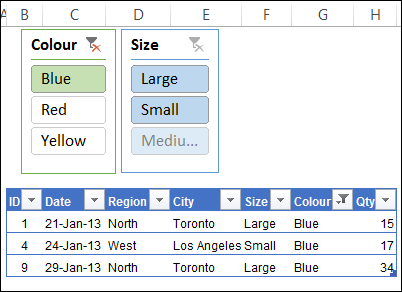
In Excel 2013, Slicers were enabled for named tables too, so you can filter your data with a single click. They work just like Pivot Table Slicers, and are especially handy if you’re doing a presentation. You can click one of the big Slicer buttons, instead of fumbling through the filter drop downs.
Workaround for Excel 2010 Tables
Slicers don’t work on Excel 2010 tables, but if you’re using that version, there’s good news – AlexJ has developed a workaround.
There are a couple of limitations:
- You need a unique identifier in each table row.
- Changes made manually to the field filters on the table are not reflected on the slicers (you might want to hide the table filters)
Add a Pivot Table and Slicers
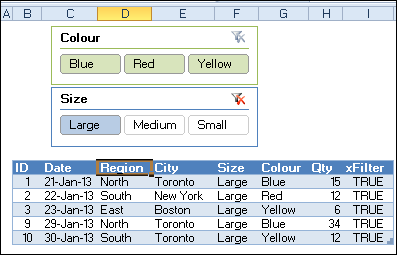
From the Excel table’s data, AlexJ built a pivot table, with the ID field in the Row Labels area. Next, he added two Slicers for the pivot table, using the Size and Colour fields.
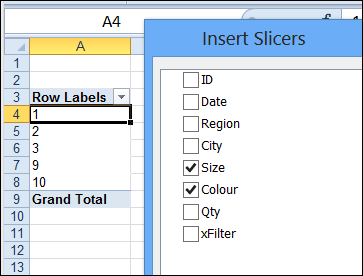
Then, copy or move those Slicers to the worksheet where the Excel Table is located.
Check for the ID
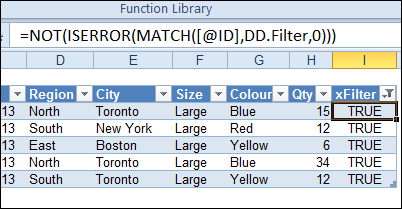
A named range – DD.Filter – is created, based on column A on the pivot table worksheet. In the Excel Table, a new column is added – xFilter – and a formula in that column checks for the row’s ID in the DD.Filter range.
The formula result is TRUE or FALSE, and only the TRUE rows will show after a Slicer is clicked.
Add Some Event Code
The final step is to add some event code to the pivot table, so it filters the table after a pivot table update. The pivot table update event is fired by the user action of changing a slicer selection.
Here is the code from the SalesPivot worksheet module.
Private Sub Worksheet_PivotTableUpdate(ByVal Target As PivotTable)
    Dim tbl As ListObject
    Dim lCol As Long
    Application.ScreenUpdating = False
    Set tbl = Worksheets("SalesData").ListObjects("Table1")
    lCol = tbl.ListColumns("xFilter").Index
    With tbl
        If .AutoFilter.FilterMode Then .AutoFilter.ShowAllData
        .Range.AutoFilter Field:=lCol, Criteria1:="TRUE"
    End With
    Application.ScreenUpdating = True
    Set tbl = Nothing
End Sub
Download the Sample File
To download the AlexJ’s sample file, you can visit his page on the Contextures website. In the Filters section, look for
FL0002 – Filter Excel 2010 Table With Slicers
The file is designed for Excel 2010 only, and you’ll have to enable macros to test the file.
_____________
In pivote report I can utilized also Report Filter cell for other connection, but…! if I using Slicer how I utilized Filtered item for other connection?
Thanks for this great idea.
Unfortunately this won’t work in other than English versions of Excel:
.Range.AutoFilter Field:=lCol, Criteria1:="TRUE"For my German Excel one have to use “WAHR” instead of “TRUE”.
To have an international version you can use this one
.Range.AutoFilter Field:=lCol, Criteria1:=CStr(True)This works nice for me.
I am running into an issue where the slicers are not changing the the correct sheet, they are changing on the pivot but not on the table, what are some of the causes for this? ( all code including the VB code is in place)
@Skip
Unfortunately you gave to less information, so we have to guess!
I had the same issue and it was solved according to my posting (see above).
Would be interesting to know:
Windows Version, Regional Settings, MS Office Version, 32bit/64bit,…
Help us to help you. 🙂
Alex, this is an awesome idea. Thanks for sharing.
thanks for the reply ,
When i hit the slicer, the pivot table on the secondary page changes and the Xfilter column cont he results table goes to FALSE but, the TRUES dont filter to be shown unless i open the filter and close it and it will. It still shows all the data on the table regardless of what is showing the column.