
Is there a harder working team in Excel, than the reliable duo of INDEX and MATCH? These functions work beautifully together, with MATCH identifying the location of an item, and INDEX pulling the results out from the murky depths of data. See how to find text with INDEX and MATCH.
Find Text in a String
Last week, Jodie asked if I could help with a problem, and INDEX and MATCH came to the rescue again.
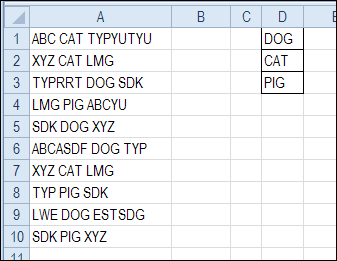
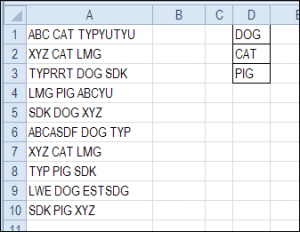
Jodie sent me a picture of her worksheet, with text strings in column A and codes in column D. Each text string contained one of the codes, and Jodie wanted that code to appear in column B.
Would you use INDEX and MATCH to find the code, or another method? Keep reading to see my solution, and please share your ideas, if you have other ways to solve this.
Count the Occurrences With COUNTIF
When you want to find text that’s buried somewhere in a string, the * wildcard character is useful. We can use the wildcard with COUNTIF, to see if the string is found somewhere in the text.
I entered this test formula in cell B1. This formula needs to be array-entered, so press Ctrl + Shift + Enter.
=COUNTIF(A1,”*” & $D$1:$D$3 & “*”)
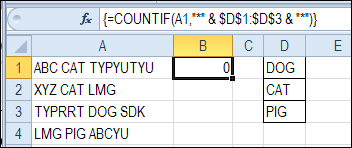
There are wildcard characters before and after the cell references to D1:D3, so the text will be found anywhere within the text string.
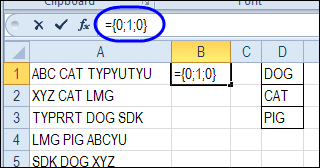
To see the results of the array formula, click in the formula bar, and press the F9 key. The array shows 0;1;0 so it found a match for CAT, which is in the second cell in the range, $D$1:$D$3.
- Important: After you check the results, press the Esc key, to exit the formula without saving the calculated results.
Get the Position With MATCH
Next, you can add the MATCH function, wrapped around the COUNTIF formula, to get the position of the “1” in the results.
Make the following change to the formula in cell B1, and remember to press Ctrl + Shift + Enter.
=MATCH(1,COUNTIF(A1,”*”&$D$1:$D$3&”*”),0)
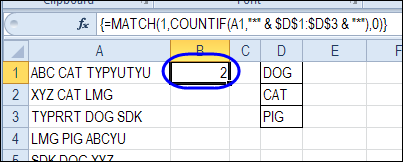
The result is 2, so the code “CAT”, the 2nd item in range D1:D3, was found in cell A1.
Get the Code With INDEX
Next, the INDEX function can return the code from the range $D$1:$D$3, that is at the position that the MATCH function identified.
Make the following change to the formula in cell B1, and remember to press Ctrl + Shift + Enter.
=INDEX($D$1:$D$3,MATCH(1,COUNTIF(A1,”*”&$D$1:$D$3&”*”),0))
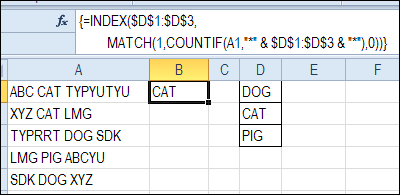
The result is CAT, so the formula is working correctly.
Prevent Error Results With IFERROR
There should be one valid code in each text string, but sometimes the data doesn’t cooperate. Just in case there are text strings without a code, or more than one instance of the code, you can use IFERROR to show an empty string, instead of an error. (Excel 2007 and later versions)
=IFERROR(INDEX($D$1:$D$3,MATCH(1,COUNTIF(A1,”*”&$D$1:$D$3&”*”),0)),””)
Enter with Ctrl + Shift + Enter, and then copy the formula down to row 10.
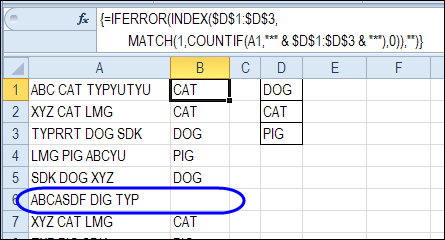
In cell B6, the formula returns an empty string, and the cell looks blank, because none of the valid codes are in the text that’s in cell A6.
Use a Named Range
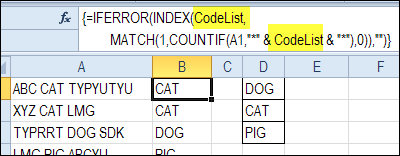
Instead of referring to range $D$1:$D$3, you could name that range, and use the name in the INDEX/MATCH formula. That would make it easier to maintain, if the size of the codes list will change.
Download Find Text With INDEX and MATCH Sample File
To get the sample file, and see how the formula works, go to the INDEX and MATCH page on my Contextures site.
In the Download section on that page, look for sample file 4 – Find Text From Code List. The zipped file is in xlsx format, and does not contain macros.
More INDEX and MATCH Examples
There are more examples of using INDEX and MATCH on my Contextures site.
For example, this video shows how to use INDEX and MATCH to find the best price.
____________________________
Dear Debra,
Greatful for your solution, I run into the following query:
For a table with 6200 records and 31 arguments to match, the formule =IFERROR(INDEX(checklist;MATCH(1;COUNTIF(B10;”*”&checklist&”*”);0));”?”) works fine. The checklist represents a column of arguments to match with. However how do I extract multiple strings, i.e. type1, type 2 from a row, for example
“machine part for type 1, type 2, etc”, as for now it just extracts randomly one value, either type 1 or type 2?
What I would like to achieve is, to find all the arguments and have them then listed sequentialy.
Thanks for your support.
Gerard
Hi, I’m looking to build a formula in excel that searches an array of cells for a string of text/multiple words, and picks the cell from the array with the best match (or most number of words from the string of text that matches.
Using the first example above, it would be finding the cell in column A that contains dog and cat and pig (if one existed), without triggering a match if only one or two of the words matched, and then returning a code located in an adjacent cell (in column B for example, if column B contained a unique code for each cell in column A).
Thank you very much Debra. I was actually going to code some VB script, before I came across your super-helpful blog. Really liked your break-up based explanation using countif, match, index, and iserror functions separately. The power of Excel functions and their combinations continues to amaze me and it is professionals like yourself who bring this to light. Keep up the great work!
Excellent Blog, but I am having issues with reproducing the formula in my environment. I have a column with a range of data and I might need to search on one or more words. Below is an example of the data I have to search through:
test123
INTEREST PAID
Deposit 123.23 Westpac
The above is in cell A1. The formula in B1 is: =COUNTIF(A1,”*”&D1:D3&”*”). Using $d$1:$d$3 doesn’t make a difference. The data I am using for the keywords located in d1 to d3 is:
test
westpac
Interest paid
Formula in B1 generates a true and B2 to B3 generates a failure (0). I am creating an array formula. This is all in Excel 2016 365. Any ideas why this is occurring?
The result in B1 is TRUE because it matches the first item in the list. That’s why the full formula uses MATCH — it finds the “1” in the array of 1s and zeros.
If you click in the formula bar and press F9, you’ll see the array: ={1;0;0}
Take a look at the SUMPRODUCT formula in today’s blog post too — it might be closer to what you need:
http://blog.contextures.com/archives/2017/05/18/excel-filter-to-match-list-of-items/
If I have 2 set of addresses then how can i do the approximate match?.
Hi,
can you help me. i want to get the SI#0372 in a cell.
This is the cell context and the text to find, but add a little number such as this below.
Remarks: ITM Reference: SI#0372 DR#0472 Assignment: 0001000031 SI#
i have a formula which found from this page and it gets only SI#