
To make data entry easier, you can create a drop down list of items in a worksheet cell. Then, instead of typing a product name in an order list, you can select a valid product name from the list. Sometimes the Excel drop down opens at end of the list, instead of the top. Here’s how to fix that problem.
Excel Drop Down Opens At End
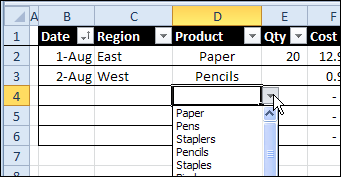
Here’s a screen shot that shows the problem. Cell D4 has a drop down list, created with Excel Data Validation.
When you click the arrow to open the drop down list, the selection goes to a blank at the bottom of the list, instead of the first item in the list.

That can be annoying if you have to scroll all the way back up to the top of a long list, where you have the put the most popular items.
Why It Happens
Why does this happen, and how can you prevent it?
In this example, the drop down list is based on a range named Products. The person who set up the list left a few blank cells at the end, where new items could be added.
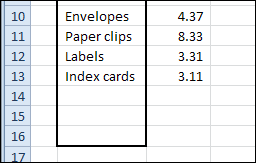
This might seem like a good idea when you’re setting up a list, but it causes problems with the data validation drop down lists.
Match the Cell Contents
When a data validation drop down list opens, it tries to match whatever is currently in the cell.
- In cell D3, Pencils was previously selected, and the list opens to Pencils.
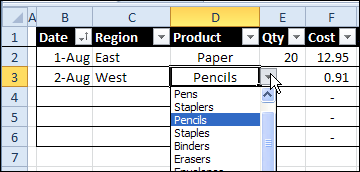
- Cell D4 is blank, so the list finds the first matching entry in the Products list — a blank row at the end of the list.
Another Problem with Blanks in List
So that’s the first problem caused by blank cells in the data validation source list — if there’s a blank cell in the source list, and the cell with the data validation list is blank, the list will open with the matching blank entry selected.
There is another problem too, and it is not just an annoyance. If you have any blank cells in the list, people might be able to enter invalid items in the data validation cells. That could cause serious problems in your workbook, if you’re depending on valid entries in those cells.
Prevent the Problems
To prevent these problems, you can remove the blanks from the source list, by using a dynamic range, which will adjust automatically when items are added or removed.
A dynamic range can be created with a formula, like the OFFSET formula shown below, or by using a named Excel table.
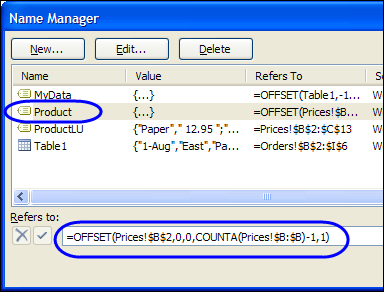
In this example, the OFFSET formula is:
=OFFSET(Prices!$B$2,0,0,COUNTA(Prices!$B:$B)-1,1)
It counts the items in column B of the Prices sheet, where the Products are listed. The heading, in cell B1, is not included in the list.
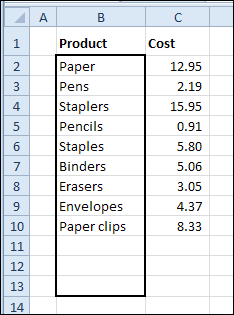
Once the dynamic range is created, the blanks are not included in the Products list, and the drop down works correctly.
Download the Sample File
To download the sample file with a dynamic range, please visit the Data Validation Tips & Quirks page, at this link: Drop Down List Opens with Blank Selected
Video: Drop Down Opens At End
To see the steps for setting up a dynamic named range for the product list, to fix the problem when drop down opens at end, watch this short video.
______________________
If you put any character in the blank cells at the bottom of the list, for example a period or a single space, the list will also display correctly…
@BM Good idea, thanks!
Excellent, thank you
This works perfect for me! In the past I have had to control the drop down list length using VBA, this is so much better 🙂
“=OFFSET(Prices!$B$2,0,0,COUNTA(Prices!$B:$B)-1,1)”
Thanks, and I’m glad it worked for you.
This worked great for some of my data validation lists. However, I found it isn’t working in one particular situation. In one column, I have a list of equipment (uses data validation drop downs) In another column, I have drop downs for unit numbers based on the value in the first column (i.e. if Pump is selected in the first column, the unit # drop down will show the numbers from the pump list) This is done using an INDIRECT function. This works fine except for the ranges where I used the OFFSET as shown above. I only used it on some of the longer lists since the blanks weren’t a problem for the shorter ones.
When I used the INDIRECT in another cell, just to see what it was doing, it gives a #REF error.
Sorry for such a long explanation.
Any ideas how to fix this? For now I’ll have to go back to the regular lists and change the range when something is added.
This has saved me a world of hurt from an overly critical boss – you’re now my new favourite website………..
Thanks v much!
Did not work for me. But some of the other ideas did.
Doesn’t work and I figured out why. My named range has formulas to pick up extra data if extra data is available. I need those formulas due to an uncertain number of items that may need to populate the list. The offset/counta formula picks up those cells with formulas even if the formula is dictating the cells to be blank. Don’t want to fix with vba or a blank row at top, but may have to. It seems fairly ridiculous that Excel starts the drop-down box at the first blank row. That is great coding from 1972. This is ridiculously flawed. 🙁