
Use INDEX and MATCH together, for a powerful lookup formula. It’s similar to a VLOOKUP formula, but more flexible — the item that you’re looking for doesn’t have to be in the first column at the left. Watch the video to see how it works (there are written instructions too), and download the sample workbook to follow along.
Excel Lookup With Two Criteria
Watch this video to see how INDEX and MATCH work together — first with one criterion, and then with multiple criteria. Download the sample workbook to follow along, and the written instructions are below the video.
- 0:00 Introduction
- 0:26 Lookup with One Criterion
- 1:52 Test Each Criterion
- 2:22 Test With a Formula
- 3:26 Multiply the Results
- 4:03 INDEX / MATCH Formula
- 5:20 Check the Formula
- 5:57 Get the Sample File
Get Item Price with INDEX and MATCH
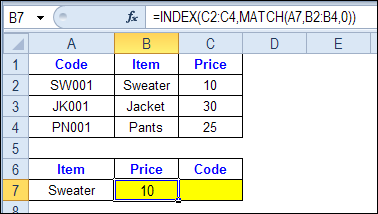
To see how INDEX and MATCH work together, we’ll start with an example that has only 1 criterion. Our price list has item names in column B, and we want to get the matching price from column C.
In the screen shot below, cell A7 has the name of the item that we need a price for – Sweater.
We can enter an INDEX and MATCH formula in cell C7, to get the price for that item:
=INDEX($C$2:$C$4,MATCH(A7,$B$2:$B$4,0))
How the INDEX and MATCH Formula Works
Here’s how the two functions work together:
- MATCH function gets the location of an item in a list
- INDEX function returns a value from a specific location in a list.
So, in our formula:
- the MATCH function looks for “Sweater” in the range B2:B4.
- The result is 1, because “Sweater” is item number 1, in that range of cells.
- the INDEX function looks in the range C2:C4
- The result is 10, from row 1 in that range
So, by combining INDEX and MATCH, you can find the row with “Sweater” and return the price from that row.
Find a Match for Multiple Criteria
In the first example, there was only one criterion, and the match was based on the Item name – Sweater. However, sometimes life, and Excel workbooks, are more complicated.
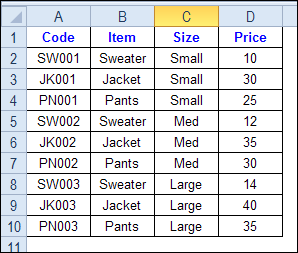
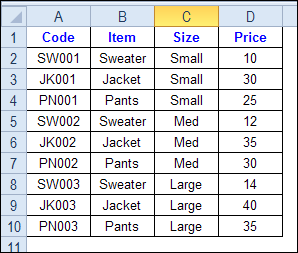
In the screen shot below, each item is listed 3 times in the pricing lookup table. We want to find the price for a large jacket.
To get the right price, you’ll need to use 2 criteria:
- the item name
- the size
Does it MATCH? True or False
Instead of a simple MATCH formula, we’ll use one that checks both the Item and Size columns.
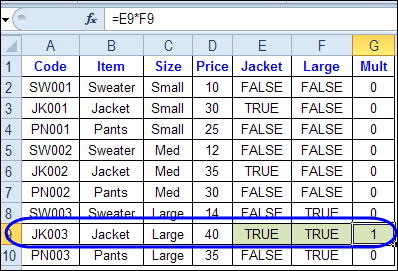
To see how this formula will work, I’ll temporarily add columns to check the item and Size of each item — is the item a Jacket, and is the Size a Large?
Enter this formula in E2, and copy down to E10: =C2=$C$13
Enter this formula in F2, and copy down to F10: =D2=$D$13
- If the Item in column B is a Jacket, the result in column E is TRUE. If not, the result is FALSE
- If the Size in column C is Large, the result in column F is TRUE. If not, the result is FALSE
To see if both results are TRUE in each row, enter this formula in G2, and copy down to G10: =F2*G2
When you multiply the TRUE/FALSE values,
- If either value is FALSE (0), the result is zero
- If both values are TRUE, the result is 1
Only the 8th row in our list of items has a 1, because both values are TRUE in that row.
We can tell the MATCH function to look for a 1, and that will return the information that we need.
Use MATCH With Multiple Criteria
Instead of adding extra columns to the worksheet, we can use an array-entered INDEX and MATCH formula to do all the work.
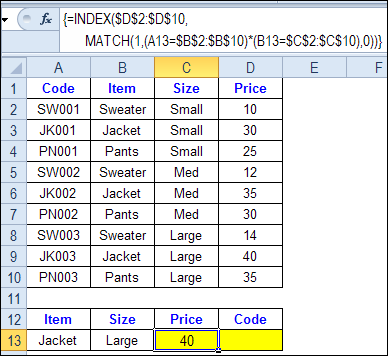
Here is the formula that we’ll use to get the correct price, and the explanation is below:
=INDEX($D$2:$D$10,
MATCH(1,(A13=$B$2:$B$10) * (B13=$C$2:$C$10),0))
NOTE: This is an array-entered formula, so press Ctrl + Shift + Enter, instead of just pressing the Enter key.
How the Formula Works
In this INDEX and MATCH example,
- prices are in cells D2:D10, so that is the range that the INDEX function will use
- the item name is in cell A13
- the size is in cell B13.
The formula checks for the selected items in $B$2:$B$10, and sizes in $C$2:$C$10. The results are multiplied.
- (A13=$B$2:$B$10)*(B13=$C$2:$C$10)
The MATCH function looks for the 1 in the array of results.
- MATCH(1,(A13=$B$2:$B$10)*(B13=$C$2:$C$10),0)
If you select that part of the formula and press the F9 key, you can see the calculated results. In the screen shot below there are 9 results, and all are zero, except the 8th result, which is 1.

So, the INDEX function returns the price – 40 – from the 8th data row in column D (cell D9).
Get the Product Code
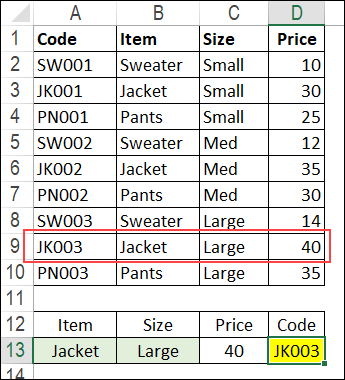
To find the product code for the selected item and size, you would change the formula to look in cells A2:A10, instead of the price column.
Put this formula in cell D13, and remember, this is an array-entered formula, so press Ctrl + Shift + Enter.
=INDEX($A$2:$A$10,
MATCH(1,(A13=$B$2:$B$10) * (B13=$C$2:$C$10),0))
In this example, the product code would be JK003, from cell A9.
Get the Workbook
To get the sample file with the Lookup Multiple Criteria examples, go to the Excel Lookup Multiple Criteria page on my Contextures site.
For more INDEX and MATCH tips and examples, visit the INDEX function and MATCH function page on the Contextures website. This is Example 4 in the sample file section of that page.
_____________
I am trying to do the same thing in my workbook as you have done here. I have tried several different formulas and get inconsistent results. I used your formula and changed the ranges to match mine
=INDEX(Formulas!$F$2:$F$100,)MATCH(1,($D12=Formulas!$D$2:$D$100)*(E12=$E$2:$E$100),0))
and I get an N/A error. I have entered with Ctrl+Shift+Enter. Though I want to take it one step further. I want to take the formula one step further and add a quantity multiplier to the formula. =(INDEX(Formulas!$F$2:$F$100,)MATCH(1,($D12=Formulas!$D$2:$D$100)*(E12=$E$2:$E$100),0)*B12) In several versions of the formula it works but in some multiplying by a quantity changes the row that it returns the results from. Any thoughts as to why it isn’t working in my workbook?
Hi David
I had the same problem using this formula – getting the N/A error. I’ve gone back and forth via Google, and finally got my problem sorted. Try using Ctrl+Shift+Enter when you enter the formula into Excel. This then recognises the formula as an array (putting {} around the formula – do not do this manually, it doesn’t work!). Hope that sorts your problem out?
Thanks! Very helpful.
I don’t remember if I first learned about this from you or from Mike Alexander’s BaconBits blog or from Mr.Excel.com, but it is **SO** worth learning to use! Seriously life-changing – lol! (yeah, my co-workers look at me like I’m weird or something…)
@Lynda, you’re right, and your co-workers don’t know what they’re missing!
I use a slightly different technique using the SUMPRODUCT function combined with the ROW function inside the INDEX, then I don’t have to remember to make it an array formula. Your formula in the example, “=INDEX($A$2:$A$10,
MATCH(1,(A13=$B$2:$B$10)*(B13=$C$2:$C$10),0))” would be written as “=INDEX($A$2:$A$10,
SUMPRODUCT(($B$2:$B$10=A13)*($C$2:$C$10=B13),ROW($A$2:$A$10)))”. The assumption is that your multiple criteria will yield a distinct result.
@Mark, SUMPRODUCT doesn’t work if there is more than one record that matches your search criteria.
If the Ctrl+Shift+Enter is an issue, we can modify Debra’s formula to avoid it.
=INDEX($A$2:$A$10,MATCH(1,INDEX((A13=$B$2:$B$10)*(B13=$C$2:$C$10),0),0))
Regards
In cases where there is more than one record that matches the search criteria, can the formula be modified to find the 2nd or 3rd record that matches?
Was a reply posted with regards to
Ryan
October 15, 2012 at 7:55 pm · Reply
In cases where there is more than one record that matches the search criteria, can the formula be modified to find the 2nd or 3rd record that matches?
this is what im needing my spreadsheet to do
Excel’s database function DGET would be perfect for this (not that there’s anything wrong at all with your great Index/Match example). Alas, for once you haven’t posted your data…so I haven’t prepared an example…*sigh*
@Jeff, thanks, and I’ve added a note in the article that mentions where to find the sample data.
It sounds like a VLOOKUP to me when we combine theose INDEX and MATCH. Am I right?
@Maxime, yes it’s similar to a VLOOKUP, but even better. For example, it can find a value to the left of the lookup value, which VLOOKUP can’t do.
@ Debra: You are so right. By the way I was looking at your “FormSheetEditOptDel”. You’re an Excel genius. Bravo!
…and THANK YOU indeed!
@Maxime, thanks!
It’s VLOOKUP on steroids…