
Most of the time, if you’re summing numbers in Excel, a simple SUM formula will do the job.
It takes a little extra though, to sum Excel numbers in one column, based on text in a different columns.
Sum Numbers
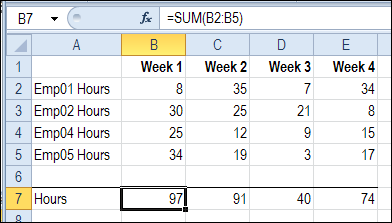
In the example shown below, the SUM function calculates the total of hours worked each week.
The formula in cell B7 is: =SUM(B2:B5)
Different Kinds of Values
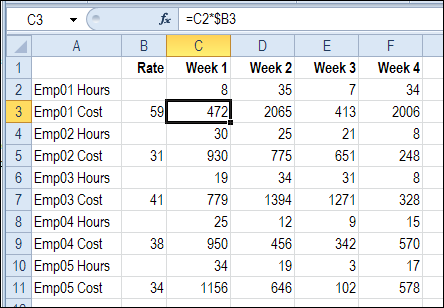
However, things aren’t always so simple. You’ve probably seen worksheets like the one below, in which different kinds of values are mixed together.
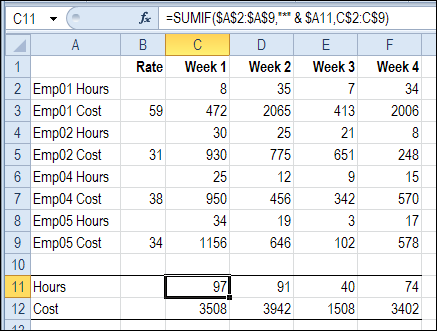
Instead of just employee hours, the worksheet also calculates the weekly cost per employee.
Using the SUM Function
One way that people do this is to use the SUM function, and carefully select all the rows with hours.

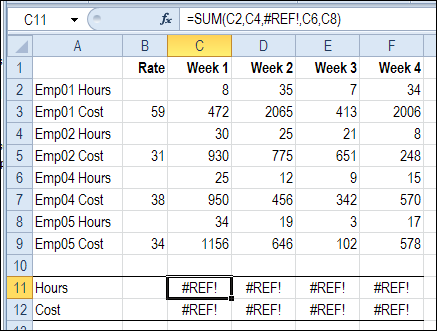
That solution might work in a short list, but it’s an accident waiting to happen if you try to total a long list with this technique.
Errors in Formula Results
And even in a short list, you’ll end up with errors if an employee’s data is deleted from the list.
Use the SUMIF Function
A better solution in this case is to use the SUMIF function. It sums the numbers in rows that meet a specific criterion.
=SUMIF(range to check , criteria, range to sum)
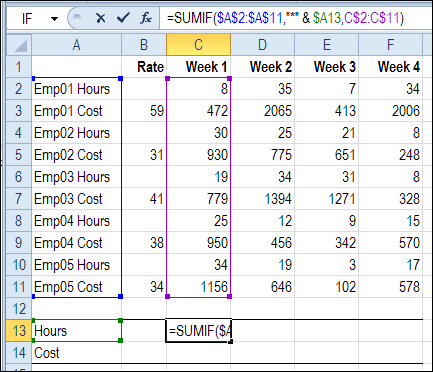
- Row headings are in column A, so that is the range the SUMIF formula will check.
- The total headings in A11 (Hours) or A12 (Cost) will be used to create the criteria.
- With a SUMIF formula in cell C11, we can sum the hours in column C.
Note: If you have multiple criteria to check, use the SUMIFS function in Excel 2007 and later versions.
Wildcard in Criterion
The row headings won’t exactly match the “Hours” criteria, because the headings start with the employee name, such as “Emp01 Hours”.
However, the headings are consistent, and the endings match the total headings in A11 (Hours) or A12 (Cost).
- In the rows with hours, the heading ends with “Hours”
- In the rows with costs, the heading ends with “Cost”
The wildcard character – * – represents any characters, so the criterion “*Hours” would match any heading that ends with “Hours”.
To total all the Hours rows in week 1, we could use this formula:
=SUMIF($A$2:$A$9 ,”*Hours” , C$2:C$9)
To make the formula more flexible, so it can be used in the Cost row too, we’ll use a reference to the heading cell — $A11 — instead of hard-coding the “Hours” text.
=SUMIF($A$2:$A$9 ,”*” & $A11, C$2:C$9)
Copy the Formula to Remaining Total Cells
To finish the worksheet, the formula is copied across to column F, and copied down to row 12, where it calculates the total cost.
This formula has different types of references, so it can be safely copied down to the Cost total in row 12, and across to column F.
=SUMIF($A$2:$A$9,”*” & $A11, C$2:C$9)
- $A$2:$A$9 – Absolute reference to the row headings in cells A2:A9. No matter where the formula is used, it should always check these cells for the criteria text.
- $A11 – The column reference is absolute, so it always uses the criteria in column A of the total row. The row reference is relative, so it will change when the formula is copied down to row 12.
- C$2:C$9—The column reference is relative, and will change as the formula is copied across to columns D, E and F. The rows are an absolute reference, and will continue to sum rows 2:9 when the formula is copied down to row 12
More SUMIF Examples
For more SUMIF and SUMIFS examples, visit the Excel SUM functions page on the Contextures website.
___________
I have an attendance register where attendance is recorded as A = Unauthorosed absence, a = authorised absence, L = Late more than 15 minutes and l = late less than 15 minutes
I would like to add up the ‘A’, ‘a’ and ‘L’ but ignore ‘l’ and blanks
Any advice grateatly appreciated
@Gary, the COUNTA function will count all text entries, so if A, a, L and l are the only items, this formula would count all the items in cells C3:H3
=COUNTA(C3:H3)
Then, use the SUMPRODUCT function with EXACT, to subtract any cells that contain an “l”
=COUNTA(C3:H3)-SUMPRODUCT(–EXACT(“l”,C3:H3))
You can see another example here: http://blog.contextures.com/archives/2011/01/02/30-excel-functions-in-30-days-01-exact/
I completed the 1st half of my project the hard way (took 2.5 hrs), then I found this tip and it only took me 15 mins to complete the 2nd half of the project! Thank you so much for this information! Thank you so much for posting Debra!
@Lorri, you’re welcome! Thanks for letting me know that it helped you.
how to automatic sum in excel while format is text it is possible?
This week I have a project that I really needed to utilize the SUMIFS formula for (to sum values based on two other conditions, both of which were text qualifiers and were on a different sheet in the same workbook), and I ran into some trouble as Excel was not treating the text as part of the formula. I found a workaround: make sure you have formatted the cell (that your formula is in) to be a number or currency or something other than text BEFORE you enter your formula. Then when you are selecting your ranges, go to that sheet and select them by hand rather than typing in the sheet and the cell range. Not sure why this made all the difference as my formula was otherwise exactly the same, but I’m thrilled it worked. I never had this issue with Excel 2003.
I’m having an issue with SUMIFS.
I have Column A filled with names: Bob, Joe, Mary, etc.
I have Column B filled with departments: Marketing, Sales, etc.
I have Column C filled with numbers.
In Sheet2, however, I have a list of people missing for whatever reason: sick, pregnant, vacation, etc. I add or subtract names as they become available/unavailable.
What I’m trying to do is have SUMIFS total up Column C for everyone that is currently available by checking the name in Column A against my unavailable list in Sheet2, Column A.
=SUMIFS(C:C,A:A,”Sheet2!A:A”,B:B,B3)
It’s correctly counting everyone from Sales (identified in Cell B3) including names that appear on Sheet2.
Grr… it won’t let me edit.
The formula I’m trying to use:
=SUMIFS(C:C,A:A,”Sheet2!A:A”,B:B,B3)
I realize the last comment on here was like 4 years ago, but I wanted to let you know this article just saved me literally HOURS of time on a spreadsheet I’ve already spent DAYS, WEEKS on. It’s that big.
THANK YOU!