
Most of the time, if you’re summing numbers in Excel, a simple SUM formula will do the job.
It takes a little extra though, to sum Excel numbers in one column, based on text in a different columns.
Sum Numbers
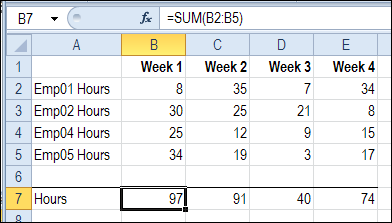
In the example shown below, the SUM function calculates the total of hours worked each week.
The formula in cell B7 is: =SUM(B2:B5)
Different Kinds of Values
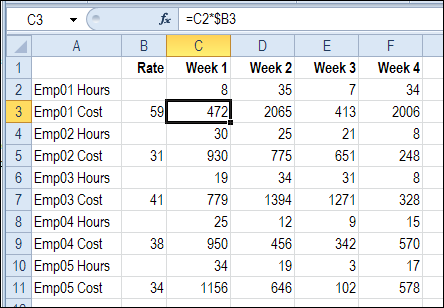
However, things aren’t always so simple. You’ve probably seen worksheets like the one below, in which different kinds of values are mixed together.
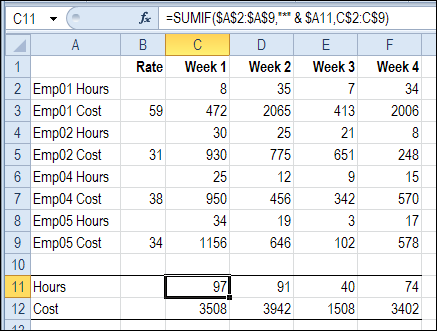
Instead of just employee hours, the worksheet also calculates the weekly cost per employee.
Using the SUM Function
One way that people do this is to use the SUM function, and carefully select all the rows with hours.

That solution might work in a short list, but it’s an accident waiting to happen if you try to total a long list with this technique.
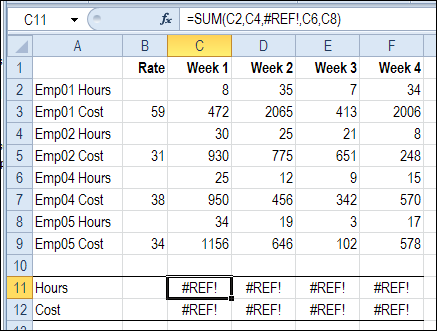
Errors in Formula Results
And even in a short list, you’ll end up with errors if an employee’s data is deleted from the list.
Use the SUMIF Function
A better solution in this case is to use the SUMIF function. It sums the numbers in rows that meet a specific criterion.
=SUMIF(range to check , criteria, range to sum)
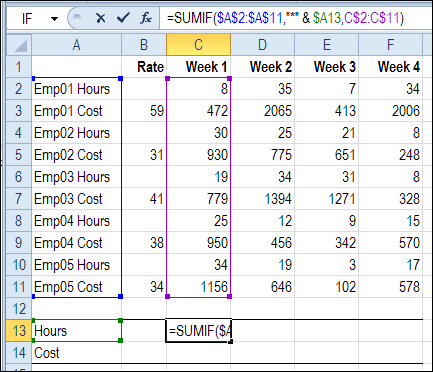
- Row headings are in column A, so that is the range the SUMIF formula will check.
- The total headings in A11 (Hours) or A12 (Cost) will be used to create the criteria.
- With a SUMIF formula in cell C11, we can sum the hours in column C.
Note: If you have multiple criteria to check, use the SUMIFS function in Excel 2007 and later versions.
Wildcard in Criterion
The row headings won’t exactly match the “Hours” criteria, because the headings start with the employee name, such as “Emp01 Hours”.
However, the headings are consistent, and the endings match the total headings in A11 (Hours) or A12 (Cost).
- In the rows with hours, the heading ends with “Hours”
- In the rows with costs, the heading ends with “Cost”
The wildcard character – * – represents any characters, so the criterion “*Hours” would match any heading that ends with “Hours”.
To total all the Hours rows in week 1, we could use this formula:
=SUMIF($A$2:$A$9 ,”*Hours” , C$2:C$9)
To make the formula more flexible, so it can be used in the Cost row too, we’ll use a reference to the heading cell — $A11 — instead of hard-coding the “Hours” text.
=SUMIF($A$2:$A$9 ,”*” & $A11, C$2:C$9)
Copy the Formula to Remaining Total Cells
To finish the worksheet, the formula is copied across to column F, and copied down to row 12, where it calculates the total cost.
This formula has different types of references, so it can be safely copied down to the Cost total in row 12, and across to column F.
=SUMIF($A$2:$A$9,”*” & $A11, C$2:C$9)
- $A$2:$A$9 – Absolute reference to the row headings in cells A2:A9. No matter where the formula is used, it should always check these cells for the criteria text.
- $A11 – The column reference is absolute, so it always uses the criteria in column A of the total row. The row reference is relative, so it will change when the formula is copied down to row 12.
- C$2:C$9—The column reference is relative, and will change as the formula is copied across to columns D, E and F. The rows are an absolute reference, and will continue to sum rows 2:9 when the formula is copied down to row 12
More SUMIF Examples
For more SUMIF and SUMIFS examples, visit the Excel SUM functions page on the Contextures website.
___________
>> To make the formula more flexible, so it can be used in the Cost row too, we’ll use a reference to the heading cell — $A11 — instead of hard-coding the “Hours” text.
>> =SUMIF($A$2:$A$9 ,”*” & $A11, C$2:C$9)
shouldnt the efrence goto $A13 ??
@Kurt, thanks, you’re right — I had the wrong screen shot in one section. It’s fixed now.
Wow, I would have added another column named Type, and used the same approach, just thinking that the next request could be for someone to ask for a Pivot Table….
@Martin, if they’re going to ask for a pivot table, we’ll have to start from scratch, and set this table up properly. 😉
This is ‘Excel’lent!!! It can be so annoying when you need to delete listed data.
Hi. Tnx for the tutorial, but i ran into a problem.
What would you do, if you needed to sum Emp05 Costs only for odd number weeks(week 1, week 3, week 5 etc.)?
Great help to what I was trying to do.
Many thanks
Best regards
How can I Sum only the latest 5 values in a row of many values that may have no value cells interspersed? The cells would be laid out in a time sequence.