
You’ve most likely heard this warning — “Avoid merged cells in your Excel worksheets!”, and that is excellent advice. Merged cells can cause problems, especially when they’re in a table that you’ll be sorting and filtering. You’ll run into more problems if you try to autofit merged cell row height.
Forced to Merge
Occasionally though, you might have no choice but to use one or more merged cells on a worksheet. As long as you avoid merging table cells, and proceed with caution, things might be okay.
In the example shown below, there is an order form, and space for a note about the order. If the note will always be short, there’s no need to merge the cells – just let the text flow across the columns.
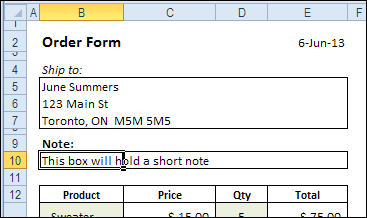
However, if the notes will be two or more lines, you’ll need to merge the cells, and turn on Wrap Text. Adjusting the column width would affect the product list that starts in row 12, so that’s not an option.
Merged Cell Row Height
Usually, if you add more text to a single cell, and Wrap Text is turned on, the row height automatically adjusts, to fit the text.
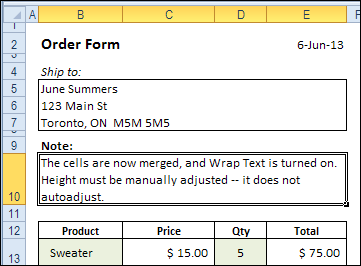
When the cells are merged in row 10, the row height has to be manually adjusted when the text changes. That works well, as long as you remember to do it, but it can be a nuisance, if the text changes frequently.
And if you forget to adjust the row height, you might print the order form, while key instructions are hidden.
AutoFit Merged Cell Row Height
To fix the worksheet, so the merged cells adjust automatically, you can add event code to the worksheet.
[Update: The original code is below, and there are several modified versions of the code in the comments. There is also an updated version of Smallman’s code in this December 2015 blog post.]
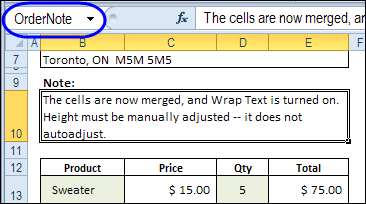
The merged cells are named OrderNote, and that name will be referenced in the event code.
Code to AutoFit Merged Cell Row Height
We want the row height to adjust if the OrderNote range is changed, so we’ll add code to the Worksheet_Change event.
The code that I use is based on an old Excel newsgroup example, that was posted by Excel MVP, Jim Rech.
Note: As Jeff Weir pointed out in the comments below, this code will wipe out the Undo stack, so you won’t be able to undo any steps you’ve previously taken. So, instead of using the Worksheet_Change event, you could use the workbook’s BeforePrint event, to reduce the Undo problem.
- Right-click on the sheet tab, and paste the following code on the worksheet module. Note: Only one Worksheet_Change event is allowed in each worksheet module.
- Change the range name from “OrderNote”, to the named range on your worksheet.
- If your worksheet is protected, you can add code to unprotect and protect the worksheet.
Private Sub Worksheet_Change(ByVal Target As Range)
Dim MergeWidth As Single
Dim cM As Range
Dim AutoFitRng As Range
Dim CWidth As Double
Dim NewRowHt As Double
Dim str01 As String
str01 = "OrderNote"
  If Not Intersect(Target, Range(str01)) Is Nothing Then
    Application.ScreenUpdating = False
    On Error Resume Next
    Set AutoFitRng = Range(Range(str01).MergeArea.Address)
    With AutoFitRng
      .MergeCells = False
      CWidth = .Cells(1).ColumnWidth
      MergeWidth = 0
      For Each cM In AutoFitRng
          cM.WrapText = True
          MergeWidth = cM.ColumnWidth + MergeWidth
      Next
      'small adjustment to temporary width
      MergeWidth = MergeWidth + AutoFitRng.Cells.Count * 0.66
      .Cells(1).ColumnWidth = MergeWidth
      .EntireRow.AutoFit
      NewRowHt = .RowHeight
      .Cells(1).ColumnWidth = CWidth
      .MergeCells = True
      .RowHeight = NewRowHt
    End With
    Application.ScreenUpdating = True
  End If
End Sub
How It Works
The event code checks to see if the changed cell is in the OrderNote range. If it is, the code runs, and does the following:
- Unmerge the cells
- Get the width of the first column in the OrderNote range
- Get the total width for all columns in the OrderNote range
- Add a little extra to the calculated width
- Set the first column to the calculated total width
- Autofit the row, based on the note next in the first column
- Get the new row height
- Change the first column to its original width
- Merge the cells
- Set the row height to the new height
Screen updating is turned off while the code runs, and it all happens in the blink of an eye.
Test the Event Code
To test the code, make a change to the text in the named merged cells, then press Enter. The row height should adjust automatically.
Is this code, to AutoFit merged cell row height, something that you’ll use in your workbooks? Please let me know in the comments.
__________________
Sweet idea. Couple of suggestions:
1. Might pay to set out in the instructions above that this code is set up to work with a protected worksheet. So you need to make sure that any input cells (including the OrderNote range) are not locked – otherwise you will be locked out of them once the code runs. To do this, select all the input cells in the form, unlock the worksheet, push Ctrl + 1, and on the Protection tab of the Format Cells dialog box untick the “Locked” option.
2. This code wipes out the undo stack. This could really annoy users if they have made a mistake, and want to change something (I had some annoyed users due to this very issue for a form I built some time back). Given that the stated purpose is to ensure instructions are printed, how about triggering it only when printed, via a Before_Print event? That way, the undo stack only gets wiped after Print is pushed.
Thanks Jeff! I’ve updated the article.
I am curious as to why you declared the “ws” variable, assigned the ActiveSheet to it and then used it as the object of the With statement? Since it is only two letters long, couldn’t you have avoided declaring the “ws” variable and, given that we are inside event code, simply used the two-letter long keyword “Me” for the object of the With statement instead? Given you did do it the way you did, why not remove the keyword “Me” from the calls to Protect and Unprotect and let their leading “dots” reference the With statement’s “ws” argument instead?
As to the Protect/Unprotect issue, I guess it is possible for a worksheet to be protected except when run by an authorized individual who, through some set of macros and/or subroutines, unprotects the worksheet in an initializing macro and sets the protection back again in a log-off type macro… for that scenario, your code would leave the authorized user facing a protected sheet when there is still other macros and/or subroutines left to run all of which expect the protection to have still been lifted. To cater to this scenario (without burdening the normally expected setup), you could declare a Boolean variable, named say WasProtected to hold the worksheet’s ProtectContents property and then test that at the end to see if the sheet should have its protection turned back on. I’m thinking of something along these lines (which would leave the worksheet’s protection status at the conclusion of the code the way it found it at the beginning)…
With MeWasProtected = .ProtectContents
If WasProtected Then .Unprotect
'
' Your current code goes here
'
If WasProtected Then .Protect
End With
Thanks Rick, good points and I’ve updated the code.
Hej Debra,
works great, but I am not able to understand why I need to add “small adjustment to temporary width”: MergeWidth = MergeWidth + AutoFitRng.Cells.Count * 0.66.
What problem does that line solve?
Thanks,
Johan
@Johan, that adjustment is the result of my testing, and without it, extra height is often added to the cell. By adding a bit to the width, the row height autofits correctly.
It’s similar to those cells you might have encountered — it looks like everything fits across, but when you try to autofit the row, Excel adds an extra blank line.
Hi Debra,
in my previous post on September 22, I was looking to understand why you have decided to do the mentioned adjustment to the width. This is still unclear to me.
What I have discovered now is however more important. Your code works fine in Normal view, and all lines become visible, but when I switch to Layout or Page Break view, some of the rows are again invisible, and the code does not change that fact in those views. Also when I print, the lines are not visible. So I thought the code solved the problem, but while the code works perfectly in Normal view and on the screen, in the other views and when printing not all lines are visible. Can this be solved?
Would be very greatful for your comment.
Thanks,
Johan
@Johan, try commenting out the line that adds the width adjustment, or reduce the multiplier from .66 to a lower number.
Johan,
Great code. This solved a huge headache of mine. I would just like to echo John’s comment from June 7. I am using this in a form for a client so I would like to be able to protect the sheet, but when I do, two things happen: first, the merged cell gets oversized, then it gets locked. Any idea as to why this is happening?
Hi Debra,
This code is great, thanks for posting. Just one thing I discovered – it works fine if the cell just contains a value but, if it contains a formula displaying a value updated from another sheet, it doesn’t do the autofit.
The solution is to add the following code to the Worksheet_Activate() event to force a recalulation:
Range("OrderNote").Select

ActiveCell.FormulaR1C1 = "='formula in OrderNote"

ActiveCell.Calculate