
It’s easy to select the current range in Excel – just press Ctrl + A. That shortcut selects all the cells in the block that surround the active cell. The selection stops at the first blank row and blank column. But how can you select actual used range in Excel sheet?
Select Current Range
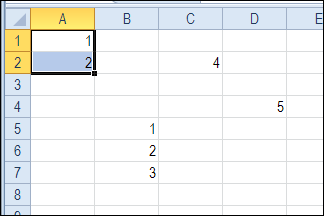
In this example, cell A1 was active, and range A1:A2 was selected with the keyboard shortcut.
Select All Cells
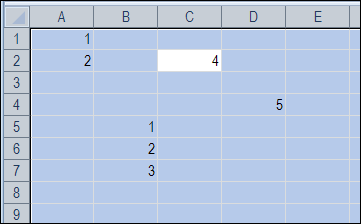
If you use the Ctrl + A shortcut while an isolated or empty cell is selected, then the entire worksheet is selected. In the screen shot below, cell E2 was active when the shortcut was used. The entire sheet was selected.
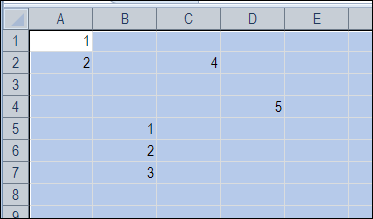
If the Ctrl + A shortcut selects a range, you can press Ctrl + A again, to select the entire sheet. In the screen shot below, cell A1 was active, and by pressing Ctrl + A twice, the entire worksheet is selected.
Select Filled Cells Only
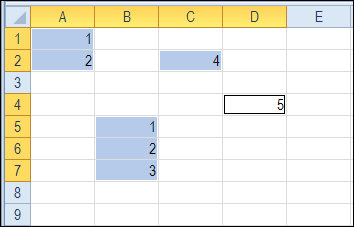
To select only the filled cells on a worksheet, you can use the Find dialog box.
- On the Excel Ribbon’s Home tab, click Find & Select, then click Find (or use the keyboard shortcut — Ctrl+F)
- Type an asterisk (*) in the “Find what” field
- Click the “Find All” button
- Press Ctrl+A to select all the ranges in the list
- Click Close
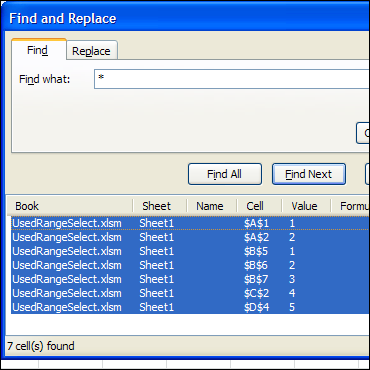
Only the filled cells on the worksheet are selected.
Select the Used Range
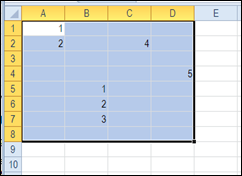
To select all the cells in the used range on a worksheet, you can use the following shortcut sequence:
- Press Ctrl + Home, to select cell A1
- Press Ctrl + Shift + End, to select all cells from A1 to the last used cell.
Select the Actual Used Range
As you can see in the screen shot above, there is nothing visible in cell D8, but it is included in the selected used range. Perhaps there was a value in that cell, and it was deleted, or the cell is formatted.
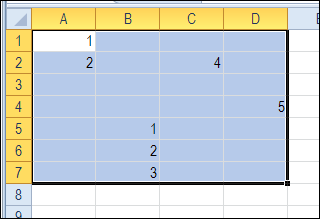
If you want to select only the cells in the actual used range, you can use this macro instead. The macro was written by Rick Rothstein, and looks for the last cell with a value, and ends the selection there.
Note: This code ignores cells with formulas that are displaying the empty string. If you need to identify formula cells that might be displaying the empty string, then change the xlValues argument to xlFormulas.
Sub PickedActualUsedRange()
  Range("A1").Resize(Cells.Find(What:="*", SearchOrder:=xlRows, _
      SearchDirection:=xlPrevious, LookIn:=xlValues).Row, _
      Cells.Find(What:="*", SearchOrder:=xlByColumns, _
      SearchDirection:=xlPrevious, LookIn:=xlValues).Column).Select
End Sub
After running the PickedActualUsedRange macro, the selection ends at cell D7, instead of D8.
Select from First Cell With Data
[Thanks to Jelle-Jeroen Lamkamp for his comment that the first used cell might not be A1. Here is Rick’s code to deal with that situation.]
Usually, selecting from cell A1 won’t hurt anything, but if you really want the actual used range on the worksheet, then you would need to use a macro like this one…
Sub SelectActualUsedRange()
  Dim FirstCell As Range, LastCell As Range
  Set LastCell = Cells(Cells.Find(What:="*", SearchOrder:=xlRows, _
      SearchDirection:=xlPrevious, LookIn:=xlValues).Row, _
      Cells.Find(What:="*", SearchOrder:=xlByColumns, _
      SearchDirection:=xlPrevious, LookIn:=xlValues).Column)
  Set FirstCell = Cells(Cells.Find(What:="*", After:=LastCell, SearchOrder:=xlRows, _
      SearchDirection:=xlNext, LookIn:=xlValues).Row, _
      Cells.Find(What:="*", After:=LastCell, SearchOrder:=xlByColumns, _
      SearchDirection:=xlNext, LookIn:=xlValues).Column)
  Range(FirstCell, LastCell).Select
End Sub
More Worksheet Code Examples
You can find this sample code, and a other examples, on Rick Rothstein’s Excel VBA – Worksheet page, on the Contextures website.
________________
I guess Rick wants A1 always selected otherwise he would have used ActiveSheet.UsedRange.Select
This could also be a solution if he want to do that
Sub ActiveSheetUsedRange()
Dim sURA As String
sURA = ActiveSheet.UsedRange.Address
ActiveSheet.Range(“A1” & Mid(sURA, InStr(1, sURA, “:”))).Select
End Sub
@Jelle-Jeroen, thanks for posting your solution.
Rick’s code is useful when the used range includes extra rows or columns that aren’t really used. Sometimes, if you press Ctrl + End, you’ll find that the last cell in the Used Range is way out in an empty region of your worksheet. Rick’s code would ignore those extra cells, and only select from A1 to the last cell that contains data.
As Debra has mentioned, UsedRange does not always return the true used range on the worksheet. However, you do raise a good point about my code assuming the start of the used range is cell A1… that, of course, is not always true. Usually, selecting from cell A1 won’t hurt anything, but if you really want the actual used range on the worksheet, then you would need to use a macro like this one…
Sub SelectActualUsedRange() Dim FirstCell As Range, LastCell As Range Set LastCell = Cells(Cells.Find(What:="*", SearchOrder:=xlRows, _ SearchDirection:=xlPrevious, LookIn:=xlValues).Row, _ Cells.Find(What:="*", SearchOrder:=xlByColumns, _ SearchDirection:=xlPrevious, LookIn:=xlValues).Column) Set FirstCell = Cells(Cells.Find(What:="*", After:=LastCell, SearchOrder:=xlRows, _ SearchDirection:=xlNext, LookIn:=xlValues).Row, _ Cells.Find(What:="*", After:=LastCell, SearchOrder:=xlByColumns, _ SearchDirection:=xlNext, LookIn:=xlValues).Column) Range(FirstCell, LastCell).Select End SubHow do you know which sheet is active. You may get the used range of another sheet.
Debra, I also like Select Visible Rows. I use it when I want to delete many rows from a filter selection. Choose your filter, select all visible rows, unfilter, delete rows. If you don’t do this and have a hundreds or thousand of rows to delete, it can take 10 minutes to delete them (if it doesn’t crash first). Select Visible Rows is hidden on “other commands”
Thanks Alex! Used to have the Select Visible Cells button on my Excel 2003 toolbar, so I’ll have to add it to the Ribbon in Excel 2010 too.
Weird…I use Ctrl+A all the time in MS Word, but when MS Excel, for some reason I use Ctrl+Shift+Spacebar to the select the current region. It seems to be nearly identical to Ctrl+A.
@Jason, thanks, I’ve never used that Ctrl+Shift+Spacebar shortcut!
I use Ctrl+Spacebar and Shift+Spacebar so this must be part of the same family of shortcuts.
Jelle-Jeroen is correct though as UsedRange in VBA will evaluate the used range each time you invoke it thus not selecting cleared cells on the edges of the area. Don’t know if it’s any better or worse to use than Rick’s code.
Dom
@Domski, in Excel 2010, if I format cell E10 with white font, then change it back to No Fill, that cell is included in the selected range, using Jelle-Jeroen’s code. With Rick’s example, it isn’t selected.
While it is covered in a note on the webpage Debra was kind enough to setup for some of the code I have posted across the years, I just wanted to emphasize it here for those of you who have not visited that webpage…
All of my “last whatever” code posted in this blog article ignores cells with formulas that are displaying the empty string. In other words, the code only identifies the “last whatever” for visibly displayed values (no matter if they are constants or the result of formulas)… that means there could be cells containing formulas (displaying the empty string) located past the identified “last whatever”. If you need to identify the absolute “last whatever” containing data or formulas (no matter what that formula is displaying), then change the xlValues assignment to xlFormulas for the all of the LookIn arguments.