
If you’re working on a project, you might need to keep track of time in Excel, so you can tell a client how much time you’ve spent on their project, and get paid for your work. Or, use the time data to see how much of your day is spent on productive tasks, and how much is spent Googling and tweeting.
Enter the Current Time
To calculate the time spent on a task, you’ll need to have a start time and an end time.
To quickly enter the current time in Excel, use the keyboard shortcut: Ctrl + Shift + ;
- When you start a task, use the shortcut to enter the start time in one cell.
- When you finish working on a task, use the shortcut in an adjacent cell, to enter the end time.
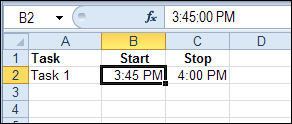
In the screen shot below, the Task start times are entered in column B and the end times are entered in column C.
Calculate the Elapsed Time
Based on the start and end times, you can calculat the elapsed time, by subtracting the start time from the end time.
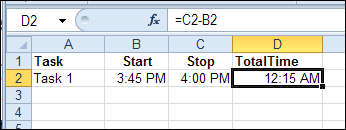
In this example, I’ll calculate the time in cell D2, using this formula:
=C2-B2
Format the Elapsed Time
There is a 15 minute difference in the start and end times in this example, but the result cell is showing a time – 12:15 AM
To see the result as hours and minutes of elapsed time, change the formatting:
- Select cell D2, where the elapsed time is calculated
- Press Ctrl + 1 to open the Format Cells dialog box
- On the Number tab, click the Time category
- Click on the 37:30:55 format, then click OK
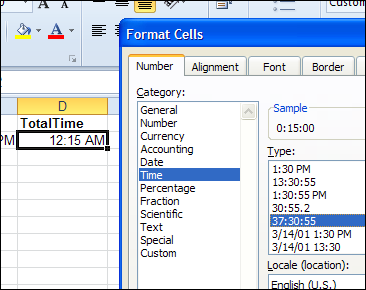
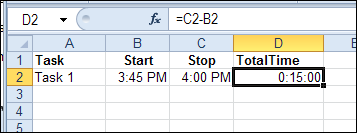
This format displays an overall total of hours, minutes and seconds. Cell D2 now shows the elapsed time of 15 minutes.
Formula Error When No End Time
The formula works well if a start time and an end time have been entered. But there is a problem if only the start time has been entered.
The result in cell D3 is a negative number, because the start time is subtracted from zero (the value of empty cell C3).
Excel displays negative dates and times as #####.
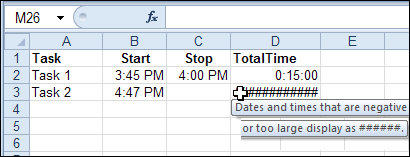
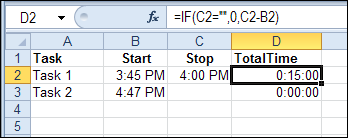
To avoid this problem, add an IF function to the formula in cell D2, and copy it down to cell D3:
=IF(C2=””,0,C2-B2)
Now, the formula checks cell C2, and if it is empty, the formula result is zero.
Formula Error After Midnight
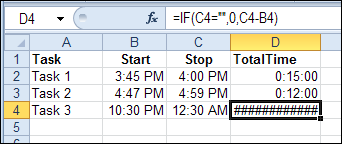
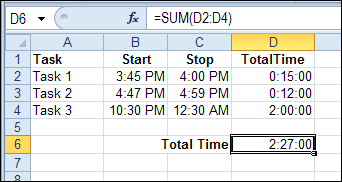
If you’re burning the midnight oil on client projects, you’ll run into another error. In the screen shot below, the start time for Task 3 is 10:30 PM, and I worked past midnight – ending at 12:30 AM.
The formula result is a negative number, because the end time is smaller than the start time.
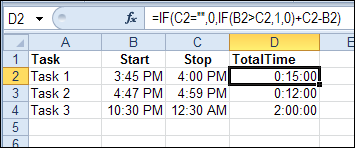
To fix this problem, change the formula one more time. If the start time is greater than the end time, assume that the task ended the next day.
In that case, add 1 to the end time, which is the equivalent of adding a full day to the end time. That makes the end time greater than the start time, and the calculation will work correctly.
=IF(C2=””,0,IF(B2>C2,1,0)+C2-B2)
Add the Task Times
To get the total time for all your tasks, use the SUM function. It should automatically format the total cell in the 37:30:55 format, but if not, you can format the cell manually.
=SUM(D2:D4)
________________
I am trying to keep time for example from 8:00 am to 17:00 pm but I need to subtract 1 hr of break. How I can make the formula?
You can split the time from when you clock in to lunch then from when you return from lunch to when you leave. I wrote one formula then modified another to achieve this result. However the formulas I have are for working night shift, past midnight. Anyway you make the formula for the first half of the day then add (+) the formula for the second part of the day and it will exclude the lunch break. Another way is to subtract it at the end if it’s always a set amount of time.
Hi There…,
i need excel start calculating time automatically when system is locked.
Here by expect the in time result weather they come late or early and out time vise versa. for example the timings of a worker starts by 9:00:00AM and ends by 07:00:00 in this situation i want to calculate the Late hours they came or worked and OT done in the particular day
Thank you! Still works in August of 2017 (with office 365 subscription)! What a time saver!
I modified it a bit to account for lunch break and it works great and convert the time to decimal. I ran into the issue with working past midnight and I had written a completely different formula similar to this one in some ways, but also different. It worked, but I wanted to keep a running track through the shift, including lunch breaks. I will probably modify my other formula as well and see if I can get the same result with two different approaches? Thanks for making this one available. Cheers!
Hi Leonard,
I have just started trying to track my Excel project time for some consulting work and found this site. Would you please share your set-up with me? Thanks.