
In Excel 2007 and Excel 2010, you can use the new SUMIFS function to sum items using multiple criteria.
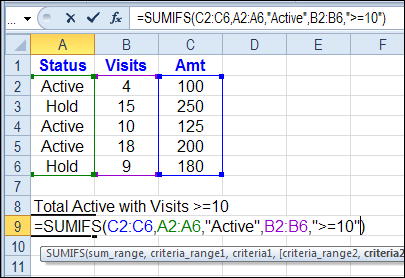
For example, sum the orders where an account status is Active, and the number of visits is greater than or equal to 10.
You can type in the criteria, but it’s better to use cell references, where possible.
I’ve updated the Excel SUM page on the Contextures website, to include the SUMIFS function example and video.
Watch the SUMIFS Video
To see the steps for creating a SUMIFS formula, and using cell reference, watch this short Excel video.
There is a full transcript below the video
Video Transcript
In Excel, you can use the SUMIFS function if you’d like to sum a column based on values in two or more of the adjacent columns.
Here we would like to find a total where the status is Active, and the number of visits is greater than 10.
This only works in Excel 2007 and later versions.
In this cell we’re going to create a formula, starting with an equal sign, and then SUMIFS, open bracket.
Then the first thing we want to do is indicate which cells will be summed once we set the criteria. The amounts are what I want to sum in C2 to C6
Then a comma, and we’ll do our first criteria range. So where should it check for the first criteria?
That’s going to be the status. I’ll select those cells, type a comma, and I’m going to type in the status that I’m looking for.
So inside a double quote, I’ll type Active and end with another double quote and then a comma.
The second criteria range is the number of visits. I’ll select that, and then a comma.
This time I’m going to use operators, as well as the number 10. Within quotes, greater than, equal to, and another quote. We’re going to find visits where it’s greater than or equal to, and an ampersand, and the number 10
Then close the bracket, and press Enter. We can see there were a total of $325 for Active accounts with 10 or more visits.
Instead of typing our values into this formula, we could use a cell reference.
Up here, I have a cell that says Active, and one that has our minimum value that we want to check for.
I’m going to select the double quotes and the word Active and just click on the cell that has that criterion.
The same thing where I have the 10 here. I’m going to click on the cell where I’ve typed a 10. When I press Enter, we get the same number as our results, but now it’s more flexible.
I can type 5 here instead of 10, and we might see a different result here. I can see there’s one there a 4, so if I type a 4, my value changes to include that $100 amount.
_____________
Why Does Sumifs work with operators of Less Than or Greater than, but not exact numbers? Example
=SUMIFS(D3:D17,C3:C17,20,C3:C17,50)
This will not work, but
=SUMIFS(D3:D17,C3:C17,”>” & 20,C3:C17,”<" & 50)
This will work.
Juanita,
If you use “<50" (or whatever the number you are testing against) in the SUMIFS, I have gotten that to work. I don't know what has been changed, but I seem to get sporadic results using a list {value1, vaue2, …} in hte criteria.
@Juanita,
SUMIFS works for exact numbers:
=SUMIFS(D3:D17,C3:C17,”=20″,D3:D17,”=40″)
Your first example works because it is summing values in D where column C contains a value between 20 and 30 (>20 AND <50). Your second example is summing values where Column C contains 20 AND 50. As Pete says above, this can never happen.
Approved Formulas:
=SUMIFS(H2:H17,A2:A17, “>=19999”,A2:A17, “<=30000")
=SUMIFS(Sheet1!H2:Sheet1!H17,Sheet1!A2:Sheet1!A17, A2)
Optional Formulas:
=VLOOKUP(A2,Sheet1!$I:$J,2,FALSE)
=SUMIFS(H2:H17,A2:A17, "a")
good one, it helped me a lot
I’m trying to use SUMIF formula with two different sheets (both are in same file) however I keep getting zero as answer. HELP! Example =sumif(‘filename’!$D$2:$D$100,A10,$G$4:$G$100) is there something that I’m missing so formula will get data from other sheet? THANKS!