
In Excel 2007 and Excel 2010, you can use the new COUNTIFS function to count, based on multiple criteria.
For example, in a list of orders, you can find out how many orders were for pens, and had a quantity of 10 or more.
Page Updates
I have updated the Contextures COUNT Functions page, to include a COUNTIFS example, and video demo.
If you are using Excel 2003, or earlier versions, you can use the SUMPRODUCT function instead. There is an example for that function on the COUNT page too.
Watch the COUNTIFS Video
To see the steps for using the COUNTIFS function, you can watch this short Excel video tutorial. The written steps are on the Contextures COUNT Functions page.
There is a complete transcript of the tutorial directly beneath the video.
VIDEO TRANSCRIPT
Counting With Criteria
In Excel you can count using criteria with the COUNTIF function.
In later versions of Excel (2007 and later) you can count multiple criteria with the COUNTIFS function.
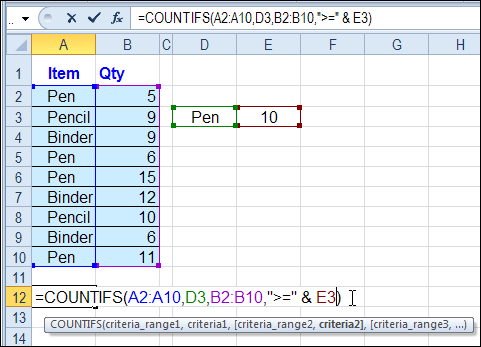
So here we have a list of items that we’ve sold and the quantity for each.
We would like to find the number of orders where a pen was the item sold and the quantity is greater than 10.
First Criteria
So in this cell I’m going to start with an equal sign and then type COUNTIFS an open bracket and the first thing I’m going to check is the item that was sold.
The range, first range is A2:A10. Then I’ll type a comma and the criteria for that range I’m just going to type in here inside double quotes pen, and then another comma.
That’s the first thing we’re going to check, is what item was sold.
Additional Criteria
Next will be the quantity so I’ll select the range that has the quantities, another comma and we want quantity greater than or equal to 10 so within double quotes
I’ll do a greater than symbol, equal, and a 10, then another double quote
Close the bracket and press Enter. There were two orders for pen where the quantity is greater than 10. Instead of typing these criteria in here I can refer to a cell.
So instead of typing pen inside double quotes, I could click on a cell where I have typed the word pen. The same for this criteria for the quantity
I’m going to take out the 10 just by deleting that, leaving the operators within the double quotes.
Adjustments
Then I’ll type an ampersand and the cell that has the number. So this is greater than or equal to whatever number is in cell E3.
When I press ENTER I get the same result. It’s just easier to change.
Then I could type a 5 here now, and we see that there were 4 orders where the quantity is greater than or equal to 5 instead of the 10 that we had in there before.
So this formula is much more flexible if you use cell references, rather than typing the values in as hard-coded values.
End Of Transcript
_________
What new features does Excel 20007 have? Sorry couldn’t resist 🙂
Oops! I was seeing a bit too far into the future. 😉
Thanks, it’s fixed now.
I need to pull out a multiple criteria from a list of 3,000 companies & individuals. I have used the function =IF(SUM(COUNTIF(A2,{“*Dr.*”,”*Drs.*”,”*Dr *”,”*Drs*”}))>0,”Yes”,”No”) to pull out Doctors. In the function I leave a space after “*Dr *”, so that the results do not include words like “Drive”etc.
I used the FIND function to pull out individuals(“,”,A2:A3000,1). I use the results from 1-14 in the FIND function to find the individuals. The individuals in the list always have a common after their last name so the find function works.
How do I combine the two functions to produce the results in one column.
Thank you
Excellent. This saved me an hour of work.
Thank you!
this is a good video for countifs function
Dear,
It will already appreciated if u help me in doing contifs function with three columns one of them with two text criteria.
Many thanks in advance
Thanks for an excellent video!