
There is a new sample file on the Contextures website, with a macro to change all pivot tables with one selection, when you change a report filter in one pivot table.
Change All Pivot Tables
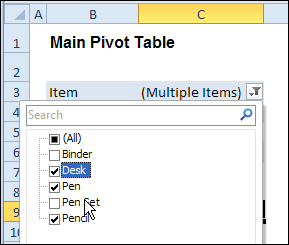
In the sample workbook, if you change the “Item” Report Filter in one pivot table, all the other pivot tables with an “Item” filter will change.
They get the same report filter settings that were in the pivot table that you changed.
Select Multiple Items
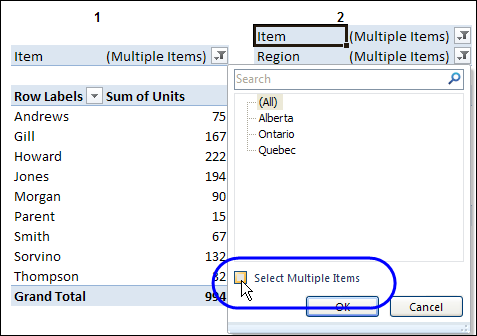
In this version of the sample file, the “Select Multiple Items” setting is also changed, to match the setting that is in the pivot table that you changed.
In the screen shot below, the Item field has the “Select Multiple Items” setting turned off. If any other pivot tables in the workbook have an “Items” filter, the “Select Multiple Items” setting for those fields will also change.
How It Works
The multiple pivot table filtering works with event programming. There is Worksheet_PivotTableUpdate code on each worksheet, and it runs when any pivot table on that worksheet is changed or refreshed.
For each report filter field, the code checks for the Select Multiple Items setting, to change all Pivot Tables with the same report filter field.
The code loops through all the worksheets in the workbook, and loops through each pivot table on each sheet.
Private Sub Worksheet_PivotTableUpdate _
  (ByVal Target As PivotTable)
Dim wsMain As Worksheet
Dim ws As Worksheet
Dim ptMain As PivotTable
Dim pt As PivotTable
Dim pfMain As PivotField
Dim pf As PivotField
Dim pi As PivotItem
Dim bMI As Boolean
On Error Resume Next
Set wsMain = ActiveSheet
Set ptMain = Target
Application.EnableEvents = False
Application.ScreenUpdating = False
For Each pfMain In ptMain.PageFields
  bMI = pfMain.EnableMultiplePageItems
  For Each ws In ThisWorkbook.Worksheets
    For Each pt In ws.PivotTables
      If ws.Name & "_" & pt <> _
          wsMain.Name & "_" & ptMain Then
        pt.ManualUpdate = True
        Set pf = pt.PivotFields(pfMain.Name)
          bMI = pfMain.EnableMultiplePageItems
          With pf
            .ClearAllFilters
            Select Case bMI
              Case False
                .CurrentPage _
                  = pfMain.CurrentPage.Value
              Case True
                .CurrentPage = "(All)"
                For Each pi In pfMain.PivotItems
                  .PivotItems(pi.Name).Visible _
                    = pi.Visible
                Next pi
                .EnableMultiplePageItems = bMI
            End Select
          End With
          bMI = False
        Set pf = Nothing
        pt.ManualUpdate = False
      End If
    Next pt
  Next ws
Next pfMain
Application.EnableEvents = True
Application.ScreenUpdating = True
End Sub
Download the Sample File
To test the Change All Pivot Tables code, you can download the sample file from the Contextures website.
On the Sample Excel Files page, in the Pivot Tables section, look for PT0025 – Change All Page Fields with Multiple Selection Settings.
The file will work in Excel 2007 or later, if you enable macros.
Watch the Video
To see the steps for copying the code into your worksheet, and an explanation of how the code works, watch this short video.
______________________
@maritrack – if you’ve got Excel 2010 or later you could use slicers to do this with no code. Slicers do take up a bit of extra screen real estate, but they are very easy to set up, pretty much bullet-proof, and very very fast. See http://blog.contextures.com/archives/2011/03/07/filter-multiple-pivot-tables-with-excel-2010-slicers/
Or you could use my code from http://blog.contextures.com/archives/2013/06/18/update-multiple-pivot-tables-20130618/ that uses slicers to sync any pivots that share the same pivotcache, and another approach for pivots that don’t share the same cache (or if you don’t have Excel 2010 or later).
This code lets you specify:
1. any sheets you DON’T want the macro to check
2. any specific pivot tables that you DON’T want the macro to synchronize.
Thanks so much! I’ll give it a shot
Actually, this didn’t quite work for me since all of my pivots are on the same sheet. I am using 2007, so cannot use slicers. Is there a way to ignore certain pivot(s) using the code posted above? thanks!
Maritrack: It shouldn’t matter whether your pivots are on the same sheet or not. And if I’ve programmed it correctly, the code should work even in Excel 2007 (although in that case it won’t use slicers, it will use an alternate and slightly slower approach instead).
I suggest you download my code from http://blog.contextures.com/archives/2013/06/18/update-multiple-pivot-tables-20130618/ and try it as is on your 2007 system. If it works, then we know that the code will also work on your specific dataset with a few tweaks.
OK – I tried different codes and was able to get one of them work. It’s the one posted here – PivotMultiPagesChangeAllVar.zip – (the one that changes only one field for all pivot tables on active sheet). This actually helps me since I only want one particular field (report date) to be updated in bulk. I couldn’t figure out how to use the macro you suggested (I am very new to macros and vba programming,…). So my code looks like this and updates the ‘Report Date’ field on all pivot tables on my sheet. Ideally, I would like my pivot tables be updated only if one particular pivot table is updated. Is it possible to make it happen using this code? I think I would need to set the name for ptMain., but again, I know so little about this so I am just getting lost. I appreciate your help very much!
set pfMain = ptMain.PivotFields(“Report Date”)
bMI = pfMain.EnableMultiplePageItems
For Each pt In wsMain.PivotTables
If pt ptMain Then
pt.ManualUpdate = True
Set pf = pt.PivotFields(“Report Date”)
bMI = pfMain.EnableMultiplePageItems
With pf
.ClearAllFilters
Select Case bMI
Case False
.CurrentPage = pfMain.CurrentPage.Value
Case True
.CurrentPage = “(All)”
For Each pi In pfMain.PivotItems
.PivotItems(pi.Name).Visible = pi.Visible
Next pi
.EnableMultiplePageItems = bMI
End Select
End With
bMI = False
Set pf = Nothing
pt.ManualUpdate = False
End If
Next pt
I am using the “This_Sheet_All_Fields” code, but need to adapt it so it works for Row Labes instead of filter fields. Is that possible?