
There is a new sample file on the Contextures website, with a macro to change all pivot tables with one selection, when you change a report filter in one pivot table.
Change All Pivot Tables
In the sample workbook, if you change the “Item” Report Filter in one pivot table, all the other pivot tables with an “Item” filter will change.
They get the same report filter settings that were in the pivot table that you changed.
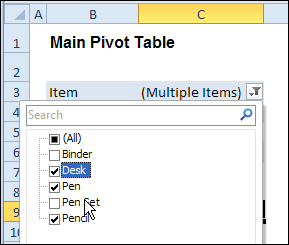
Select Multiple Items
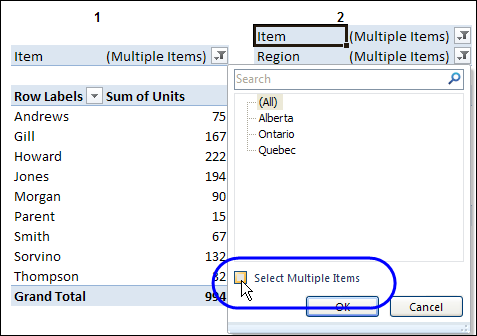
In this version of the sample file, the “Select Multiple Items” setting is also changed, to match the setting that is in the pivot table that you changed.
In the screen shot below, the Item field has the “Select Multiple Items” setting turned off. If any other pivot tables in the workbook have an “Items” filter, the “Select Multiple Items” setting for those fields will also change.
How It Works
The multiple pivot table filtering works with event programming. There is Worksheet_PivotTableUpdate code on each worksheet, and it runs when any pivot table on that worksheet is changed or refreshed.
For each report filter field, the code checks for the Select Multiple Items setting, to change all Pivot Tables with the same report filter field.
The code loops through all the worksheets in the workbook, and loops through each pivot table on each sheet.
Private Sub Worksheet_PivotTableUpdate _
  (ByVal Target As PivotTable)
Dim wsMain As Worksheet
Dim ws As Worksheet
Dim ptMain As PivotTable
Dim pt As PivotTable
Dim pfMain As PivotField
Dim pf As PivotField
Dim pi As PivotItem
Dim bMI As Boolean
On Error Resume Next
Set wsMain = ActiveSheet
Set ptMain = Target
Application.EnableEvents = False
Application.ScreenUpdating = False
For Each pfMain In ptMain.PageFields
  bMI = pfMain.EnableMultiplePageItems
  For Each ws In ThisWorkbook.Worksheets
    For Each pt In ws.PivotTables
      If ws.Name & "_" & pt <> _
          wsMain.Name & "_" & ptMain Then
        pt.ManualUpdate = True
        Set pf = pt.PivotFields(pfMain.Name)
          bMI = pfMain.EnableMultiplePageItems
          With pf
            .ClearAllFilters
            Select Case bMI
              Case False
                .CurrentPage _
                  = pfMain.CurrentPage.Value
              Case True
                .CurrentPage = "(All)"
                For Each pi In pfMain.PivotItems
                  .PivotItems(pi.Name).Visible _
                    = pi.Visible
                Next pi
                .EnableMultiplePageItems = bMI
            End Select
          End With
          bMI = False
        Set pf = Nothing
        pt.ManualUpdate = False
      End If
    Next pt
  Next ws
Next pfMain
Application.EnableEvents = True
Application.ScreenUpdating = True
End Sub
Download the Sample File
To test the Change All Pivot Tables code, you can download the sample file from the Contextures website.
On the Sample Excel Files page, in the Pivot Tables section, look for PT0025 – Change All Page Fields with Multiple Selection Settings.
The file will work in Excel 2007 or later, if you enable macros.
Watch the Video
To see the steps for copying the code into your worksheet, and an explanation of how the code works, watch this short video.
______________________
I can’t seem to get the code to work on excel 2003. I created two pivot table on the same worksheet called DRG. Then I right clicked the worksheet, view code, and copied to pivottable update subroutine. I removed update all worksheet codes.
That is it right? but nothing happens to the second pivot table when I change the first pivot table filter.
Am I missing something?
Thanks for this code; it’s excellent! I have the same question as Richard from October.
In my 2010 spreadsheet, I have three pivot tables that all contain “regions”. The same region numbers do not appear in each of the three pivot tables. Therefore, when I select a region (say “2”) PT1 and PT3 may have that value, but since PT2 does not, I see (All) entries. Is there a way for the tables that don’t contain the selected data to show (blank)?
Thank you!
Lance
@Lance: Add somne dummy lines in your source data…one for each region. That way, each region will ALWAYS appear in each pivot table. That should solve your problem.
@Jeff – thank you, that worked!
@J: Re your comment , I use this with pivot tables from a database connection – I find that if I refresh the data connection, the pivot filters reset. My work around is to comment out the vba but is there any way around this?
Because filters don’t persist between refreshes, one way i’ve got around this in the past is to do a refresh, and then refilter the pivots with code. E.g. something like this:
With Sheet9.PivotTables("NPV View").PivotFields("Cost Type")

        .PivotItems("Depreciation").Visible = False

        .PivotItems("Capital Charge").Visible = False

End With
Hi,
first of all massive thanks for sharng this….this came in soooo handy for various reports.
But I now have a slight problem with it. I have a report with two pivots on one tab……I have a line graph from one of the pivots. I added a secondary axis to this graph but I lose it everytime a change a pivot table fitler (ie it reverts back to one axis)
I should add that if change the filter/pivit that the chart drives off, everyhting is fine,,,,it’s when I change the fitler/pivot on hte other pivot table that I lose the seconday axis.
Can you offer any help (bit of a mouthful I know)? Not sure what’s causing this and therefore what to do to rectify.
yours in hope (adn thanks a millions again)
Dave
David: Can you share a file of this with non-confidential data?
Also, if you’re using Excel 2010 or greater, do you get the same behavior if you use Slicers?