
Welcome back! The Contextures Blog was out of commission for a couple of weeks, and it’s nice to be up and running again. A few of the shingles blew off during the reconstruction, so if you notice anything missing or broken, please let me know!
Focus on Data with Report Filter Fields
Now that we’re back in business, let’s take a look at the Report Filter fields in a pivot table. In older versions of Excel, these were called Page Fields, and they help you focus on specific data in an Excel pivot table.
Drop fields into the Report Filter area of the pivot table layout. Then, select one or more items from that pivot table field, to see the summarized data for the selected items.
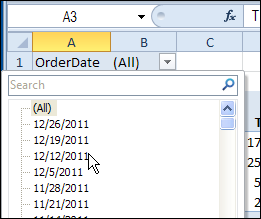
In this example, the Order Date field is in the Report Filter area, and you can select a specific date, to see its orders.
Group Dates in the Date Field
If you put a date field in the Report Filter area, there might be a long list of dates in the drop down list. Instead of seeing the individual dates, you might prefer to group them, by year or month.
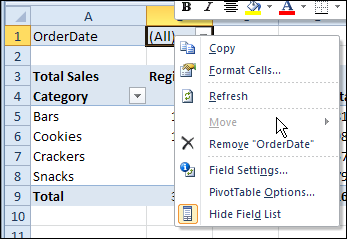
However, if you right-click on the Report Filter field, there isn’t a command that lets you group the data.
Are you doomed to a miserable existence of scrolling through the date list?
The Date Grouping Workaround
Fortunately, there is a workaround that solves the Report Filter grouping problem. It’s not pretty, but it works!
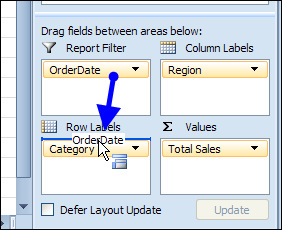
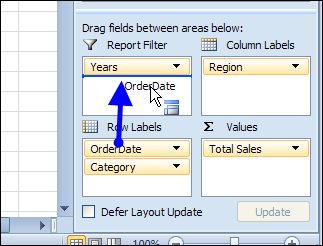
To enable the grouping command, you’ll temporarily move the Report Filter field to the Row Labels area. In the screen shot below, the OrderDate field is being dragged to the Row Labels area.
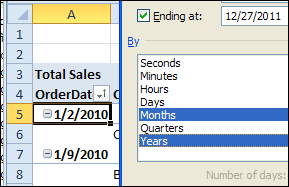
Then, right-click on the field in the pivot table, and click Group. Select the Grouping options that you want, and click OK.
Back to the Report Filters Area
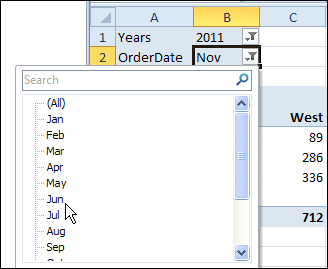
Move the grouped fields back to the Report Filter area. In this example, the OrderDate field was grouped by Year and Month, and that created a new field – Years.
Both the Years field and the OrderDate field are dragged back to the Report Filter area.
Now, the pivot table can be filtered by year and/or month.
Maybe in the next version of Excel you’ll be able to group the fields, without moving them from the Report Filter area.
_________
Funny that dates are often grouped by default in the dropdown fashion when using regular filters in Excel, but this is the only solution I’ve come across for grouping dates for Pivot Table filters. This is what prompted me to start with Power BI. I know it’s off topic but if you are developing reporting tools and find Excel to be limited and/or tedious I would recommend taking it up. I now have a countless pages of BI reports which require only very limited maintenance and I haven’t encountered any significant limitations.
Thanks for the tip! 1 question: This new field [Date (Year)] is now listed in the Fields area. How to remove it?
Ten years later I note that you still have to do this! Also fun to see that I commented back then.
It’s only been 10 years, Doug – these things take time! 😉
Or, as Bill Gates once said, “Plus ça change, plus c’est la même chose”
P.S. It might have been someone else who said that.