
Usually, it’s easy to sort an Excel pivot table – just click the drop down arrow in a pivot table heading, and select one of the sort options. Occasionally though, you might run into pivot table sorting problems, where some items aren’t in A-Z order.
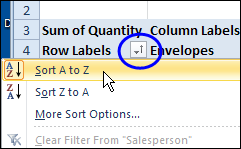
Pivot Table Sorting Problems
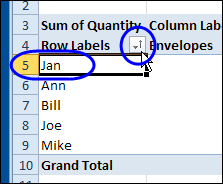
In some cases, the pivot table items might not sort the way that you’d expect. In this example, there are sales representative names in column A, and they have been sorted alphabetically, A-Z.
However, after sorting the items, Jan is at the top of the list, instead of Ann. The rest of the items are sorted correctly, but Jan is the exception.
Video: Wrong Item at Top in Pivot Table
After you sort an Excel pivot table, the wrong item might appear at the top.
In this video, I show how to fix that problem, so all items are listed in alphabetical order, A-Z.
There are written steps below the video.
NOTE: There are more pivot table sorting tips on my Contextures website, and there is another video at the bottom of this page. It shows how to fix NEW pivot table items that are not in alphabetical order.
Why the Sort is Incorrect
In this example, Jan is at the top of the list, because Excel assumes Jan means January, and “Jan” is in one of Excel’s built-in custom lists.
There are built-in custom lists of weekday names and month names — both the full names (January, February, etc.), and 3-letter versions (Jan, Feb, Mar, etc.).
In addition to the built-in custom lists, you can also create your own custom lists, such as districts, or departments, or other lists of items.
Custom Lists and Pivot Tables
By default, Excel’s custom lists take precedence when you’re sorting labels in a pivot table. The built-in lists and the custom lists that you create, will both affect the pivot table sorting.
Fortunately, if things don’t sort the way that you need them to, you can fix the problem, by changing a pivot table setting.
Fix Pivot Table Sorting Problems
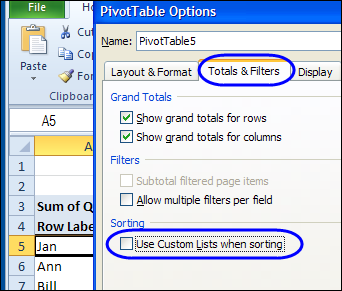
To prevent the custom lists from taking precedence when sorting a pivot table, follow these steps to change the setting:
- Right-click a cell in the pivot table, and click PivotTable Options.
- In the PivotTable Options dialog box, click the Totals & Filters tab.
- In the Sorting section, remove the check mark from “Use Custom Lists When Sorting”
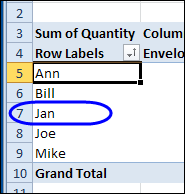
Sorting Correctly
After you adjust that pivot table setting, the list of names changes, and Ann is shown at the top, instead of Jan.
More Pivot Table Sorting Tips
If this tip didn’t fix your sorting problem, go to the Pivot Table Sorting page on my Contextures site. There’s more information there, to help you fix sorting problems and macros to make sorting easier.
And this video shows another pivot table sorting problem that you might see in your Excel workbooks — new items are not in alphabetical order. See how to fix that problem.
____________
Ah. So that’s why “Sun” always appears at the top…
Thanks Debra.
I have created two pivot tables using the same data – within the same workbook – on the original pivot table I can get the “date” field to sort – no problems. On the new pivot table that I created in the workbook so I could “add measure” and insert text – I didn’t have the same options for my date field – I couldn’t specify “product” in the field settings so I added the dates as “add measure” – and it won’t sort at all – no matter what I do. It’s formatted as a “date” but it doesn’t work. It seems like if I want to use “add measure” there are quite a few things (like just having a date column as “product”) that does not work. It seems like I can either have my text or my date sorted but not both. It’s maddening!
Doesn’t work at all for me, unfortunately. Using Office 365 ProPlus.
This doesn’t work for me at all. The column that never sorts correctly is a list of stock symbols. As the pivot table is updated over time it just adds the new stock symbol on the end of the list. So this was no help.
Lisa, try this solution on my Contextures website, for seeing new pivot items in the correct order:
https://www.contextures.com/excel-pivot-table-sorting.html#videoorder
— Debra
Thank You for the information!
You put a smile on my face today. This issue hit me and I couldn’t understand why ‘MAY’ was listed first on an alphabet sort. Been playing with pivot tables for 10 years and never hit this condition. Sure enough, the box was checked.
Thank you for the tip and brightening my day!
You’re welcome, z, and thanks for letting me know that the tip fixed your pivot table problem!