
Easter has passed for this year, but it’s never too early to figure out when Easter will occur next year. Then, you can book your vacation for that date, and be out of town when the family shows up for Easter dinner!
Last week, Excel MVP Jerry Latham showed us how to calculate distance in Excel, based on starting and ending points.
Today, Jerry explains how you can calculate Easter dates in Excel, using a worksheet formula or Excel User Defined Function (UDF).
Easter Formulas
First, Jerry gives a few examples of Excel worksheet formulas for Easter dates, where the year is entered in cell A1. This formula, by Norbert Hetterich, works if the regional settings have a day/month/year date format.
=FLOOR(DAY(MINUTE(A1/38)/2+56)&”/5/”&A1,7)-34
And here’s another Easter formula, by Thomas Jansen:
=DOLLAR((“4/”&A1)/7+MOD(19*MOD(A1,19)-7,30)*14%,)*7-6
However, the worksheet formulas can’t be used reliably to determine dates of Easter after 2203, and the Hetterich formula fails for 2079.
Easter User Defined Functions
If you’re working with a limited range of years, one of the worksheet functions might be all that you need. However, for accuracy in a wider range of years, you can use an Excel UDF instead.
Jerry’s article includes 4 Excel UDFs for calculating Easter dates in Excel, and he has tested all the UDFs for speed and accuracy.
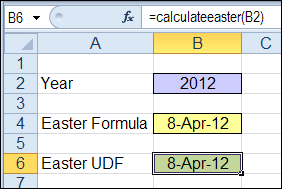
To use the UDFs, copy the code to your workbook, then type the function name in a worksheet formula, e.g.
=CalculateEaster(A1)
Download the Easter Date Workbook
Visit the Excel Easter Date Calculation page on the Contextures website, where you can see the Easter formulas and UDFs, and copy them to your own workbook. Or, download Jerry’s sample file, and work with the code and formulas there.
If you have questions or comments, please let Jerry know. You can post a comment below, or send him an email at [email protected]
________________
Hmm, “pre” is not one of the tags listed when we click the “You can use these HTML tags” link. I am going to test it out below with a nonsense code fragment just to see if we can use it or if it is something reserved only for the forum hostess.
Sub TestingPreTag() If YouAreReadingThis Then YouCanIgnoreIt Because, Its, Meaningless End If End SubObviously it didn’t work 🙁
When I look at the Source for this webpage, my attempt to use “pre” tags got changed to letter “p” tag instead (the re was removed), so I guess that tag is not globally available to responders.
In WordPress admin, go to Settings – Writing and uncheck the “Convert emoticons…” box. That will fix it, but I won’t be able to properly convey my mood when commenting. >:P
Thanks Dick, and sorry about the loss of the smiley faces. 🙁
@Rick, strange that I can use that “pre” code in the comments too, but it won’t allow you to do the same.
Checking on the WordPress site, I found that only the site Admins and Editors can use special HTML in the comments.
If you post a comment, and want the pre tags, just let me know, and I’ll add them.
Format length formula with year in A2
1900 84 =FLOOR((8&-A2)-MOD(30*INT(11*MOD(A2;19)-68%*INT(A2%)+INT(A2%/4)+44,55);29,032);7)-97
=7*INT((8&-A2)/7-MOD(4*INT(68%*INT(A2%)-INT(A2%/4)-11*MOD(A2;19)-43,55);4,13797))-97
1904 83 =FLOOR((5&-A2)-MOD(30*INT(11*MOD(A2;19)-68%*INT(A2%)+INT(A2%/4)+44,55);29,032);7)-5
=7*INT((5&-A2)/7-MOD(4*INT(68%*INT(A2%)-INT(A2%/4)-11*MOD(A2;19)-43,55);4,13797))-5
190x 95 =FLOOR((5&-A2)-DAY(6)-MOD(30*INT(11*MOD(A2;19)-68%*INT(A2%)+INT(A2%/4)+44,55);29,032);7)+DAY(1)