
It’s easy to add a line break when you’re typing in an Excel worksheet. Just click where you want the line break, and press Alt + Enter. But how can you add a line break in an Excel formula?
Line Break in Excel Text
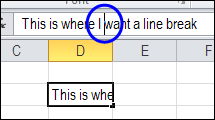
Here is an example of adding a line break in Excel text.
- The cursor is positioned where the line break should be added.
- Press Alt+Enter
- Press Enter, to complete the entry and move to another cell
Wrap Text Added Automatically
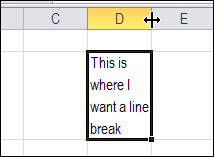
When you press the Enter key to complete the entry, the line break appears, and Wrap Text is automatically added to the cell.
You might have to adjust the column width though, because the text won’t flow into the next column.
Add a Line Break in a Formula
It’s not quite as easy to add a line break in a formula, but it’s possible!
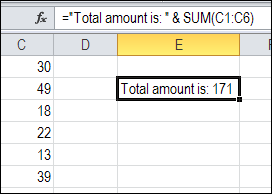
Here is a formula that shows text, combined with the sum of the values in C1:C6
=”Total amount is: ” & SUM(C1:C6)
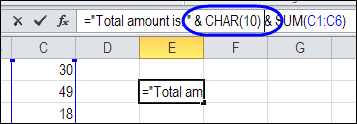
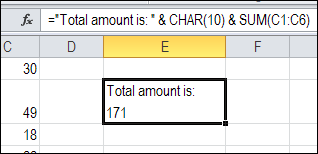
To add a line break between the text and the total amount, use the Excel CHAR function, with the number 10. The “&” operator is included too, to join the line break character to the other text in the formula.
=”Total amount is: ” & CHAR(10) & SUM(C1:C6)
Turn on Wrap Text
After you add the line break, and press Enter, you might see a strange little box, where the line break should be.
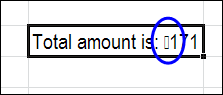
The Wrap Text feature isn’t automatically turned on, when you add a line break in a formula. You’ll have to turn it on yourself.
Select the cell with the line break in the formula, and on the Ribbon’s Home tab, click the Wrap Text command.
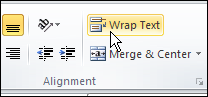
Then, you’ll see the line break in the cell, instead of the little square.
Video: Find and Replace Line Breaks
Watch this short video, to see the steps for adding a line break in a cell that contains. Then see how to find the line breaks in Excel, and replace them with space characters.
To get the Excel workbook, with the Add or Remove Line Breaks in a Cell in Excel example, go to the Excel Line Breaks page on my Contextures site.
__________
You can also do this via custom formatting — see http://datapigtechnologies.com/blog/index.php/forcing-carriage-return-in-custom-date-format/ for an example.
It works for me when i see in Excel. However, when i copy paste to Notepad, it adds a double quote in many areas. What should be done ? I use Office 365
>It works for me when i see in Excel. However, when i copy paste to Notepad, it adds a double quote in many areas. What should be done ? I use Office 365
This is an intended behaviour. Each cell content must be surrounded by quotes. Otherwise you wount have way to distinguish ‘internal’ break lines of cell/row break linkes.
if you want it in no quotes, paste into word first
You read my mind !!!
last week, in one of the LinkedIn Excel groups, someone posted a problem, which I offered to help, and part of my solution was to display concatenated cells that had at the end the CHAR(10), so the final text looked like one row per each cell included on the CONCATENATE.
I did exactly as you said, and… well, it didn’t showed up the way I wanted to… Maybe I am missing something?
It doesn’t work. Must be version issues
you need to make sure that “wrap text” is enabled on that cell. Without this, the new line character is ignored.
Custom formatting also has the advantage of maintaining the cell(s) as numeric values.
@Martin,
You have to turn Word Wrap on for the cells you want to display multiple lines. You do this by calling up the “Cell Format” dialog box for those cells, click the Alignment tab and put a check mark in the “Wrap text” check box and then click OK.
Thanks Rick, I’d done that, that was the origin of my question.
Rgds.
@Martin, you would need to include the CHAR(10) after each cell in the formula, not just once at the end.
This is a very useful trick of excel. Thanks for sharing. My excel cell texts used to be very long before applying this technique.