
 Last year, we celebrated the Discovery Channel’s Shark Week, by using the LARGE and FLOOR functions.
This year, we’ll pay tribute to the three known species of sharks that are filter feeders, by declaring this Excel Advanced Filter Week.
Yes, we’ll have three fun-filled, action-packed days of Excel filtering fabulousness – one day for each filter feeding shark. Please hold your applause until all three articles have been posted.
Advanced Filter Criteria Range
We’ll kick off the week’s celebrations by filtering rows with missing data (blank cells) to a different worksheet.
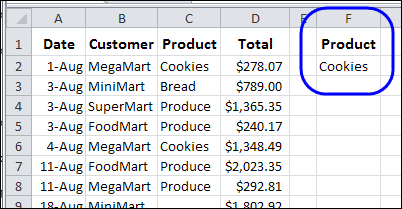
When you’re using an Advanced Filter, usually you would enter a heading, and one or more criteria, in a criteria range, like the one shown below.
In this example, you would be filtering the customer order list for any orders with Cookies as the product.
Blank Cells in Data
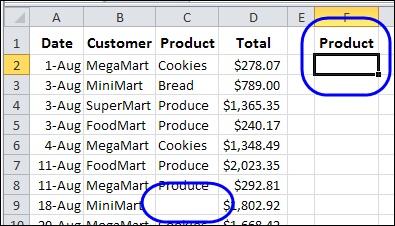
However, if you want to filter orders with a blank cell for Product, you can’t just leave the criteria range blank.
A blank criteria cell is interpreted as “No criteria”, so all the records would pass through the filter. That might be fine for a shark, but not for an Excel report.
Filter for Blanks in Advanced Filter
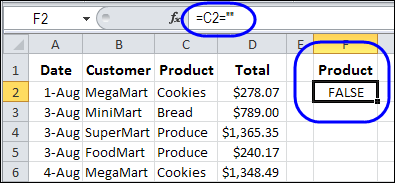
Instead of leaving the criteria cell blank, you can use a formula, to check for empty cells. In this example, the first product data is in cell C2, so the formula is:
=C2=””
The two double quote marks represent an empty string, so if C2 is not blank, the formula result is FALSE.
Only the records that calculate to TRUE would pass through the filter.
Remove the Criteria Range Heading
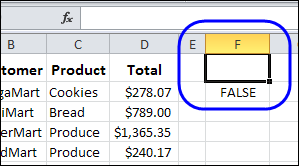
If you’re using a formula in an Advanced Filter criteria range, the heading can’t match any of the source data headings.
You can either clear the heading cell in the criteria range, or type a different heading.
I usually clear the heading cell, because that’s quick and easy!
Run the Advanced Filter
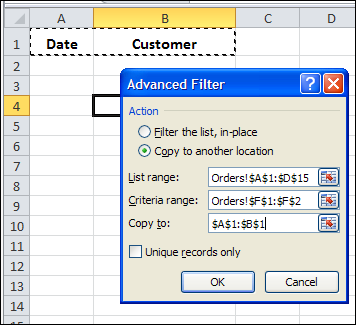
After you set up the criteria range, you can run the Advanced Filter. Remember, if you want the results on a different worksheet, select that destination sheet before you run the filter.
In this example, the filter is started from the Blank Orders sheet, and the list and criteria range are on the Orders sheet.
Download the Advanced Filter Blanks Workbook
To see the sample data, and test the filter, you can download the Advanced Filter for Blanks sample workbook. The file is in Excel 2007 format, and is zipped.
Watch the Advanced Filter for Blanks Video
To see the steps for setting up the criteria range, and running the filter, you can watch this short Excel video tutorial.
___________________
Personally I’m a fan of using =Clean(Trim(C2))=”” to catch any cells with non-printable characters and leading spaces in them.
Thanks David, good tip!
This is an interesting method to use advanced filter with formulas as the criteria !
Usually, to filter for blanks in a specific column, I define the filter criteria with the column header in Row 1, and just an = in the criteria (value) cell, and define the 2 cells as the criteria.
In this example, it would be :
Product
=
And the filter criteria range would be F1:F2.
This method has the added advantage of indicating which column is being filtered for BLANK values.
Good call Khushnood – I never thought of that.
So I don’t confuse myself when I create complicated filters using formulas, I use =” Product” syntax in the column header of the filter criteria. Typically I use a space or underscore to precede the actual name of the column that’s being filtered.
You could also use =” “&C1 as the name of column header for the filter header depending on how fancy you want to get or if the names of your columns change frequently.
David, this method has been around since Excel 1997 (at least).
In fact, I learnt my advanced filtering (and many other tricks) from Debra’s web-site !
But the formula-based approach is also interesting, though a bit confusing at first bite 🙂
Question:
If you precede the column header with a space or underscore, won’t that give 0 records ?
Or do you _not_ include the header definition cell in the filter criteria range ?
Or am I missing something here ? 😐
Q. If you precede the column header with a space or underscore, won’t that give 0 records ?
A. Nope. When using formulas in your criteria you can name the criteria whatever you like as long as it doesn’t match one of the headers in your selected data table.
Q. Or do you _not_ include the header definition cell in the filter criteria range ?
A. You can include the header in the filter criteria range or not – it doesn’t affect the results either way. I typically include the header cell for the of consistency across my criteria.