
When you’re working with Excel VBA, you might want find the last row with data, so you can paste new data in the row below that.
The following code works up from the last row on the worksheet, until it hits a cell with data. It’s like using the End key and Up arrow, to manually move from the bottom of the worksheet.
Sub GetLastRow()
Dim ws As Worksheet
Dim lRow As Long
Set ws = ActiveSheet
lRow = ws.Cells(Rows.Count, 1).End(xlUp).Row
MsgBox lRow
End Sub
In the sample sheet, the last data in column A is in row 10, and that’s the result when running the code.
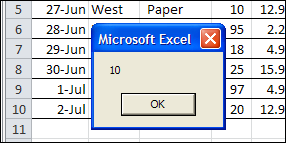
Unexpected Result
This week, I was using similar code in a client’s workbook, to find the last row of data. The data was in a named Excel table, and the last couple of rows in the table were blank. I wanted to find the last row with data, so I could change the table definition, to end at that last row.
When I used the same Excel VBA code, the last row wasn’t what I expected – it found the last row in the named table, even though that row was empty.
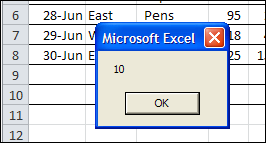
I’m sure that information is helpful in some situations, but it sure wasn’t going to help me resize the table!
My Last Row Workaround
There might be a more sophisticated solution to this problem, but I added a line of code to resize the table, so it ends at row 2.
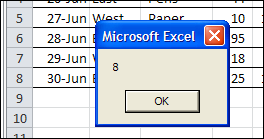
Then, the code found the correct last row of data, and resize the table to end at that row.
Sub ResizeTheTable()
Dim ws As Worksheet
Dim lRow As Long
Set ws = ActiveSheet
ws.ListObjects(1).Resize ws.Range("$A$1:$H$2")
lRow = ws.Cells(Rows.Count, 1).End(xlUp).Row
ws.ListObjects(1).Resize ws.Range("$A$1:$H$" & lRow)
MsgBox lRow
End Sub
That fixed the problem, and the table resized correctly.
A Better Solution?
Have you run into this problem with named Excel tables? How did you solve it?
Video: Create an Excel Named Table
When you work with lists in Excel, use the built-in Table feature, to make it easy to sort and filter your data. This short video shows the simple steps
____________
Thanks for all the suggestions!
[…] I complained about having trouble getting Excel VBA to correctly find the last row with data in a column, when using Excel tables. Thanks for the suggestions on solving that […]
Thank you Gregory – yours was the only answer that catered for rows that had been added then deleted
Private Sub myButton_Click()
Dim lastRow As Long
Dim drcSheet As Worksheet
Set drcSheet = ThisWorkbook.Worksheets(“My Table”)
With drcSheet.ListObjects(“tabActiveProjs”)
lastRow = .Range.Cells(.ListRows.Count, 2).End(xlUp).Row
End With
MsgBox lastRow
End Sub