
In an Excel UserForm, you can use combo boxes, to show users a drop down list of items. If all goes well, the users will select an item from the list, and life will be good.
However, the occasional user likes to get creative, and types an entry that isn’t in the drop down list. And that can cause problems!
To restrict those creative users, you can set the MatchRequired property for the combo box to True.
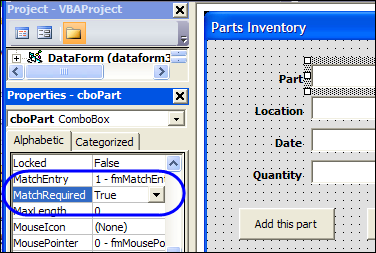
Add a Select Item
Changing that MatchRequired property can cause problems though. In this example, the Excel VBA code also tries to clear out the combo boxes, after adding an order to the parts database sheet.
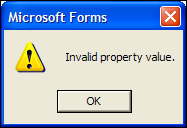
Because an empty string isn’t a valid entry, an error message appears — “Invalid Property Value”.
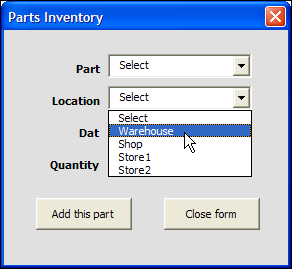
To prevent that error from appearing, you can add “Select” as the first item in the drop down list, and reset the combo boxes to that item, instead of clearing them out.
Download the Sample Combo Box Workbook
To download the sample file, go to the Excel Templates page on my Contextures site. In the UserForms section, look for UF0026 – Prevent Invalid Entries in UserForm.
The file is in Excel 2003 format, and zipped. Enable macros after opening the workbook.
Watch the Excel UserForm Combo Box Match Video
To see the steps for changing the MatchRequired setting, and editing the code, you can watch this short Excel video tutorial.
_________________
Hi, is it possible to store the date in different cells? For example: I have 3 categories, Hard, Liquid and Gas. If my first option is Hard then data will enter from A5, if it’s Liquid then from A105, and if it’s Gas then the data will store from A205. Is it possible by VBA?
It’s almost same as the tutorial above. I’ll enter 4 data in the User Form, but the data will be stored in different cells, according to their category (which should be my first option on the user form)
How do you prevent Select from being a valid entry that populates to the worksheet. I need to require the user to choose from the drop down, but not allow select as an acceptable choice.
But how do you keep the user from clicking select and it being an acceptable option?