
If you work with data in Excel, you know what a mess it can be. I help my customers clean up data that they’ve imported from another computer system, or from reports received from another department or group.
Those files can be filled with spelling mistakes, strange abbreviations, extra spaces or missing punctuation.
Cleaning the Data
It can take you hours, or days, to match items between lists, and eliminate any duplicates. Your favourite Excel functions, like VLOOKUP or MATCH, can do some of the work, but fail in other areas.
Shaking your fist, or cursing at the data, doesn’t help, as I’m sure you know.
Fortunately, there is a new Fuzzy Lookup Add-in for Excel, from Microsoft’s BI Labs, that looks promising.
Fuzzy Lookup Add-in for Excel 2010
The new add-in is named Fuzzy Lookup Add-in for Excel 2010, and it helps you find best matches, for items that aren’t an exact match. The project description says:
It can be used to identify fuzzy duplicate rows within a single table or to fuzzy join similar rows between two different tables. The matching is robust to a wide variety of errors including spelling mistakes, abbreviations, synonyms, and added or missing data.
That sounds useful, so I downloaded the add-in, and installed it for testing.
Set Up the Fuzzy Lookup
When you open Excel 2010, after installing the Fuzzy Lookup add-in, you’ll see a Fuzzy Lookup tab on the Ribbon, and it contains the Fuzzy Lookup command.

Follow these steps to set up the Fuzzy Lookup:
- The add-in works with formatted tables, so create one or more Excel tables in your workbook, if you haven’t done so already. The add-in download includes a sample file named Portfolio, which contains Excel tables.
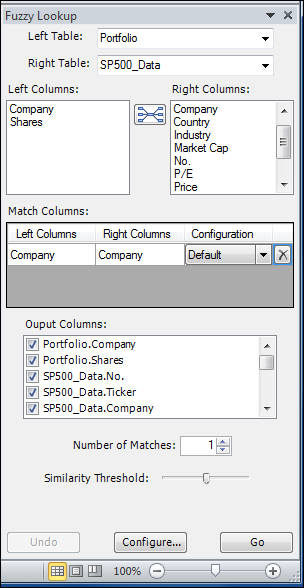
- On the Ribbon, click the Fuzzy Lookup command, to open the Fuzzy Lookup pane.
- Select the left and right tables for the comparison (to identify matches in a single table, set the left and right tables to be the same)
- Columns with the same heading will be automatically joined. You can leave that join, or delete, and create new joins for other fields.
- For the Output columns, select the columns in each table that you want in the output table. Include the FuzzyLookup.Similarity column, to see how close the matches are.
- Leave the number of matches at the default of 1, or increase it to see more matches for each item in the left table.
Run the Fuzzy Lookup
After you set up the Fuzzy Lookup, follow these steps to run it:
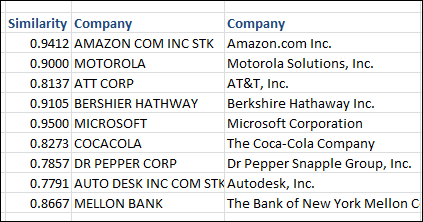
Select a cell in an empty part of the workbook. The results will start in the active cell, so make sure there is enough room, below and to the right of the selected cell.
Click the Go button, to output the results.
Configure the Fuzzy Lookup
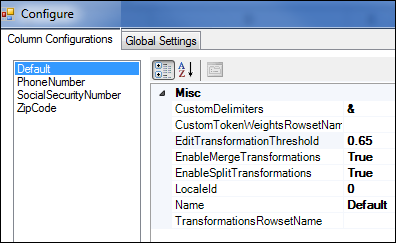
You can change the configurations in the Fuzzy Lookup add-in, and create your own.
Test It Yourself
To do your own testing, you can download Fuzzy Lookup Add-in for Excel 2010. The download page has a couple of videos that you can watch, for an overview of how the add-in works.
____________
@Philip, I haven’t used those custom functions, so can’t compare them.
Shame. I’ll have a play with this one in that case, and see what I think.
Regards,
Philip
LOVE IT!!!! This add in just saved me hours of manual work. Can’t wait to see the next version.
VERY slow if you are comparing datasets of any size. For 10000+ records, be prepared for times in the hours.
hello all
does anyone know if one can use the addin through vba. i tried to use the addin as a COM addin in VBA but i was unable to get this to work. does anyone know how one can use the addin and call it from vba?
I’m having the same issue as allan … I need to be able to activate Fuzzy Lookup using Access VBA, and ideally set all of the parameters and run it so my user doesn’t have to. I’m finding very little on the web re: this. Anyone have any ideas? I’m using Office 2010. Thanks!