
There is a page on the Contextures website that describes how to clear old items in pivot table drop downs. Someone ran into a problem with that code, and here’s how we fixed it.
Problem with Clear Old Items Code
This week, Laurence emailed me about a problem he was having with those instructions to clear old items. Keep reading, to see how we solved the problem.
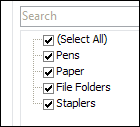
Old Items in the Pivot Table
Those old items can appear if you change the pivot table source data – for example, you might remove a few obsolete products, or change a sales rep’s name.
When you refresh the pivot table, the new data can appear, but the old names still show up in the drop down lists, that you use for filtering.
Manually Clear the Old Items
One way to clear the old items is to do the steps manually:
- Remove pivot field(s) from the pivot table layout
- Refresh the pivot table
- Put the pivot field(s) back in the pivot table layout
Change a Pivot Table Setting
In Excel 2007 or Excel 2010, you can change a pivot table setting, to prevent old items from appearing.
- Right-click any cell in the pivot table, and click PivotTable options
- In the PivotTable Options dialog box, click the Data tab
- In the Retain Items section, select None from the drop down list.
- Click OK, then refresh the pivot table.
Use a Macro to Clear Old Items
If you’re using Excel 2002 or Excel 2003, there isn’t a Retain Items setting in the Options dialog box, but you can prevent old pivot items, with a bit of programming.
Things weren’t so easy, in earlier versions of Excel, so you’ll need a longer piece of code to remove the old items from the pivot table. Laurence, who emailed me about the problem, is still using Excel 2000.
I’m sure he’s not the only one, so here’s the issue that he encountered, and the simple solution.
Problems With the Code
The code loops through all the worksheets, and all the pivot tables on each sheet. Laurence has 3 pivot tables on one worksheet, and was running the code to clear old pivot items in Excel 2000 and Excel 97. However, the code was hanging, and stopping somewhere in the second pivot table update.
He uploaded his sample file, in case I wanted to take a look at it, so I stepped through the code to see what was happening. The pivot data source wasn’t too big, and the pivot tables only had a few fields, but Excel seemed to go into overload in the second pivot table.
At the end of each pivot table loop, there were 2 lines:
    pt.ManualUpdate = False
    pt.RefreshTable
That’s a belt and suspenders approach, because the pivot table should refresh when ManualUpdate is set to False.
Remove a Line of Code
In one of my tests, I removed the pt.RefreshTable line, and the code ran smoothly. It removed all the old items, and the pivot tables all refreshed, without the additional line of code.
I was using Excel 2010, and Laurence confirmed that the same solution worked in his file, using Excel 2000. I hope that helps you, if you ever encounter a similar pivot table update problem.
I’ve updated the code sample on the Contextures website, to alert future readers.
_________________
I happened to this problems before and well solved, but when it comes again, I forget how to fix. this is really helpful for me.
Thank you very much for publishing this page.
I used the “Change a Pivot Table Setting” part and it did exactly what I was looking for!
Thanks again.
Hello. I would like to ask some help on how to retain Value Field Settings > Show Values As when refreshing a Pivot Table. Thank you very much!
Perfect – thank you
Debra, you’re a Excel Master, just what I needed
Thanks! I’m glad it helped.
Hello Debra,
It is 2015 and this is still a life saver. Even in Office 2016.
Your code here: http://www.contextures.com/xlPivot04.html#Clear2002 is also very useful.
Thanks.
@viscar, you’re welcome! I’m glad the code is still useful, after all these years.