
One of my clients uses a pivot table to summarize product sales, using sales data from their accounting system. Occasionally, they’d like to type a number in the pivot table, but Excel won’t let you change values in a pivot table. Here is a workaround for that limitation.
Pivot Table Sales Report
Occasionally, the client’s salespeople send product samples to a customer, and those sample quantities aren’t included in the sales data. They’d like to have those numbers in the printed report though, which is based on a pivot table.
For a quick solution, they’d like to enter the sample quantities in the Values area of the pivot table, instead of creating records in the source data.
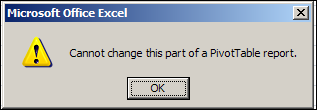
However, if you try to type in a cell in the Values area, an error message appears — Cannot change this part of a PivotTable report.
Create a Calculated Item
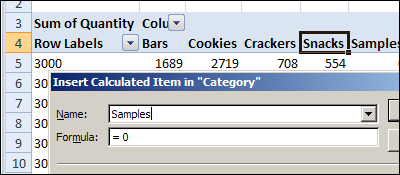
Although you can’t type in most cells in the Values area, you can type in cells that contain calculated items. To allow manual entries for the sample quantities, you could create a calculated item with the name Samples, as described below.
To create a calculated item for Samples:
- Select one of the label cells for the product category field. If you don’t select one of these cells, you won’t be able to create a calculated item for that field.
- On the Ribbon’s Options tab, in the Tools group, click Formulas, and then click Calculated Item.
- As a name for the calculated item, type Samples.
- Leave the default formula of =0, and then click OK.
Change the Values
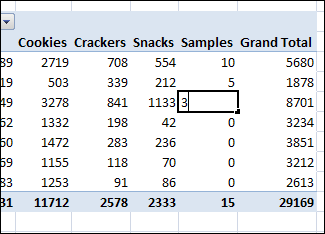
After you create the calculated item, it’s automatically added to the pivot table, and you can change the values.
To change a value:
- In the pivot table, select one of the calculated item cells
- Type the number of samples you sent to that store, and press the Enter key
- The totals will change, to include the typed numbers.
NOTE: If you delete the number in a calculated item’s cell, you won’t be able to make any further changes to that cell. Type a zero instead of pressing the Delete key, and you will be able to edit the cell again later.
More Pivot Table Info
For more information on pivot tables, follow these links:
___________
For the record, in excel 2010, to get to calculated item use the Option tab, but in the Calculations Group, click the “Fields, Items, & Sets” drop down and choose Calculated Item.
Does this work in 2003? I tried and get the error, ‘You cannot edit…”
@Rich, yes this technique will work in Excel 2003, if you type in a cell that has a calculated item value.
This is not working for me. I use Excel 2010 and following the steps outlined but it still does not allow me to enter an item/number in the pivot table. I am trying to use the pivot table for review then allow the user to enter their budget numbers in a columns within the pivot table. Any help is appreciated. Thank
Thanks very much for your post: Change Values in a Pivot Table. The ability to change values opens up new possibilities with pivot tables. I tested it and found that while I could change the value, I was not able to use Excel formulas to calculate the new value. For example, I’ve created a table with Actual Sales (row 1), Sales Forecast (row 2)and a Revised Sales Forecast (row 3, a calculated item equal to row 2) by month. I’d like to change the the Revised Sales Forecast by entering a excel fomula of 10% of Sales Forecast, (row 2). But of course I get an error. Is there a way around this error?
Debra – I came across this post about 2 weeks ago and have found that it works great. I wanted to include this feature in a process here but my only hang up is that after I have entered my values into the table, it’s use is really temporary. If the data source changes either adding items or removing them the values I’ve entered now show up all over the table. I know there is no “one-to-one” relationship since I entered the new values but do you think there is anyway around this?