
Do you ever use the Excel Advanced Filter feature? Or is all your filtering done with an AutoFilter?
AutoFilter Benefits
For ease of use, it’s hard to beat the Excel AutoFilter feature. Just click the Filter command on the Excel Ribbon’s Data tab, and the filter is ready to go.
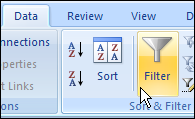
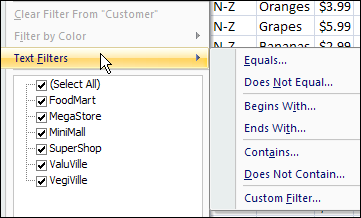
You can click the drop down arrows in the column headings, and use the check boxes to select the items you want in the filter. Or, use the Text, Date or Number Filters commands, for variations on the filters.
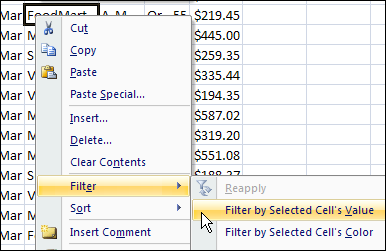
Another quick way to filter is to right-click on a cell in the list, then click Filter, and click Filter by Selected Cell’s Value.
Advanced Filter Benefits
The Excel Advanced Filter isn’t as easy to use (I guess that’s why they call it Advanced 😉 ), but it does have some benefits that make it worth the effort.
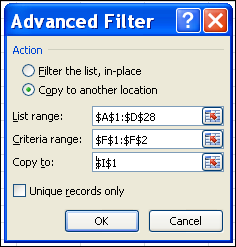
After you click the Advanced command on the Excel Ribbon’s Data tab, the Advanced Filter dialog box opens. Fill in the details, and then click the OK button to filter the data.
Filter Data to Anther Sheet
The main reason that I use an Advanced Filter, especially when programming in Excel, is that it’s a quick and efficient way to copy specific data to a different worksheet.
In the screen shot above, the option is selected to copy the filtered data to another location. You can use that option to quickly create a report for each department, or salesperson, and email the results.
NOTE: You have to start the Advanced Filter from the destination sheet. Click this link for detailed instructions and a video.
Create a List of Unique Items
Excel 2007 introduced the Remove Duplicates feature, but I still use an Advanced Filter to create lists of unique items. The Remove Duplicates feature strips the duplicates out of the list that is selected, so you have to remember to work on a copy of the list, if you want to keep the original list intact.
With an Advanced Filter, no items are removed from the list, so you don’t risk losing any of your original data.
Complex Filters
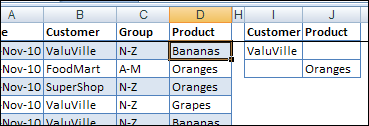
With an Advanced Filter, you can create a criteria range on the worksheet, and see at a glance what the filter settings are. You can also create complex filters with AND/OR settings that go beyond what an AutoFilter can do.
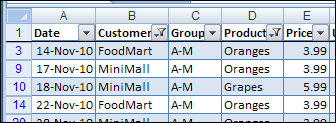
For example, with an AutoFilter, you can select two specific customers, and two products for those selected customers.
With an Advanced Filter, you can create OR conditions between columns, such as Customer A OR Product B — you can’t do that in an AutoFilter!
_________
I’ve developed a whole class around the advanced filter. It makes it much easier to use and the class figures out how to order everything for me. All I tell the class is, I want you to AND these in this column and OR it with these from another column, I want them to be for the whole selection, or match case, or use wild cards, or spit out unique values after the filter, etc. It took me three weeks (someone skilled probably could have done it in a couple of days) to write but it is so nice to have a piece of code that can make filter super easy. Many times I’ll opt for the class over using the find function.
When I try and use the Advanced Filter to copy filtered data to another worksheet a pop-up box appears telling me that you can only copy filtered data to the active sheet. Are you able to copy filtered data to another worksheet using the Advanced Filter via VBA or does VBA have it’s own functions?
Oops, never mind I just used the macro recorder to copy filtered data to the same sheet, then modified the CopyToRange in the VBA code to include another worksheet and it worked like a champ.
Gregory,
you have to open the Advanced Filter dialog box from the destination(!) sheet.
Regards,
Dominik.
@Dominik Thanks for that tip. It seems weird we have to do that just to copy data to another worksheet.
@Jon, sounds like all your programming work was worth the effort!
@Dominik, thanks for answering the question.
@Gregory, glad you figured out how to make it work in your code, and there is a short video here showing the steps to filter to a different sheet manually:
http://www.contextures.com/xlVideos04.html#AdvFiltSheet