
Would you prefer a bigger font size for items in a data validation drop down list?
Could you save typing time, if the words were completed automatically, as you started typing them?
Data Validation Combo Box
Not all your dreams can come true in Excel, but this tip might fulfill a few of them. Instead of using data validation, you can use a combo box on an Excel worksheet to show a drop down list.
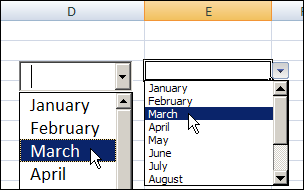
At the left, in the screen shot below, is a combo box, and you can compare it to the data validation drop down list on the right.
Combo Box Features
Unlike data validation, the combo box can be formatted and fine tuned. For example, in a combo box, you can:
- change the font size
- increase the number of visible rows in the list
- use the AutoComplete feature to make data entry easier
- always see the drop down arrow
Create a List
In this example, there is a named range — MonthList — with a list of the 12 month names.
- Tip: There are step-by-step instructions on my Contextures website, for naming a range of cells.
This named range is used in the data validation list, and we will also use it as the source for the combo box.
Add a Combo Box to the Worksheet
To add a combo box on an Excel sheet, follow these steps:
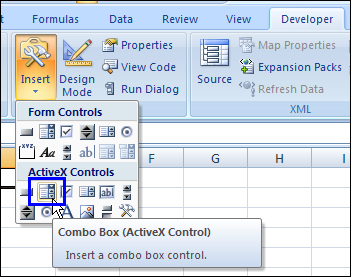
- On the Excel Ribbon, click the Developer tab (If you don’t see a Developer tab, click here for instructions on how to add it)
- In the Controls group, click Insert, then click the Combo Box in the ActiveX Controls section
- Then, click on the worksheet, to create a default sized combo box (or drag with the pointer, to create a combo box in the size that you need)
Set the Combo Box Properties
After you create the combo box, follow these steps to change its properties:
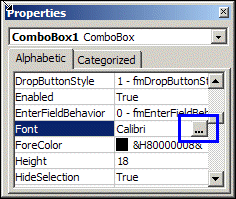
- Right-click on the combo box, and click Properties
- To change the Font size, click the … button at the right of the Font property
Add Items to Combo Box
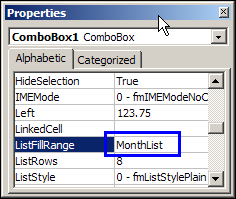
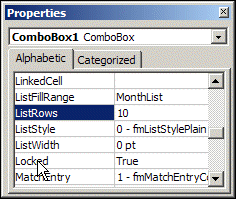
To add items to the combo box drop down list, type a range name or range reference in the List Fill box.
In this example, we use the named range, MonthList.
You could use a range address instead, such as B2:B13
Number of Rows in Drop Down
To change the number of visible rows in the drop down, increase or decrease the number in the ListRows property box.
For a list of 12 months, we could change the setting to 12, so all the months can be seen, without scrolling through the list.
Activate the Combo Box
After you’ve made the changes to the combo box properties:
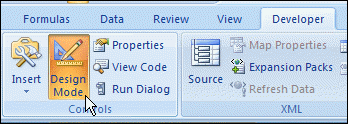
- Click the Design Mode command on the Excel Ribbon’s Developer tab, to exit Design Mode.
- Click the drop down arrow on the combo box, to see the list, and click an item to select it.
Use a Combo Box With Data Validation
You can also use a combo box to supplement a data validation list, as described on the Excel Data Validation Combo Box page on the Contextures website.
In that example, there’s one hidden combo box on the worksheet, and it appears if you double-click a data validation cell.
Watch the Excel Combo Box Video
To see the steps for creating an Excel combo box with a drop down list, and changing its formatting, watch this short excel video tutorial.
_________
Combo boxes are much easier to use for lists than Data Validation. Great tutorial on how to set up a combo box.
I’d like to point out to those who can’t find the Developer tab, that it’s not shown by default on the Ribbon. Right click anywhere on the Ribbon, select Customize the Ribbon, click the box beside Developer under Main Tabs, and click OK.
@Gregory,
Are you perhaps using XL2010? I don’t have XL2010 installed yet, so I can’t check, but the procedure you outlined does not work in XL2007. For that version, it appears that you have to click the Office Button (the big round icon in the upper left corner of Excel’s window), click the Excel Options button on the dialog that appears, select Popular from the lefthand listing on the next dialog box that appears and put a check mark in the “Show Developer tab in the Ribbon” checkbox in the “Top options for working with Excel” panel on the righthand side. And, just to mention it for those using XL2003 and earlier version (that offer VB), you would click View/Toolbars/VisualBasic from the menu bar.
@Rick
I completely forgot they added new functionality in Excel 2010 to customize the Ribbon, and consequently the right-click toolbar has a new shortcut to “Customize the Ribbon” that’s not available in earlier versions of Excel. Good catch. My bad.
And to be thorough, in Excel 2011 for Mac the Developer tab has to be turned on as well by using the “Customize Toolbars and Menus…” option from the View – Toolbars menu.
I’m using MS2007 and whatever I type does not save in the ListFillRange, thus I cannot assign the list name to use in the combobox. My combo box is in Workbook1, sheet 2; but my list is in Workbook 1, sheet 1. I have been unsuccessful even using a list in the same sheet. What am I missing? The video is great.
Thanks.
So I’m able to get the ListFillRange to work by typing in the range of cells within the same worksheet (e.g., J2:J2282), but this still does not solve the issue of a text name for a list. Further, I am trying to set up a data entry form, using the activex combobox so the data entry personnel can use the autocomplete feature. We will have thousands of records to enter and I am looking for a way to use the simplicity of data validation to copy the format to various cells but want to use the autocomplete and list features of the combobox. Additionally, I am using the lookup function to find the value selected in the combobox and return a cost value that is preset. If using the data validation, the lookup function works great, but I cannot figure out how to have this function apply to a combobox. Is there an easier way to tackle this? Thanks for any suggestions/help.
Thank you for an enlightening description of how to use this feature.
I use the Mac version of Excel and can’t seem to find the way to adjust the Properties of the combo box. Right-click or control-click doesn’t bring up a Properties dialog box.
Any suggestions?