
To make it easier to people to enter data in your Excel workbook, you can create drop down lists in the cells, by using Excel data validation. These lists will also help prevent invalid entries in your worksheets.
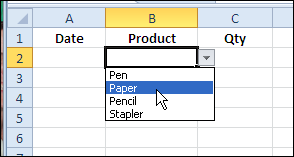
Drop Down List Video Update
A couple of years ago, one of the first videos that I uploaded to YouTube showed how to create data validation drop down lists in Excel 2003.
I’ve just finished a new version, for Excel 2007 and Excel 2010, and you can see it at the end of this blog post. The new video includes a couple of shortcuts that will make it even easier to create those drop down lists.
Name the Item List
When creating drop down lists, you can use a list of items from a different worksheet, as long as you give a name to that list of items first.
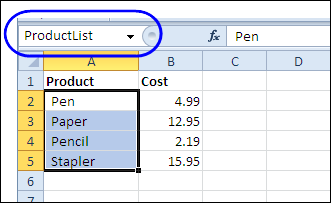
Here’s the quickest way to name the list of items:
- Select the items
- Click in the Name Box
- Type a one-word name, and press Enter.
Create the Drop Down Lists
After you’ve named the source list, you can add the drop down lists, by following these instructions:
- Select all the cells where you want the drop downs.
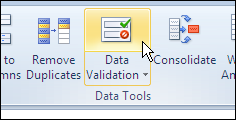
- On the Excel Ribbon, click the Data tab, then click the Data Validation command.
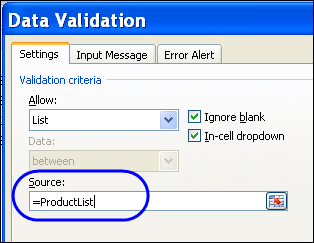
- In the Data Validation dialog box, under Allow, select List.
- Then, click in the Source box, and press F3 on your keyboard, to open the Paste Name box. (Quicker than typing the name)
- Click on the Name that you want to use in the drop down list, then click OK
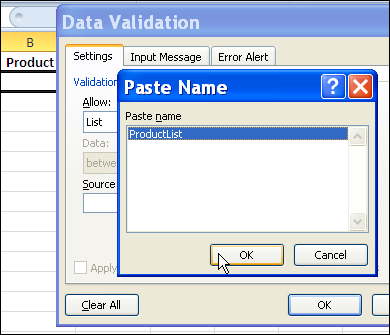
- An equal sign and the name will appear in the Source box.
- Click OK, to create the drop down lists.
Watch the Data Validation Video
To see the steps for creating drop down lists with data validation in Excel 2007 and Excel 2010, watch this short video.
__________
@Ed: How do you ensure only one item is selected on the slicer?