
It’s finally summer, and you need to stay cool, even when you’re using Excel. Here’s an energy-efficient and fast way to find and delete Excel rows. You can select several rows that contain similar data, and delete them all at the same time.
Find All the Data
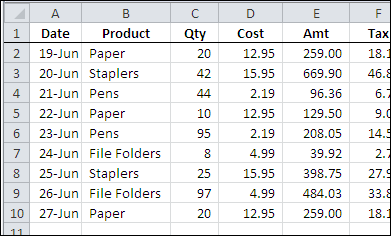
In the worksheet shown below, there is a list of products sales, and a few of the records are for paper sales.
I’d like to delete those paper sales rows, without having to sort the worksheet, or spend a long time manually selecting the rows.
Find the Paper Rows
To find all the Paper sales rows, I can use the Excel Find command. Here are the steps to do that:
-
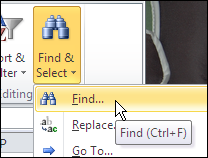
- On the Ribbon’s Home tab, click Find & Select, and then click Find.
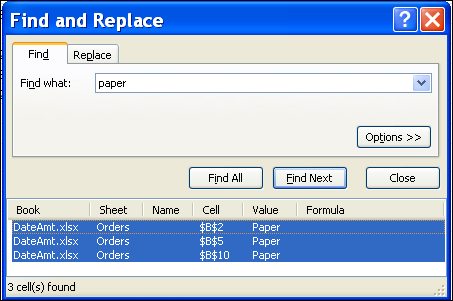
- In the Find and Replace dialog box, type “paper” in the Find What box.
- Click Find All, to see a list of all the cells that contain the text, “paper”
- Select an item in the list, and then press Ctrl+A, to select the entire list. That will also select all the “paper” cells on the worksheet.
Delete the Selected Rows
To delete the entire row for each “paper” cell that was found, follow these steps:
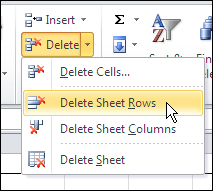
- On the Ribbon’s Home tab, click Delete, and then click Delete Sheet Rows.
All the selected rows will be deleted, and the other product orders remain on the worksheet.
Video: Find and Delete Excel Rows
To see the steps to find all the instances of a word, and delete the selected rows, watch this short Excel video tutorial.
More Find and Replace Examples
See more ways to use the Find and Replace commands in Excel, on my Contextures website.
Also, see how to select rows based on their conditional formatting colour, and delete the filtered rows. This example uses a list in a named Excel table.
___________
Thank you! This saved me a lot of time (more than 3 hours perhaps)!
This cut my work time in half. Thank you very much!
Thank you for sharing. it helps me a lot!!
Fantastic
Thank you
Great tip Debra! I’m working on a similar problem except I’m trying to delete rows containing any one of about 200 keywords/phrases from a sheet with +250,000 rows in total. I tried recording your tip and it gave me the following code but when I replay it, it only deletes the first row containing the keyword. Any suggestions on how I can get it to work using VBA? Merry Christmas!
Sub Macro1()
Cells.Find(What:=”KEYWORD TO BE DELETED”, After:=ActiveCell, _
LookIn:=xlFormulas, LookAt:=xlPart, SearchOrder:=xlByRows, _
SearchDirection:=xlNext, MatchCase:=False, SearchFormat:=False).Activate
Selection.EntireRow.Delete
End Sub
Jeff,
The VBA you recorded is not searching for all instances in the active worksheet. The code you posted above, searches for one instance of “KEYWORD TO BE DELETED”, activates that cell, then deletes only that Row. You could try:
Sub Macro1()
Last = Cells(Rows.Count, “COLUMN”).End(xlUp).Row
For i = Last To 1 Step -1
If (Cells(i, “COLUMN”).Value) = “KEYWORD TO BE DELETED” Then
Cells(i, “A”).EntireRow.Delete
End If
Next i
End Sub
Replace COLUMN with the letter of the column “KEYWORD TO BE DELETED” is in.
Krystal, I would be for ever grateful if you could explain a very similar problem to me. I have 7000 patents in an Exel 2010 worksheet. I have a list of 1000 of those patents to delete. The list of patents that I want to delete references the Publication Number. So, I want to some how look up those 1000 Publication Numbers in the worksheet of 7000 and delete the whole Row of information associated with that Publication Number. I can send you the Excel Workbook, I am sure that it would be clear to you what I want to do after seeing it. Thank you Thank you Thank you!
did you find an answer?
This was the only search result that gave me the simple solution. Thank you!!!